

How garnishments work
A garnishment is an order from a court or agency to withhold part of a worker’s pay toward a debt, such as child support, a tax levy, a student loan, or a creditor judgment. Once you add a garnishment under Pay → Garnishments, Zeal withholds it from every paycheck for that worker until it ends. You don’t add anything to individual checks.- Garnishments apply to both employees and contractors.
- They are withheld from disposable earnings. What counts as disposable earnings depends on the worker:
- Employees: taxable gross pay, minus taxes, minus pre-tax deductions such as a 401(k).
- Contractors: the full payment. No taxes are taken out first.
- Garnishments aren’t a box on the W-2. A contractor’s 1099 still shows the full payment, including the amount garnished.
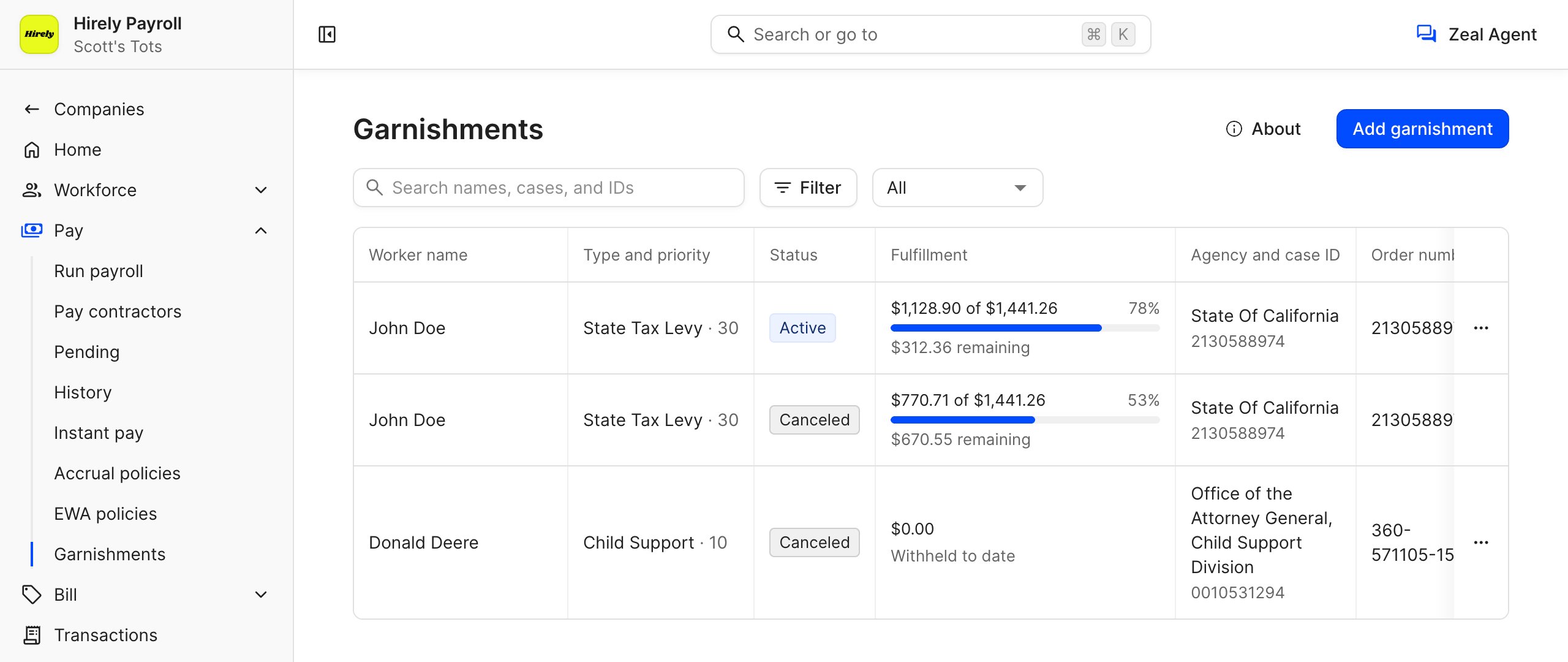
The Garnishments page
When a garnishment ends
Two settings decide when Zeal stops withholding. Both are optional.- Amount owed: the total balance of the debt. When the total withheld reaches it, the garnishment is satisfied. Zeal never withholds more than the balance left, so the last paycheck may withhold less than usual.
- End date: the last day the garnishment applies. Paychecks after this date aren’t garnished.
Start date is required. Withholding begins with the first paycheck on or after it, so you can add an order ahead of time.
Amount already withheld is for orders that were partly paid before you added them to Zeal, for example by a previous payroll provider. It counts toward the amount owed, so Zeal only collects what’s left. For example, $4,200.00 owed with $1,000.00 already withheld means Zeal collects $3,200.00.
When a garnishment ends on its own, its status changes to Satisfied.
How much is withheld per paycheck
Every garnishment needs a limit on how much to take from each paycheck. Choose a Withholding rule.Simple: caps
Set a cap amount, a cap percentage, or both.- Cap amount: the most to withhold from one paycheck, in dollars.
- Cap percentage: the most to withhold as a percentage of that paycheck’s disposable earnings.
Contractors can only use simple caps.
Advanced: withholding schedule
Use an advanced schedule when the order sets different rules for different earning levels, such as a federal tax levy exemption table or a state’s tiered limits. Advanced schedules are for employees only, and replace the caps. A schedule is a list of earning brackets per pay frequency. For each bracket you choose what to withhold:- Nothing: earnings in this range are protected.
- Amount: a fixed dollar amount.
- Excess: everything above a floor you set.
- Percent: a percentage of disposable earnings.
On a $250.00 paycheck Zeal withholds $32.50, the amount over $217.50. On a $400.00 paycheck it withholds $100.00.
Add a schedule for every pay frequency the order lists. If the worker is paid on a frequency with no schedule, nothing is withheld on that paycheck. The worker’s current frequency is marked so you know which one matters today.
Priorities and the 50% limit
When a worker has more than one garnishment, two rules decide how much each one gets.Priority order
Each garnishment type has a default priority. Lower numbers are withheld first.The 50% limit
All garnishments on a paycheck together can take at most 50% of disposable earnings. Zeal works down the priority list. Each garnishment takes what its own caps or schedule allow, until the 50% is used up. Lower-priority garnishments get what’s left, which may be nothing. Example: $1,000.00 of disposable earnings, so the limit is $500.00.
Cap percentages always use the paycheck’s full disposable earnings, not what’s left after earlier garnishments.
Garnishments with the same priority
If garnishments share a priority and together they’d go over what’s left of the 50%, Zeal splits the remaining amount between them in proportion to what each would have withheld. Example: $1,000.00 of disposable earnings. A child support order already took $200.00, so $300.00 is left. Two creditor garnishments (both priority 50) would withhold $300.00 and $150.00, which adds up to $450.00.
If the split leaves a stray cent from rounding, it goes to the garnishment that lost the most to rounding. If they’re tied, it goes to the one created first.
When a garnishment withholds less than usual because of the balance or the 50% limit, the payroll preview shows a warning. Each paycheck’s withholding, and the reason for the amount, is listed in the garnishment’s Activity tab.
Fill the form from the order with AI
When you add a garnishment, you can upload the court or agency order as a PDF. Zeal uses AI to read it and fill in the worker, type, case details, agency, amounts, dates, and caps. The document stays open next to the form. Filled-in fields are highlighted, along with the text in the document they came from. Anything the AI couldn’t find stays empty. For example, if Zeal can’t match the name on the order to a worker, select the worker yourself.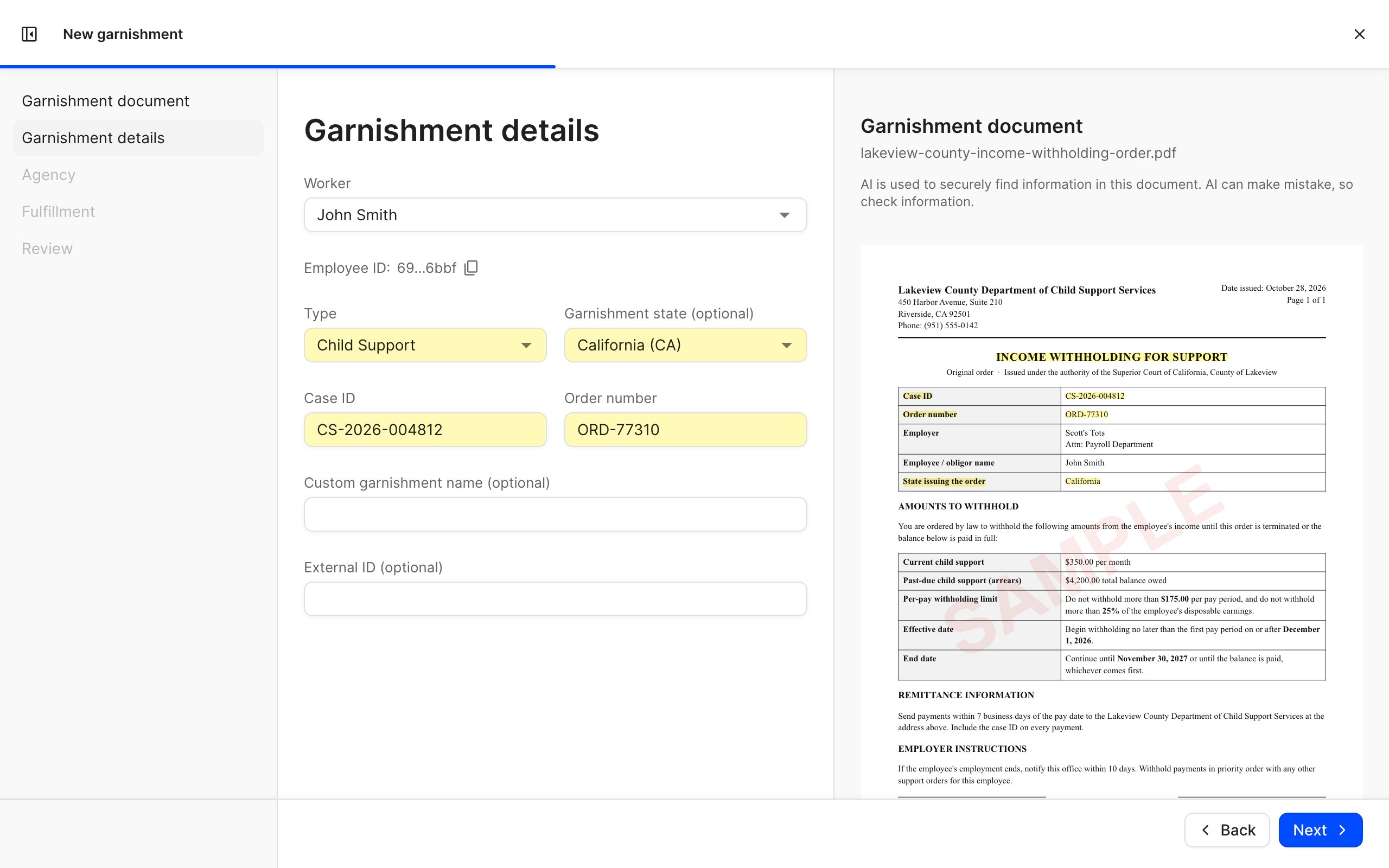
Details filled in from the uploaded order
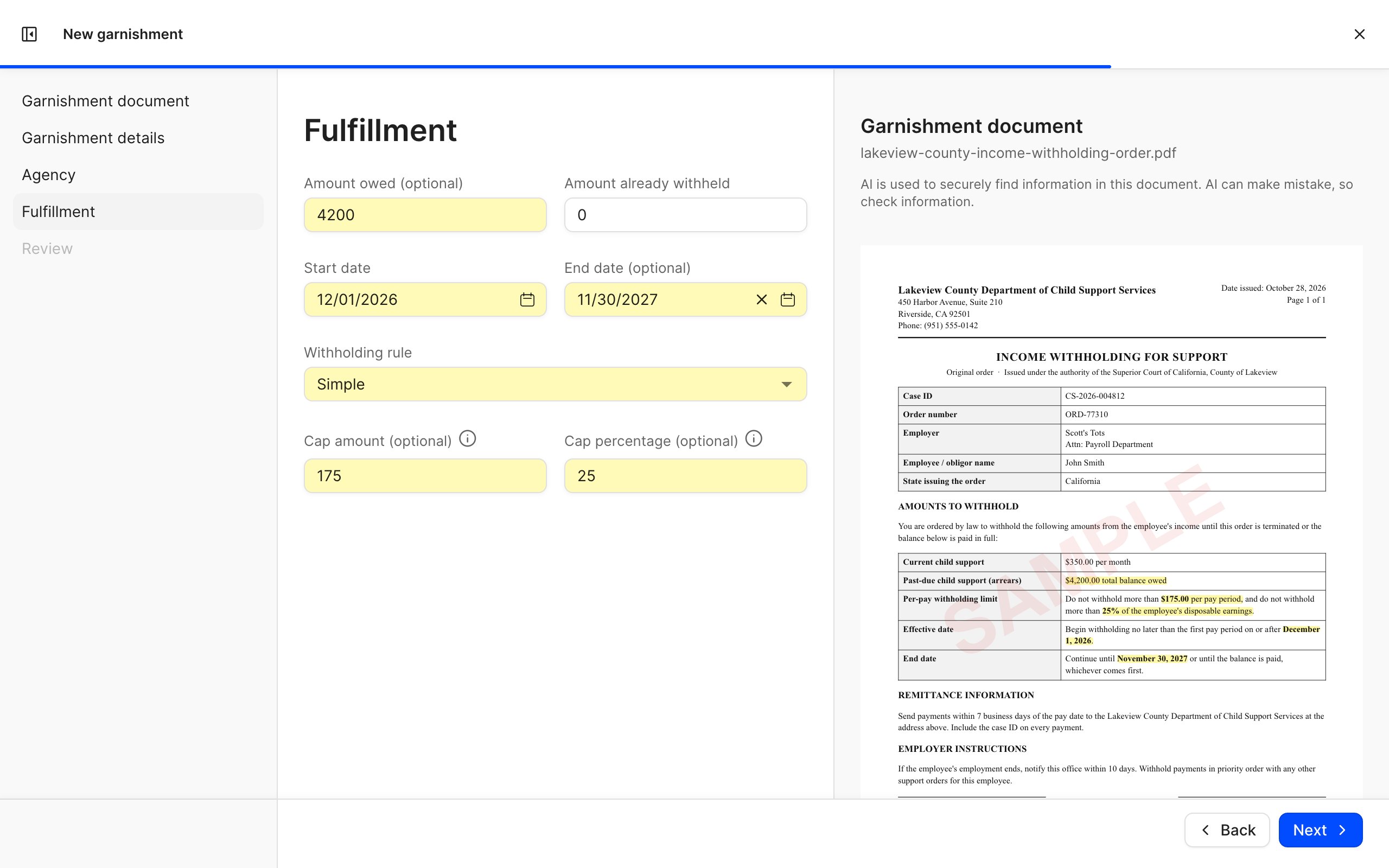
Amount owed, dates, and caps read from the order
Editing, canceling, and vacating
Only Active garnishments can be changed. Every other status is final.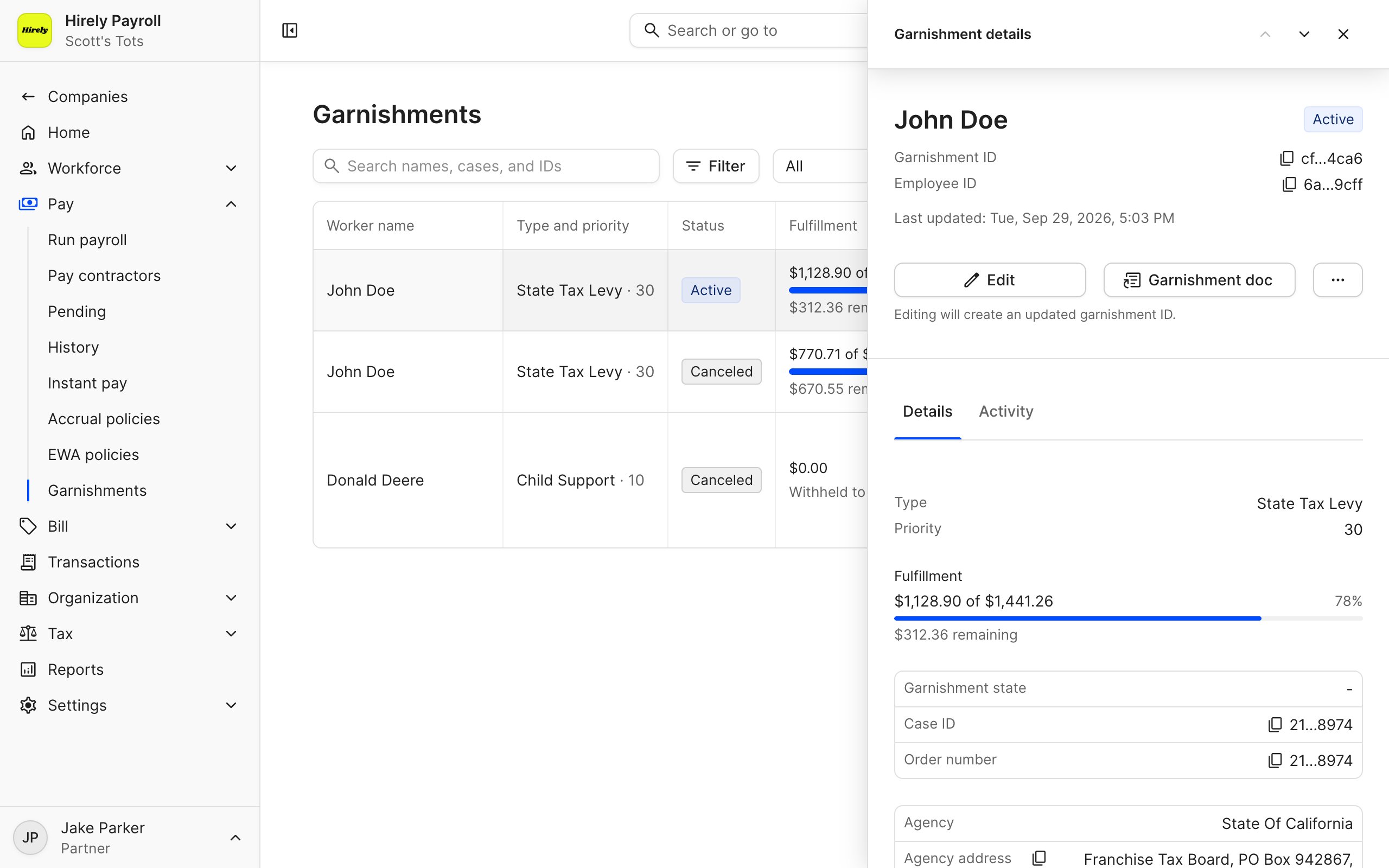
Garnishment details and actions
Edit
Use Edit when the agency sends an amended order. Zeal doesn’t change the original. Instead:- The original is marked Modified and stops withholding.
- A new Active garnishment with your changes takes over, with a new garnishment ID.
- Everything already withheld carries over to the new one, so the remaining balance stays correct.
Cancel or vacate
Both stop withholding right away, and neither can be undone. The difference is the reason, which stays on the record:- Cancel: the garnishment shouldn’t have existed. It was a mistake, a duplicate, or the wrong worker. You must enter a reason.
- Vacate: the court or agency withdrew or overturned the order.