> ## Documentation Index
> Fetch the complete documentation index at: https://docs.zeal.com/llms.txt
> Use this file to discover all available pages before exploring further.
# Work Locations
> Before onboarding a W-2 Employee, we'll need to specify where the employee will be working. This is known as a Work Location and is important for taxation. A Work Location is often reused for multiple employees but may also be used by only one employee (sometimes the case for remote employees).
### Note
Work Locations aren't required to onboard 1099 Contractors due to their taxable status. To learn how to onboard contractors, reference our [Contractor Onboarding Guide](/docs/contractor-onboarding-guide).
## In this guide
* How to create a Work Location using the API
* How to create a Work Location from the white-label Company Dashboard component
***
## API
### Verify the address
Call [Resolve Taxable Location](/reference/taxable-locations/resolve-taxable-location) to verify that an address is taxable.
### Note
Remember to replace the placeholders such as `{{testApiKey}}` in the code samples below.
```bash bash theme={null}
curl --request POST \
--url https://api.zeal.com/taxableLocations \
--header 'Accept: application/json' \
--header 'Authorization: Bearer {{testApiKey}}' \
--header 'Content-Type: application/json' \
--data '
{
"street1": "941 Newell Rd.",
"street2": "",
"city": "Palo Alto",
"state": "CA",
"zip": "94303"
}
'
```
### Add a Work Location
Use the `taxableLocationID` returned in the previous step to call [Create Work Location](/reference/work-locations/create-work-location).
```bash bash theme={null}
curl --request POST \
--url https://api.zeal.com/workLocations \
--header 'Accept: application/json' \
--header 'Authorization: Bearer {{testApiKey}}' \
--header 'Content-Type: application/json' \
--data '
{
"taxableLocationID": "{{taxableLocationID}}",
"companyID": "{{companyID}}",
"name": "Main Office"
}
'
```
## White-Label
### Access the Company Dashboard
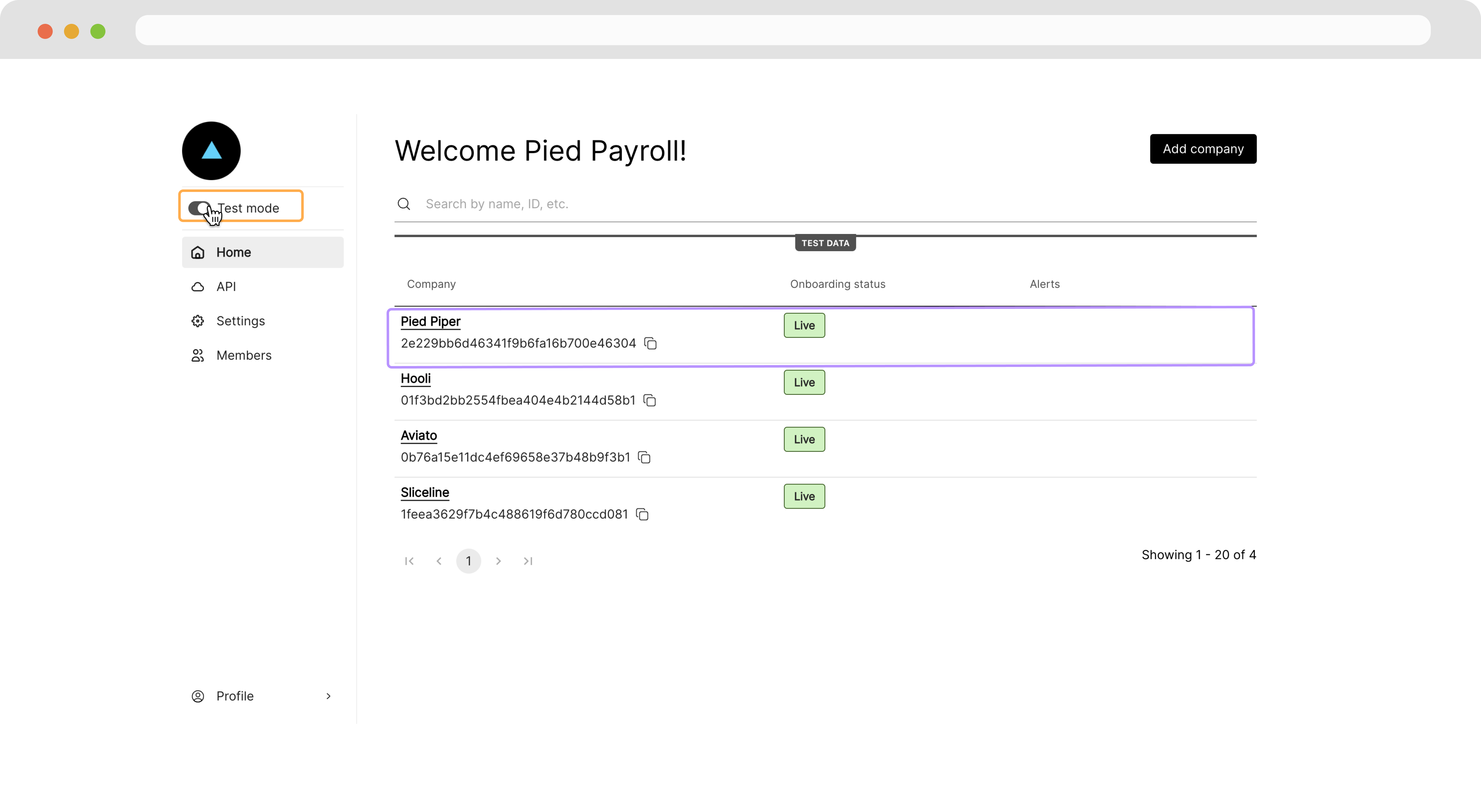
Navigate to your Partner Dashboard and ensure that **Test Mode** is enabled. Then, click on a company to access the Company Dashboard as an Admin.
 ### Add a Work Location
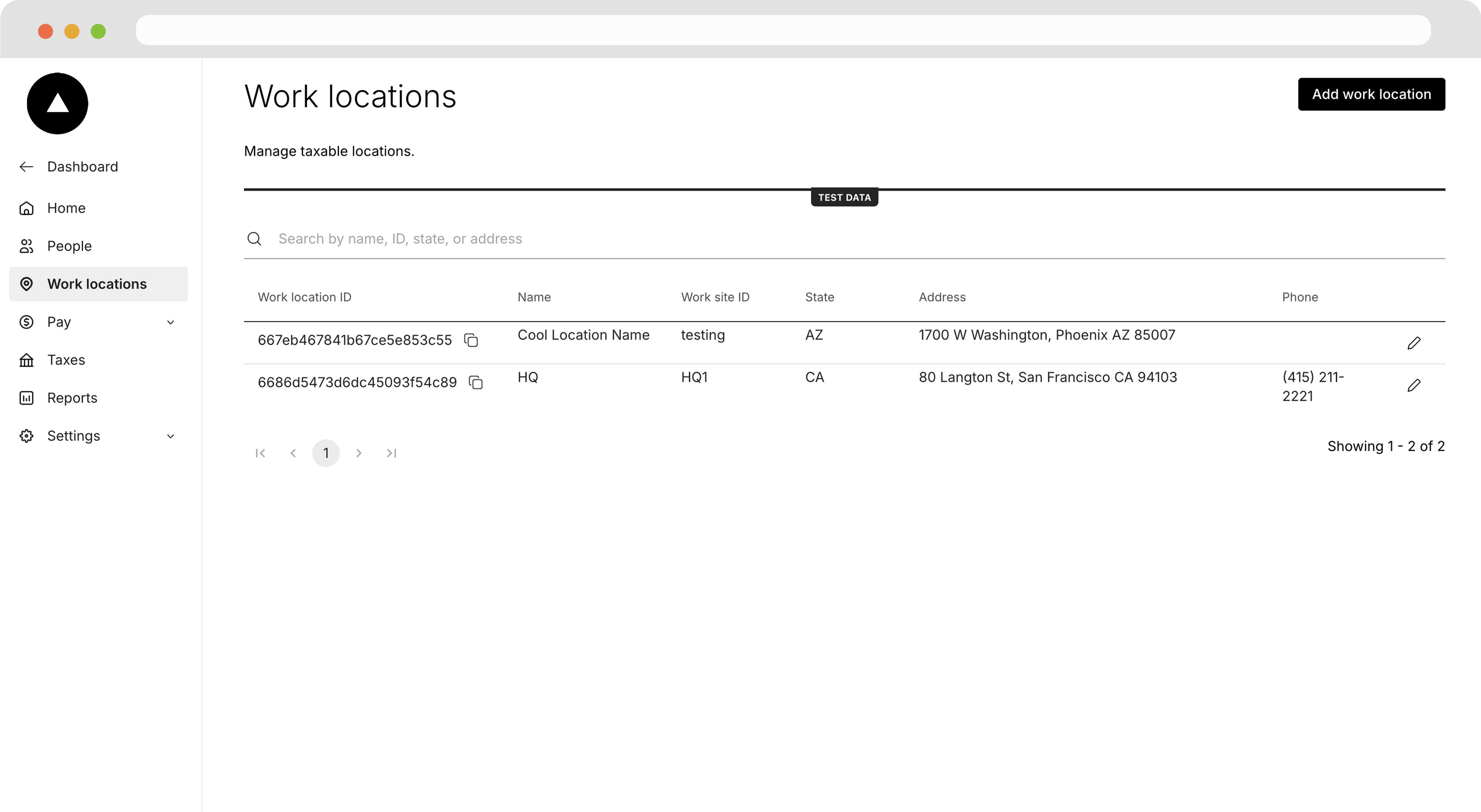
Click on the **Work Locations** page, then click **Add New Location**.
### Add a Work Location
Click on the **Work Locations** page, then click **Add New Location**.
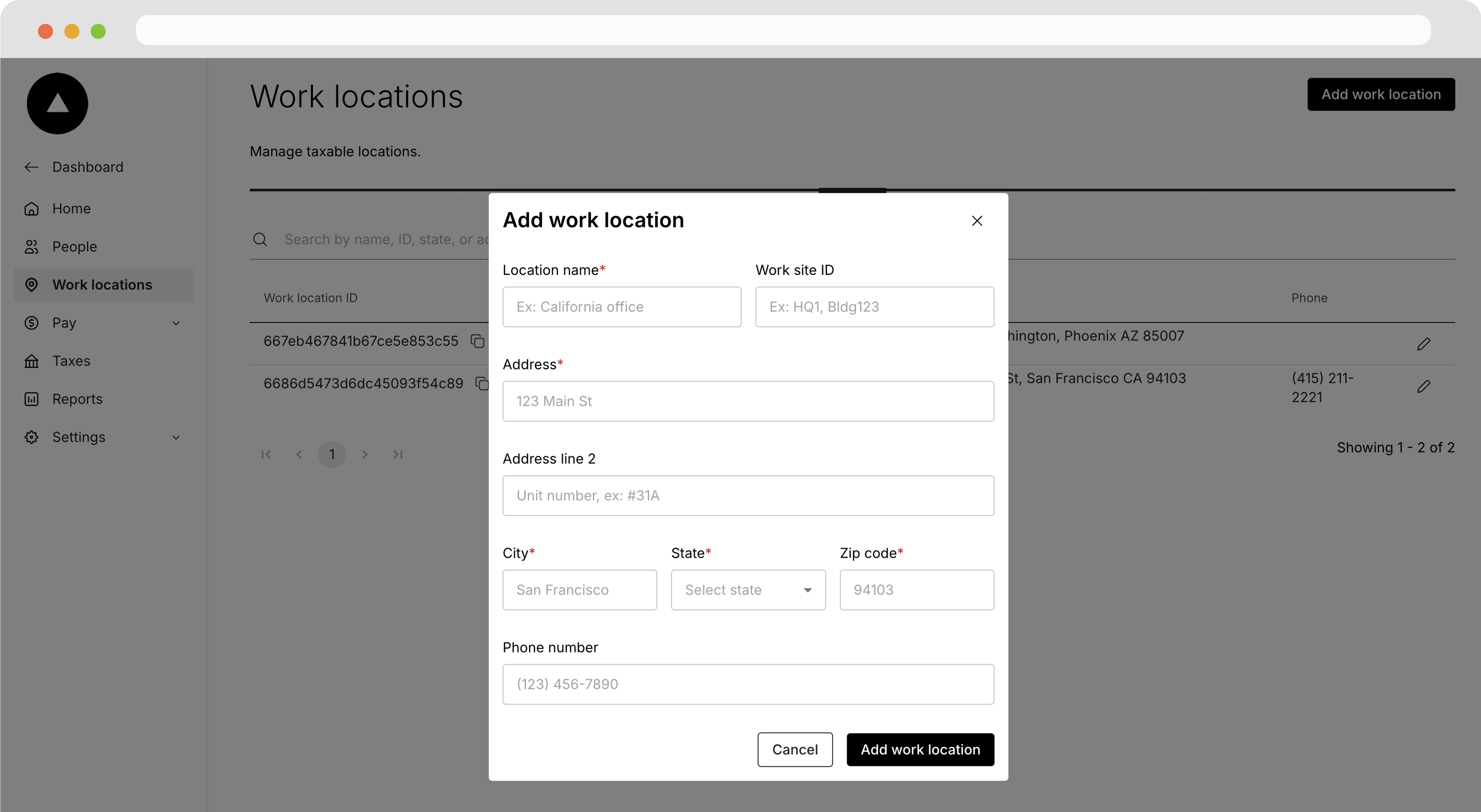
 On the Work Location page fill the form that appears with a taxable address, then click **Create**.
 ***
## Recap
* A Work Location is required to onboard employees
* Work Locations can be created using the [Resolve Taxable Location](/reference/taxable-locations/resolve-taxable-location) and [Create Work Location](/reference/work-locations/create-work-location) endpoints
* Work Locations can also be created from the Company Dashboard
***
## Recap
* A Work Location is required to onboard employees
* Work Locations can be created using the [Resolve Taxable Location](/reference/taxable-locations/resolve-taxable-location) and [Create Work Location](/reference/work-locations/create-work-location) endpoints
* Work Locations can also be created from the Company Dashboard