> ## Documentation Index
> Fetch the complete documentation index at: https://docs.zeal.com/llms.txt
> Use this file to discover all available pages before exploring further.
# Reports
> One of the best features of Zeal is our reporting.
## In this guide
* How to start a report job.
* How to receive job updates.
* How to get the results of a job.
* How to download reports from the Company Dashboard.
* How to include the Reports stand-alone component in your application.
***
## API
### Start a report job
Reports are processed asynchronously with a job queue. To initiate a job call [Create Payroll Journal Report](/reference/reports/create-payroll-journal-report). This will return a `job_id`.
### Note
Remember to replace the placeholders such as `{{testApiKey}}` in the code samples below.
```bash bash theme={null}
curl --request POST \
--url https://api.zeal.com/reports/payroll-journal \
--header 'Accept: application/json' \
--header 'Authorization: Bearer {{testApiKey}}' \
--header 'Content-Type: application/json' \
--data '
{
"start_date": "2022-01-01",
"end_date": "2022-03-28",
"companyID": "{{companyID}}",
"media_type": "csv"
}
'
```
### Receive updates from the Job Queue Event webhook
When the job is finished processing, Zeal will send you an update via the [Job Queue Event](/reference/webhooks/report-status-change-webhook).
### Get the results of a job
Include the `job_id` in a call to [Get Job Status](/reference/reports/get-job-status).
```bash bash theme={null}
curl --request GET \
--url 'https://api.zeal.com/reports?job_id=ID&companyID={{companyID}}' \
--header 'Accept: application/json' \
--header 'Authorization: Bearer {{testApiKey}}'
```
The returned JSON will include a `payload` field which may be used to download the report.
```bash bash theme={null}
{
"status": 200,
"success": true,
"data": {
"job_id": "7g88a4e0-f2a0-4dc0-9a1c-215e083de5eb",
"status": "complete",
"created_at": "2022-03-25T18:52:43.138Z",
"request_body": {
"start_date": "2022-01-01",
"end_date": "2022-03-28",
"company_id": "fc235f012bae46aa8a082f357715bcfa",
"media_type": "csv",
"has_live_key": true,
"report_format": "payroll_journal"
},
"payload": "https://api.zeal.com/reports/downloads/7g88a4e0-f2a0-4dc0-9a1c-215e083de5eb"
}
}
```
***
## White-Label
### Company Dashboard
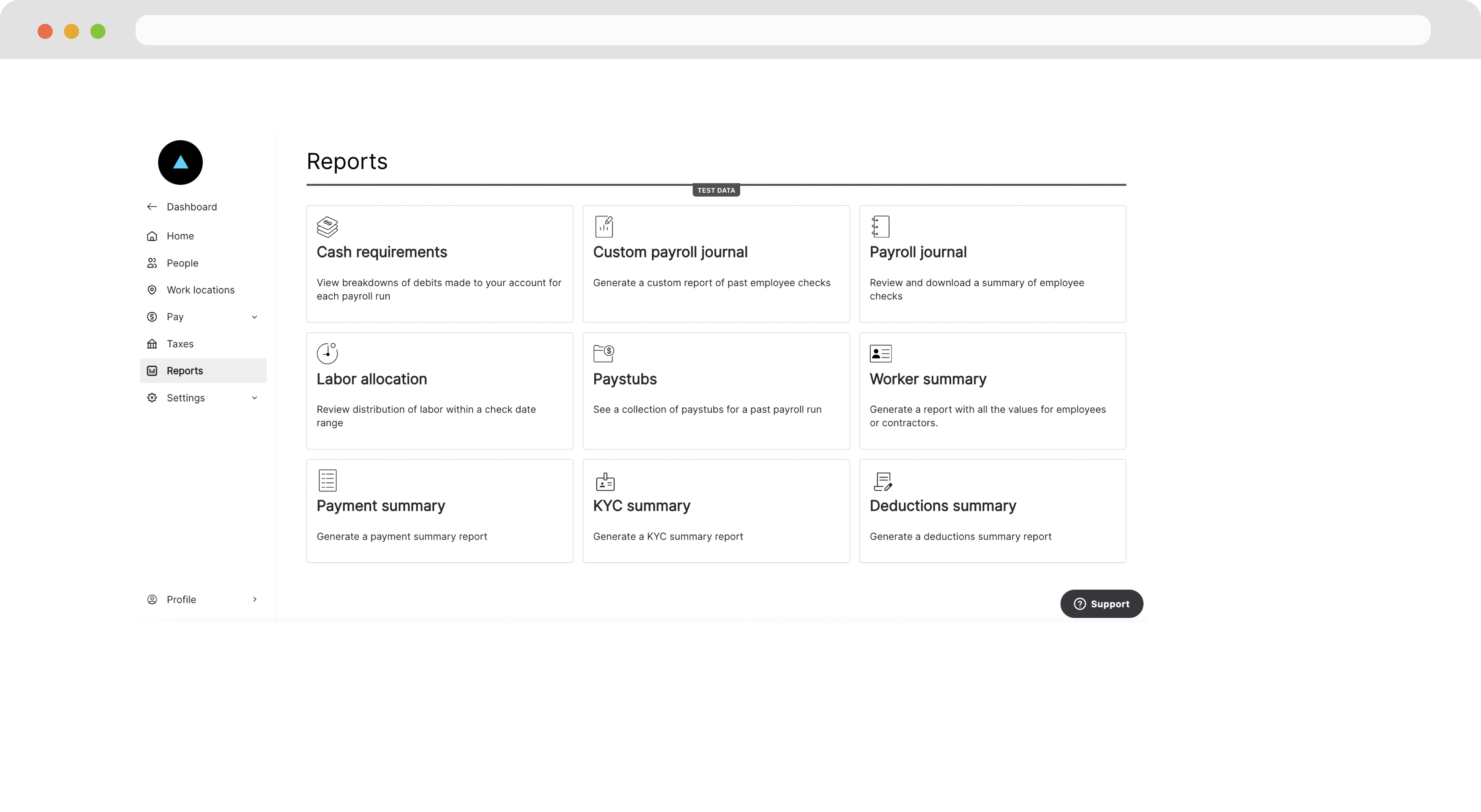
If you are using our white-label Company Dashboard, reports can be accessed through the **Reports** page.
Navigate to the **Reports** page and click the **Payroll Journal** card.
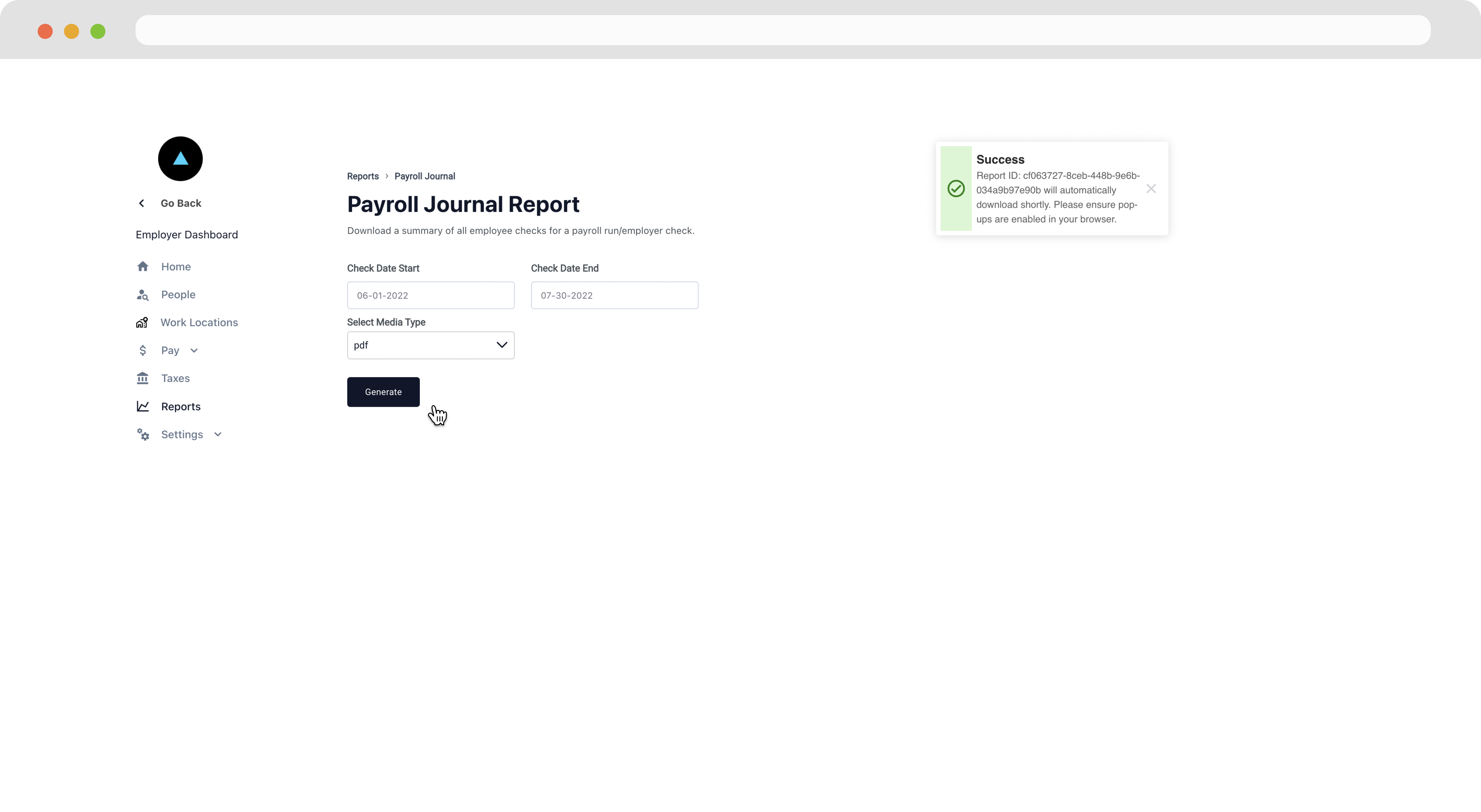
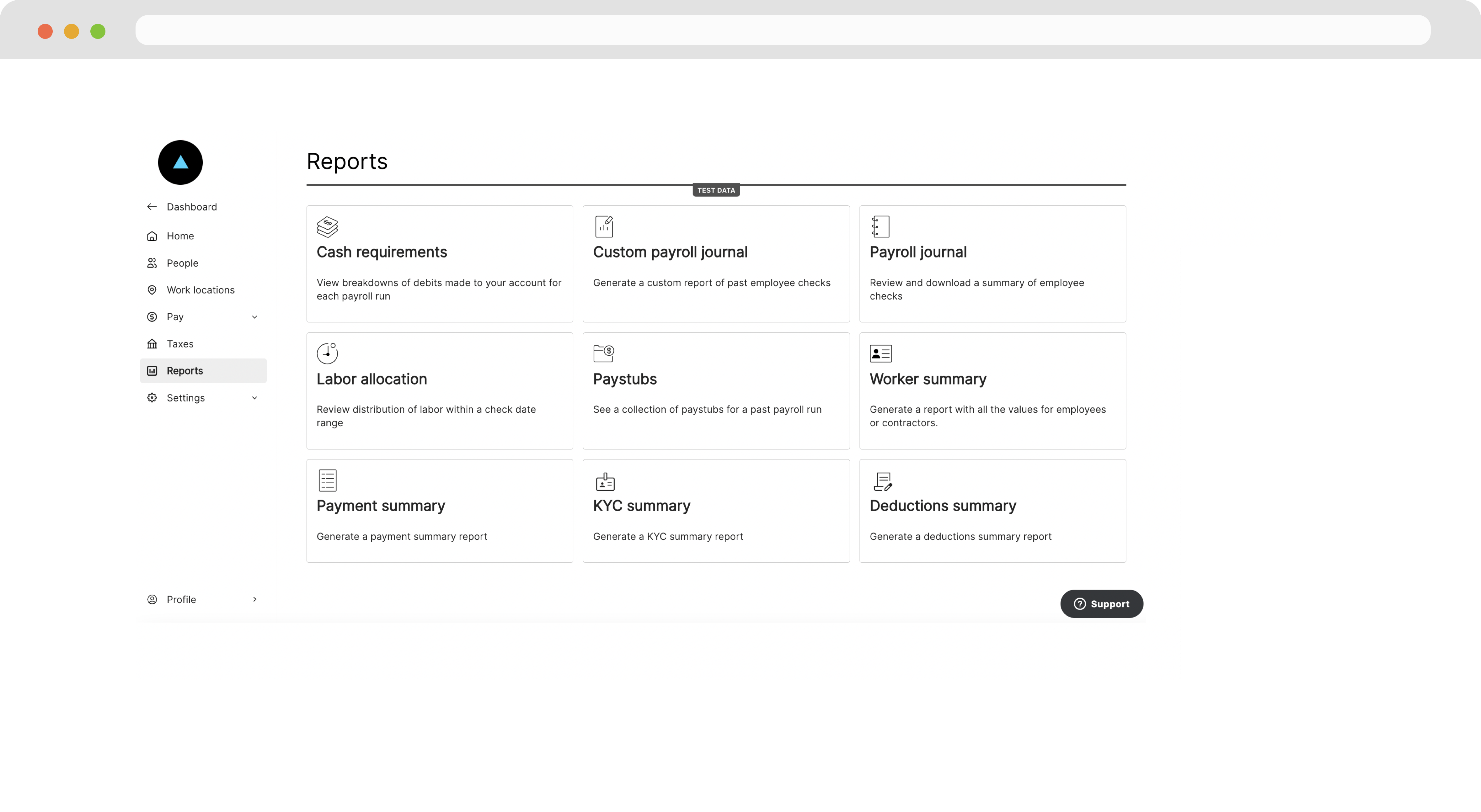 Fill the information on the following page and then click **Generate**. A success alert will appear indicating that the browser will automatically download the report when it is ready in a few moments. Please ensure [pop-ups](https://support.google.com/chrome/answer/95472?hl=en\&co=GENIE.Platform%3DDesktop) are enabled in the browser.
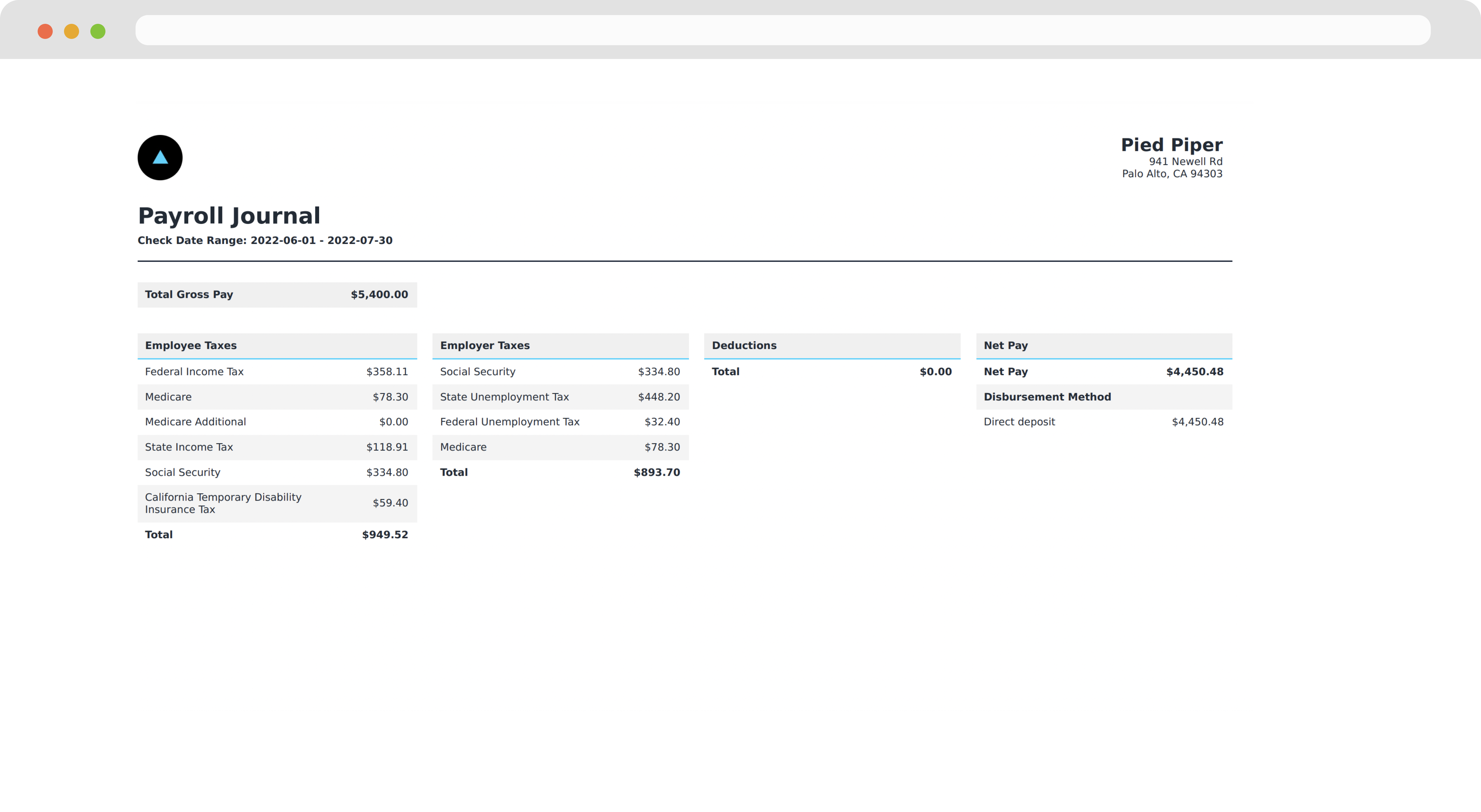
 Once the report has downloaded, we can open it to view the payroll journal.
 ### Embedding the Reports Page
If you’ve built your own custom dashboards using our APIs, you can embed the Reports white-label component directly in your dashboard.
Call [Generate Reports Link](/reference/zeal-components/generate-reports-link).
```bash bash theme={null}
curl --request POST \
--url https://api.zeal.com/authLinks/reports \
--header 'Accept: application/json' \
--header 'Authorization: Bearer {{testApiKey}}' \
--header 'Content-Type: application/json' \
--data '
{
"partnerID": "{{partnerID}}",
"companyID": "{{companyID}}"
}
'
```
Embed the link in your application through and iframe or open it up in a new tab.
### Embedding the Reports Page
If you’ve built your own custom dashboards using our APIs, you can embed the Reports white-label component directly in your dashboard.
Call [Generate Reports Link](/reference/zeal-components/generate-reports-link).
```bash bash theme={null}
curl --request POST \
--url https://api.zeal.com/authLinks/reports \
--header 'Accept: application/json' \
--header 'Authorization: Bearer {{testApiKey}}' \
--header 'Content-Type: application/json' \
--data '
{
"partnerID": "{{partnerID}}",
"companyID": "{{companyID}}"
}
'
```
Embed the link in your application through and iframe or open it up in a new tab.
 ***
## Recap
* Reports are process asynchronously using a job queue.
* You can subscribe to the [Job Queue Event](/reference/webhooks/report-status-change-webhook) webhook for updates on a job.
* Once your job has been process, get the result with the [Get Job Status](/reference/reports/get-job-status) endpoint.
* Reports can be downloaded on demand from the **Reports** page of the Company Dashboard.
* Use the [Generate Reports Link](/reference/zeal-components/generate-reports-link) endpoint to include the **Reports** page as a stand-alone component in your application.
***
## Recap
* Reports are process asynchronously using a job queue.
* You can subscribe to the [Job Queue Event](/reference/webhooks/report-status-change-webhook) webhook for updates on a job.
* Once your job has been process, get the result with the [Get Job Status](/reference/reports/get-job-status) endpoint.
* Reports can be downloaded on demand from the **Reports** page of the Company Dashboard.
* Use the [Generate Reports Link](/reference/zeal-components/generate-reports-link) endpoint to include the **Reports** page as a stand-alone component in your application.