> ## Documentation Index
> Fetch the complete documentation index at: https://docs.zeal.com/llms.txt
> Use this file to discover all available pages before exploring further.
# Quickstart Guide
> In this guide we lead you through a quick, step-by-step example of how to run your first payroll using Zeal's pre-build white-label components. Even if you plan to build fully using the API, this guide gives you a high-level view of how the payroll system works.
If you haven't already, check out our [Introduction to Payroll Runs](/docs/introduction-to-payroll-runs) before continuing with this guide. It gives a conceptual overview of how payroll runs work with Zeal's system.
## In this guide
* How to onboard a Company (employer).
* How to add a Work Location.
* How to onboard an Employee.
* How to set up and submit a Payroll Run.
***
## Onboarding a Company
Zeal represents employers in our system as *Companies*. A Company must first be onboarded before payroll can be run.
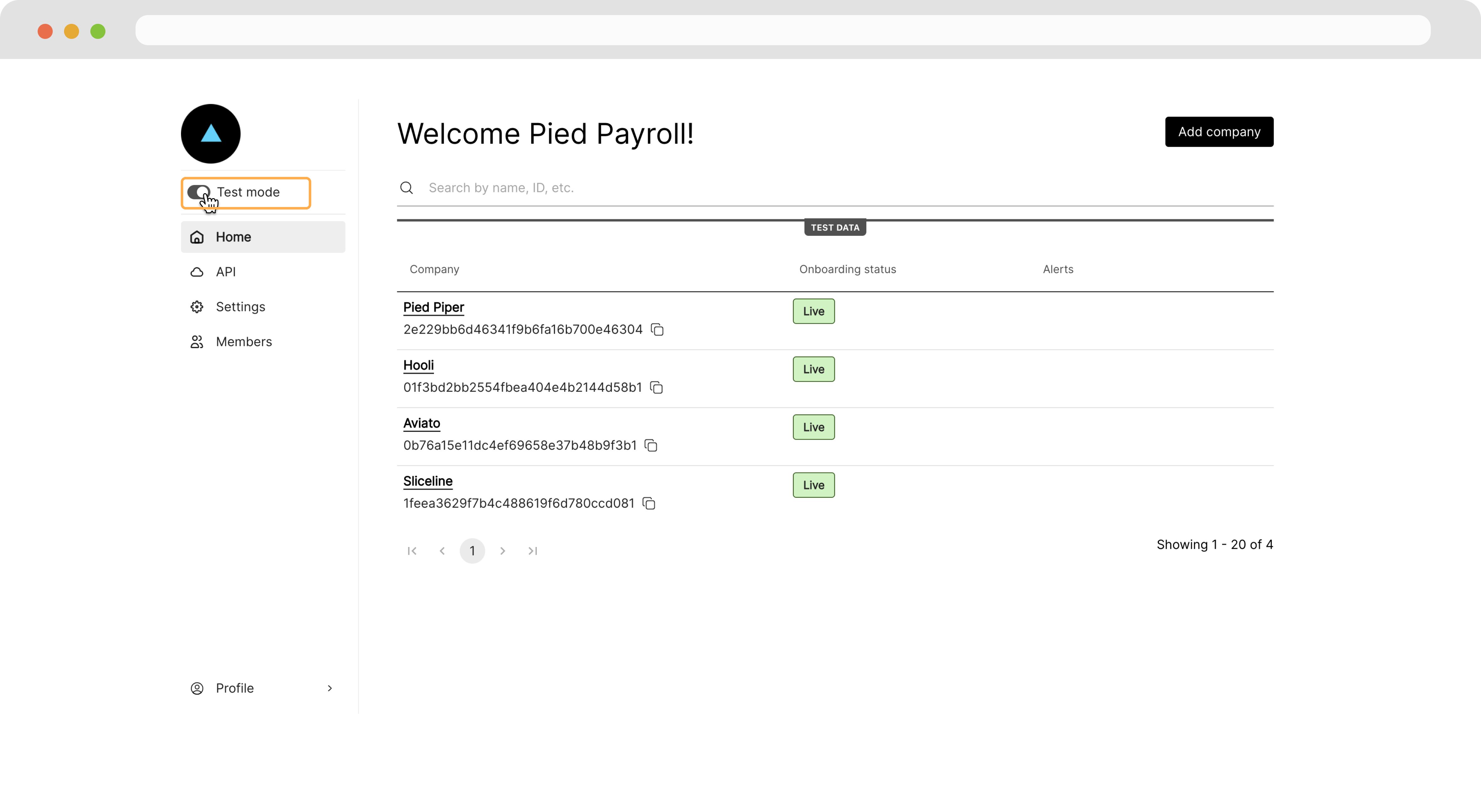
Navigate to your Partner Dashboard, ensure that *Test Mode* is enabled, then click **Add company**. In the modal that appears, click **Copy onboarding link**.
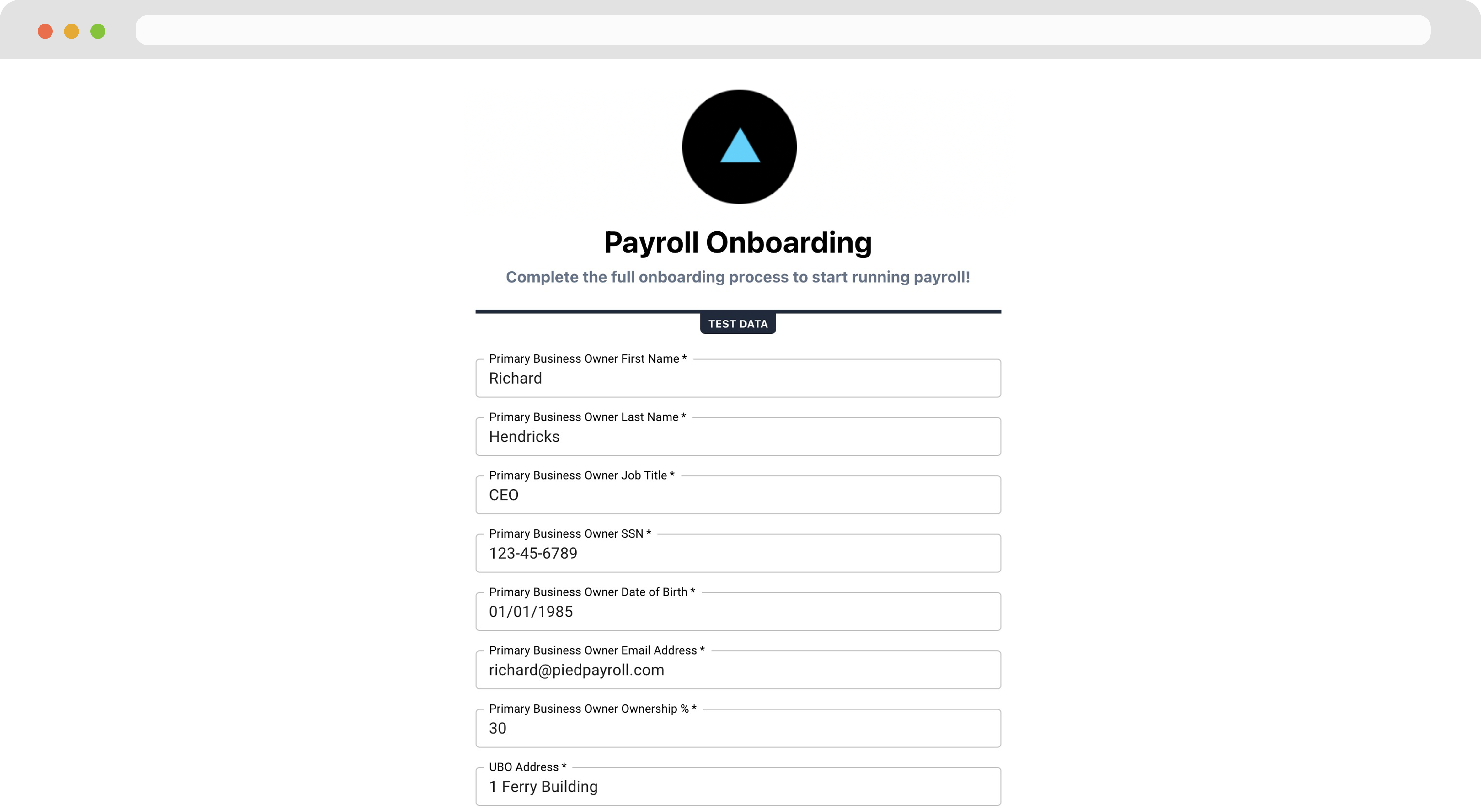
 Paste the link in a new tab of your web browser, and complete the onboarding flow.
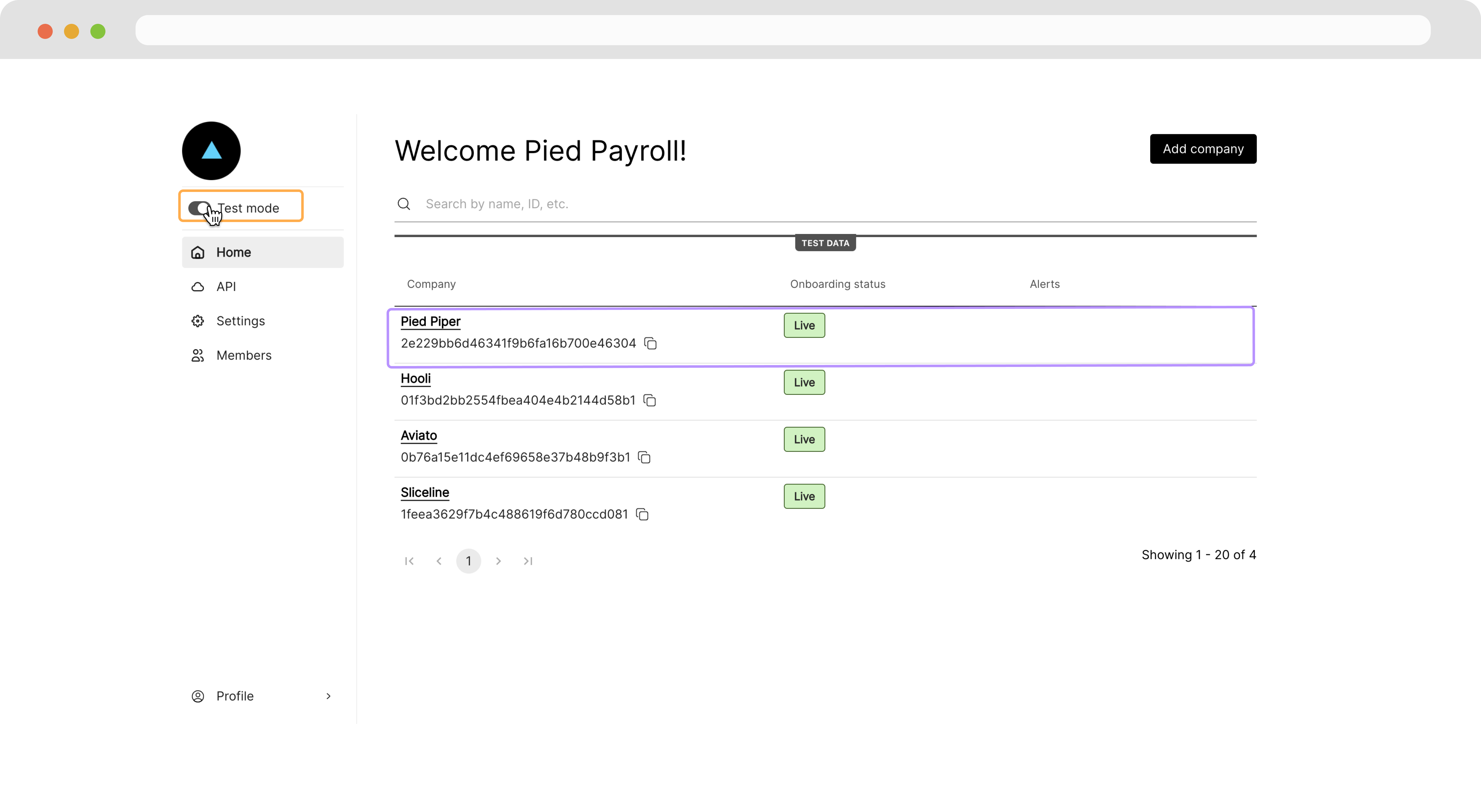
 Back on the Partner Dashboard, the newly onboarded company is shown in the main section.
***
## Creating a Work Location
Once the employer is onboarded, you can click on the Company to view the Employer Dashboard as an admin. From here, you can add a Work Location for the Company.
Click the company name.
Back on the Partner Dashboard, the newly onboarded company is shown in the main section.
***
## Creating a Work Location
Once the employer is onboarded, you can click on the Company to view the Employer Dashboard as an admin. From here, you can add a Work Location for the Company.
Click the company name.
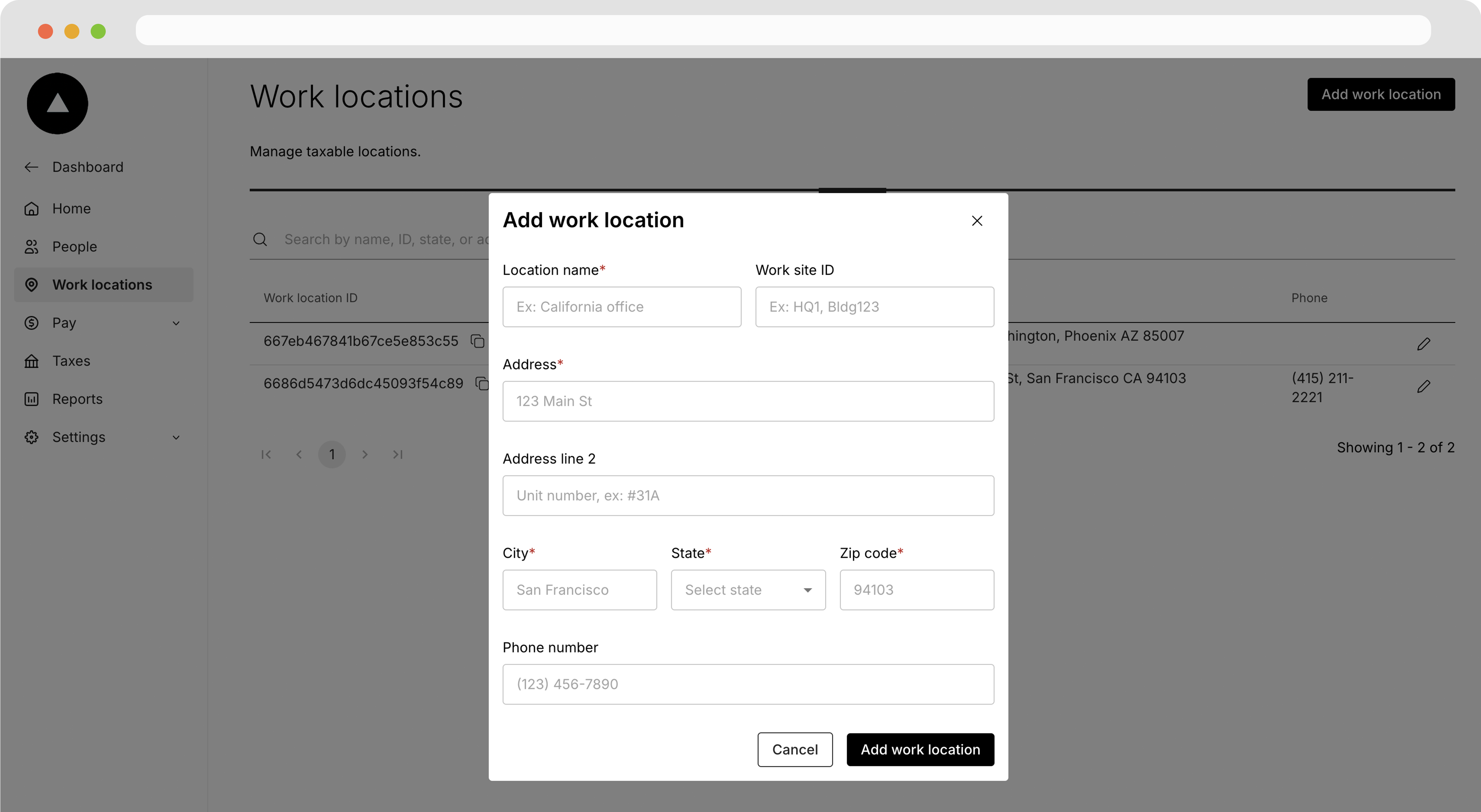
 Navigate to the **Work Locations** page then click **Add a New Location**.
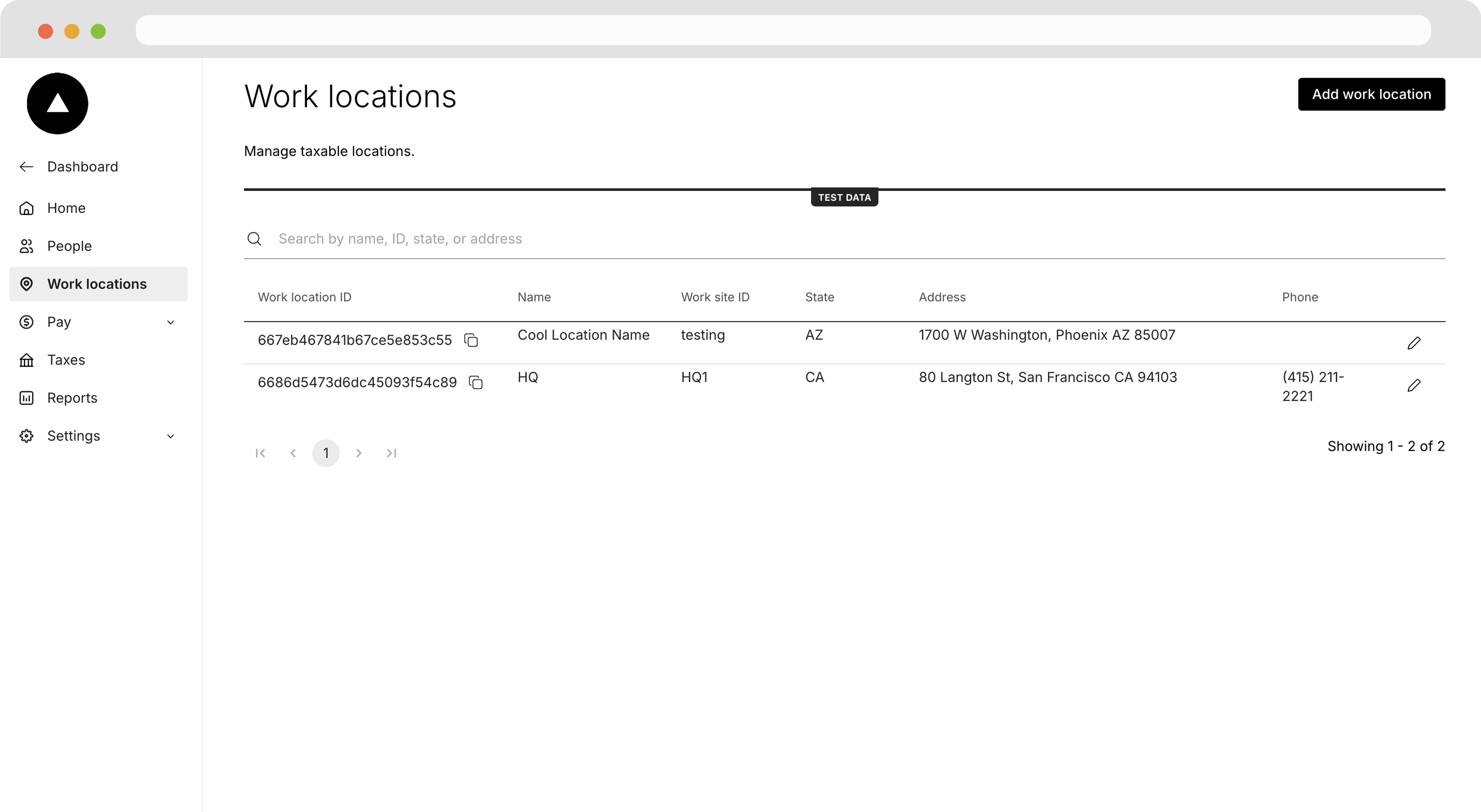 Enter the taxable address where the employee(s) will be working and click **Create**.
 ***
## Onboarding an Employee
Now that we've added a location our employee(s) will be working at, we can onboard them.
Navigate to the **People** page and click **Add employee**.
***
## Onboarding an Employee
Now that we've added a location our employee(s) will be working at, we can onboard them.
Navigate to the **People** page and click **Add employee**.
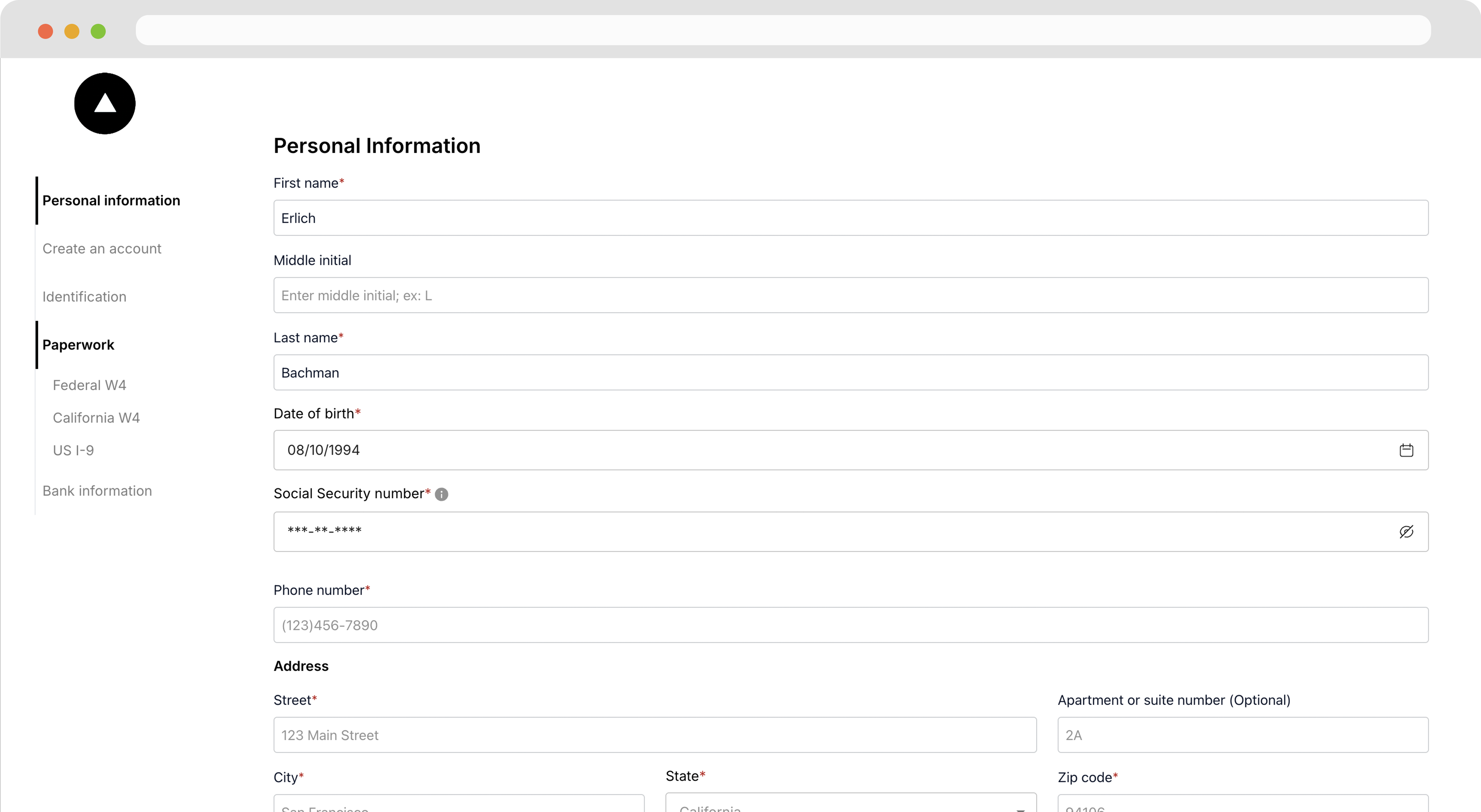
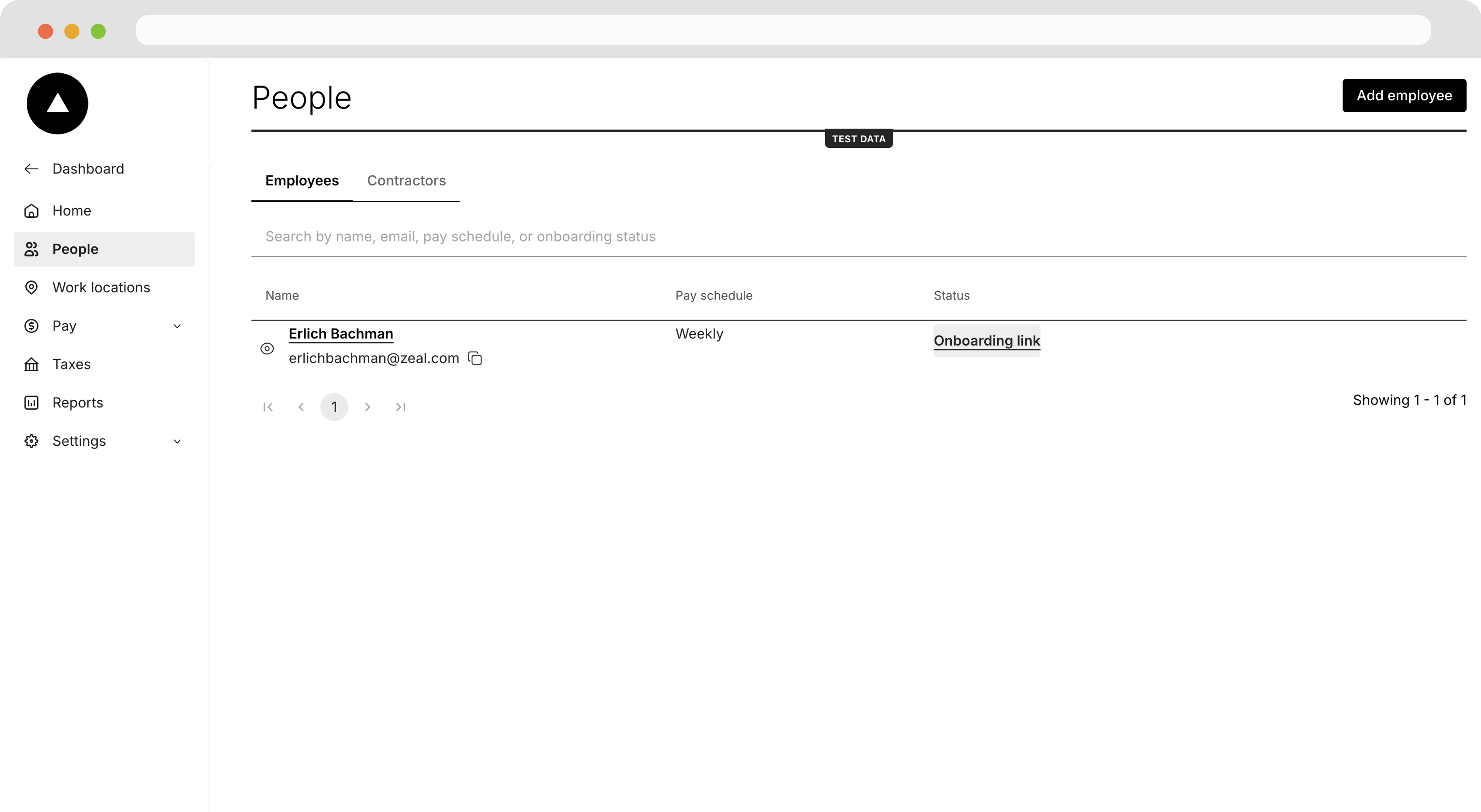 Fill the employee information and select the proper Work Location from the dropdown, then click **Add Employee**.
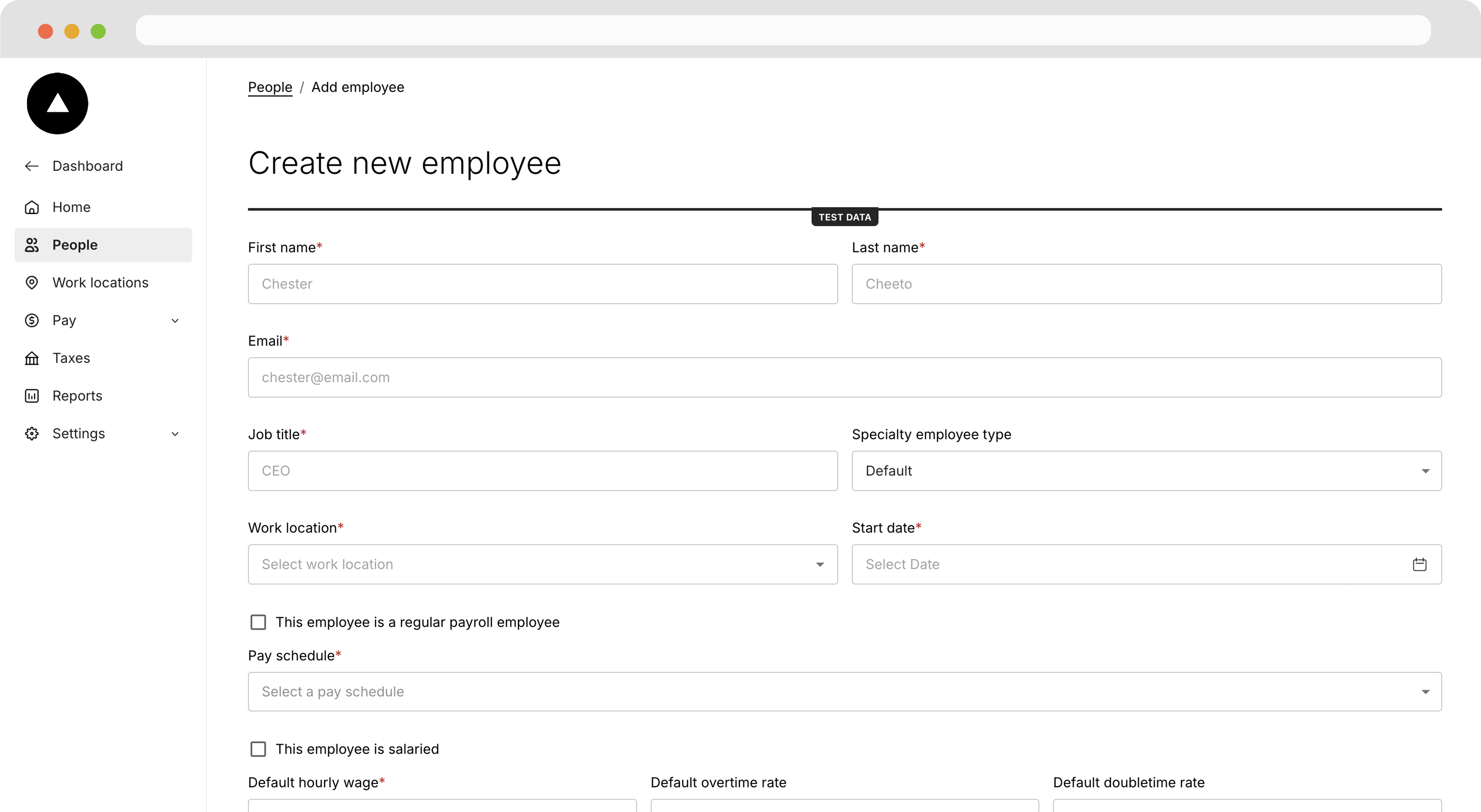 Back on the **People** page, find the Employee and click **Onboarding link** to copy the onboarding link or send it to the worker's email.
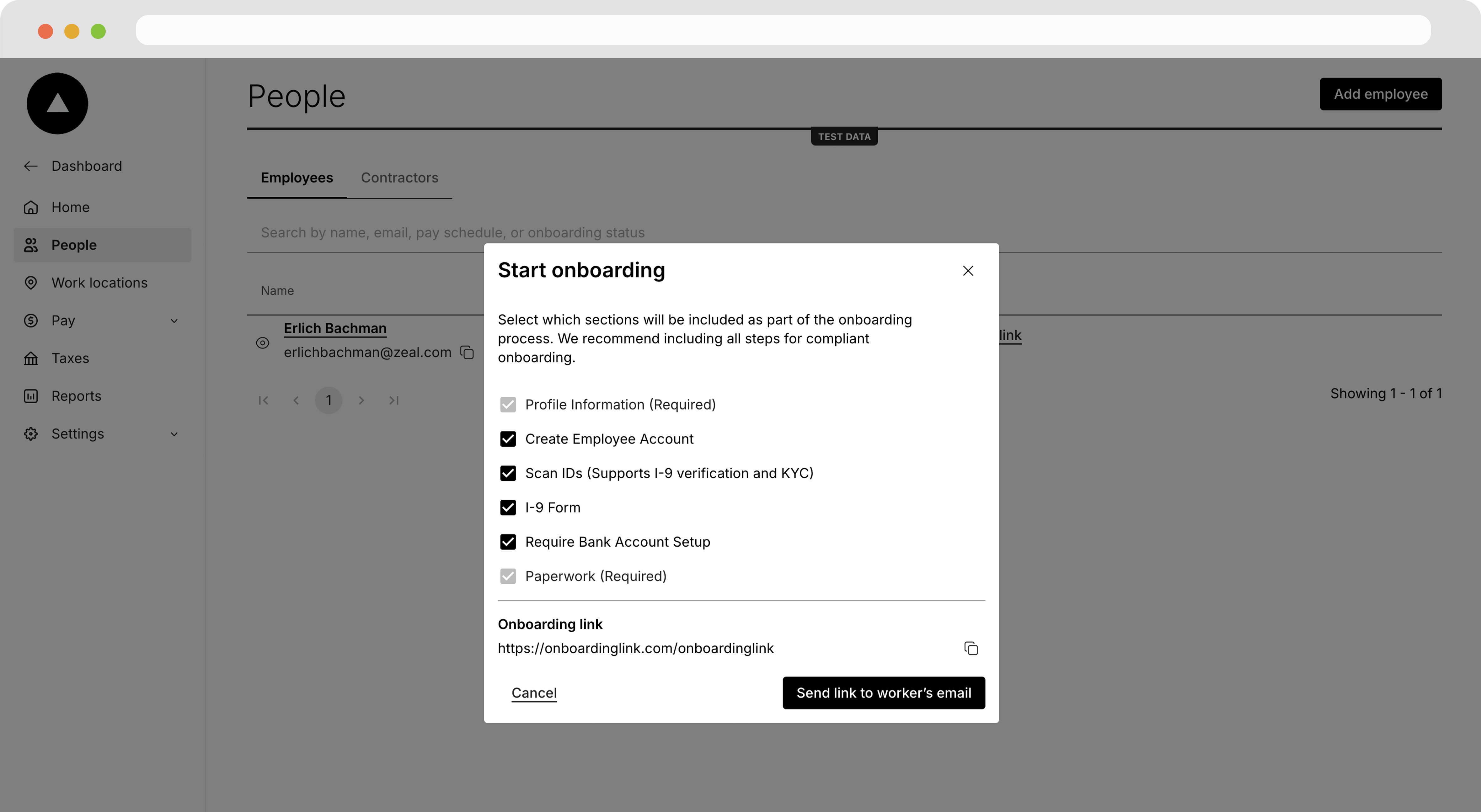 Open the link in a new tab to complete the onboarding flow.
 ***
## Running payroll
Once the employee is onboarded, we can pay them.
Navigate to **Run Payroll** and click **Get Started** under the run off-cycle payroll section.
***
## Running payroll
Once the employee is onboarded, we can pay them.
Navigate to **Run Payroll** and click **Get Started** under the run off-cycle payroll section.
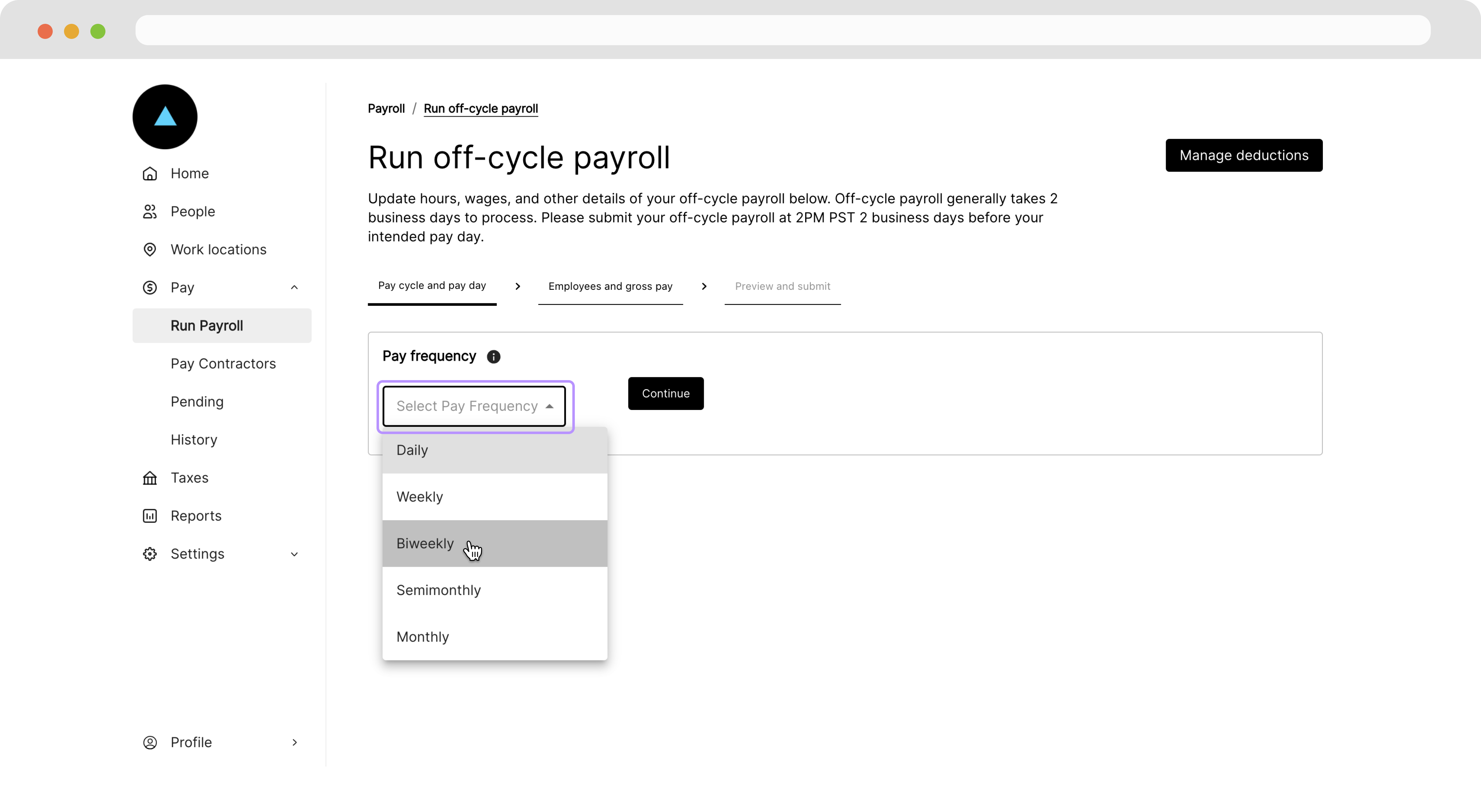
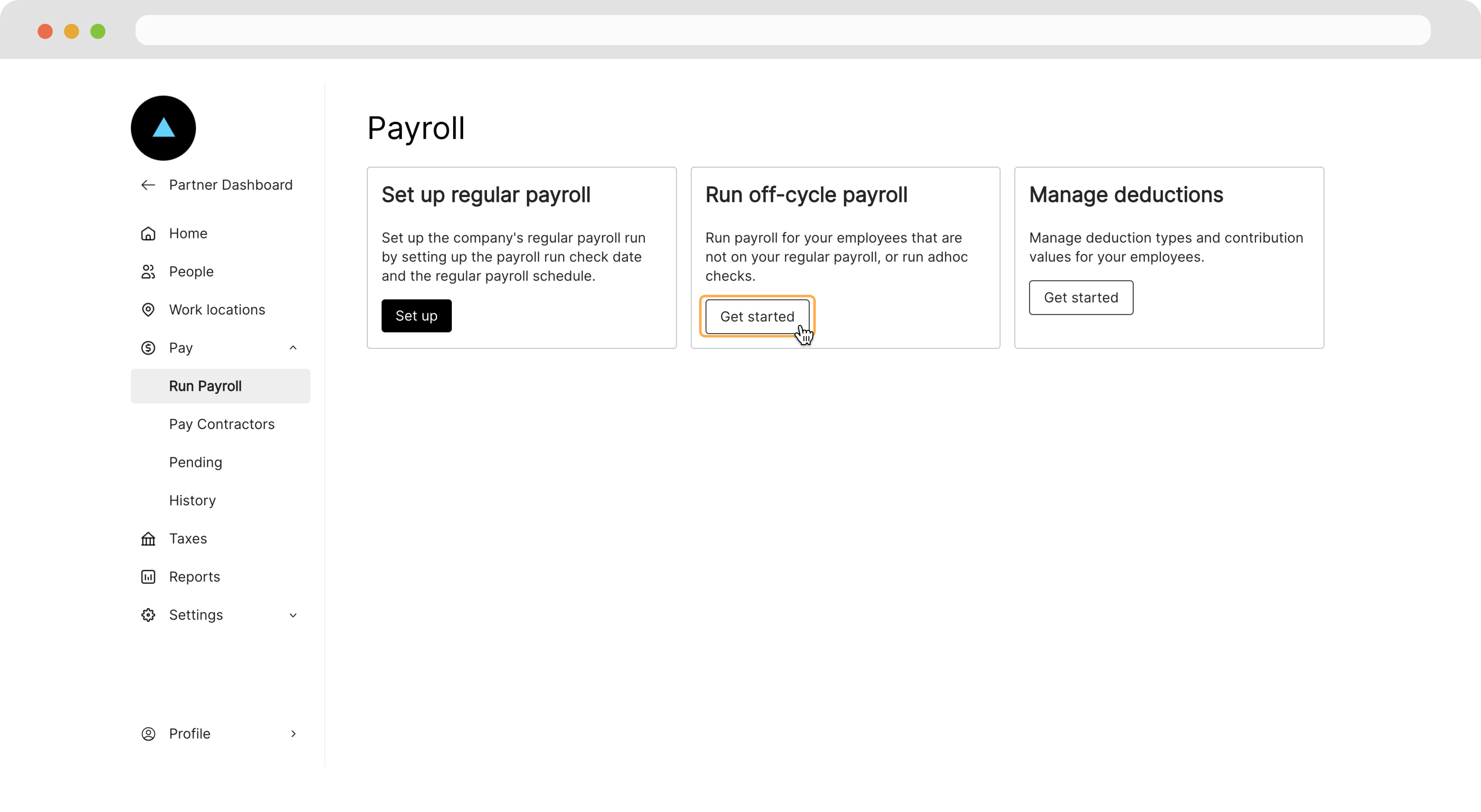 On the following page, we'll select the **Pay frequency**. Ensure that this matches the *pay schedule* we assigned to our employee.
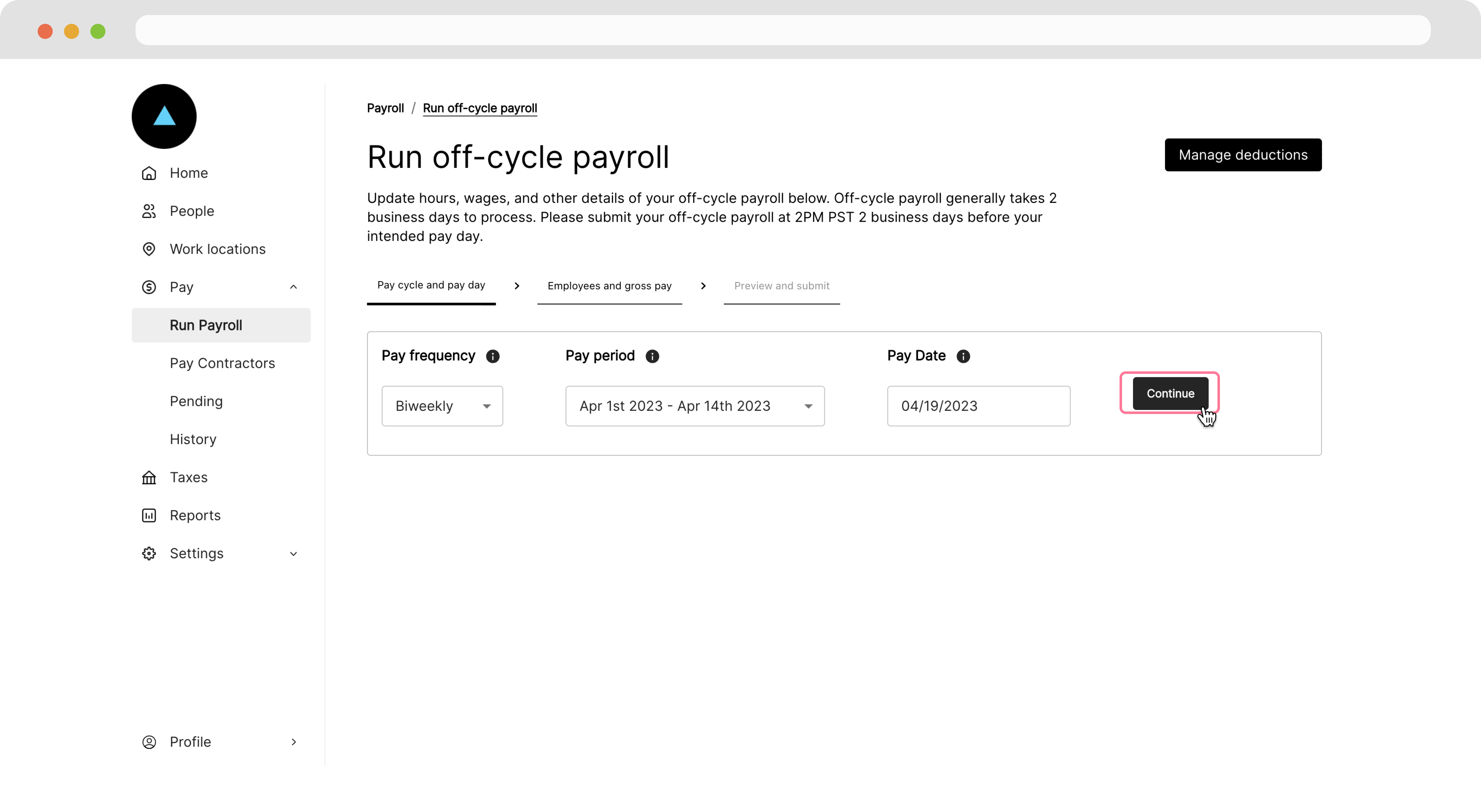
 Next, select the **Pay period** and **Pay date**, then hit **Continue**.
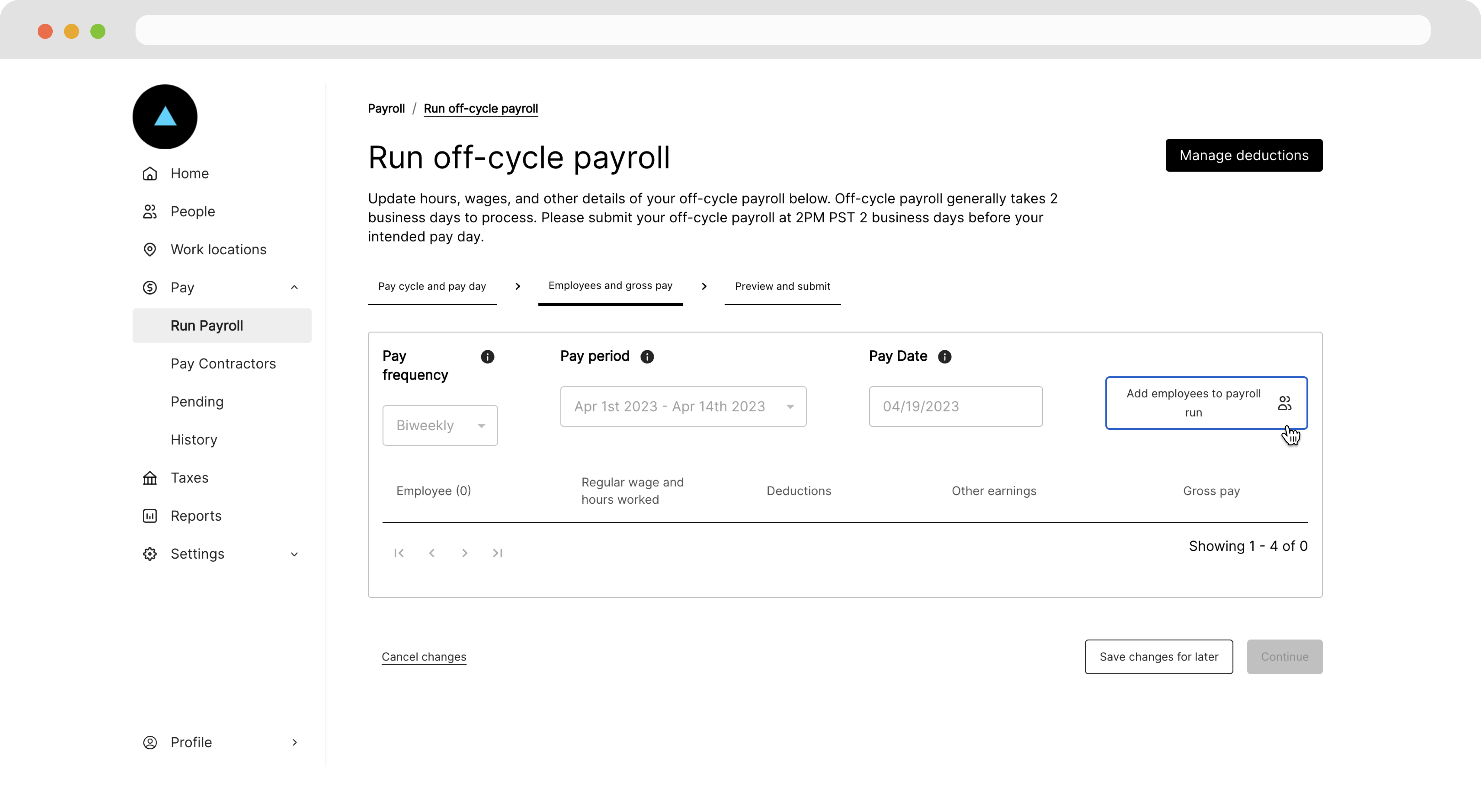
 On the following page, click **Add employees to payroll run**.
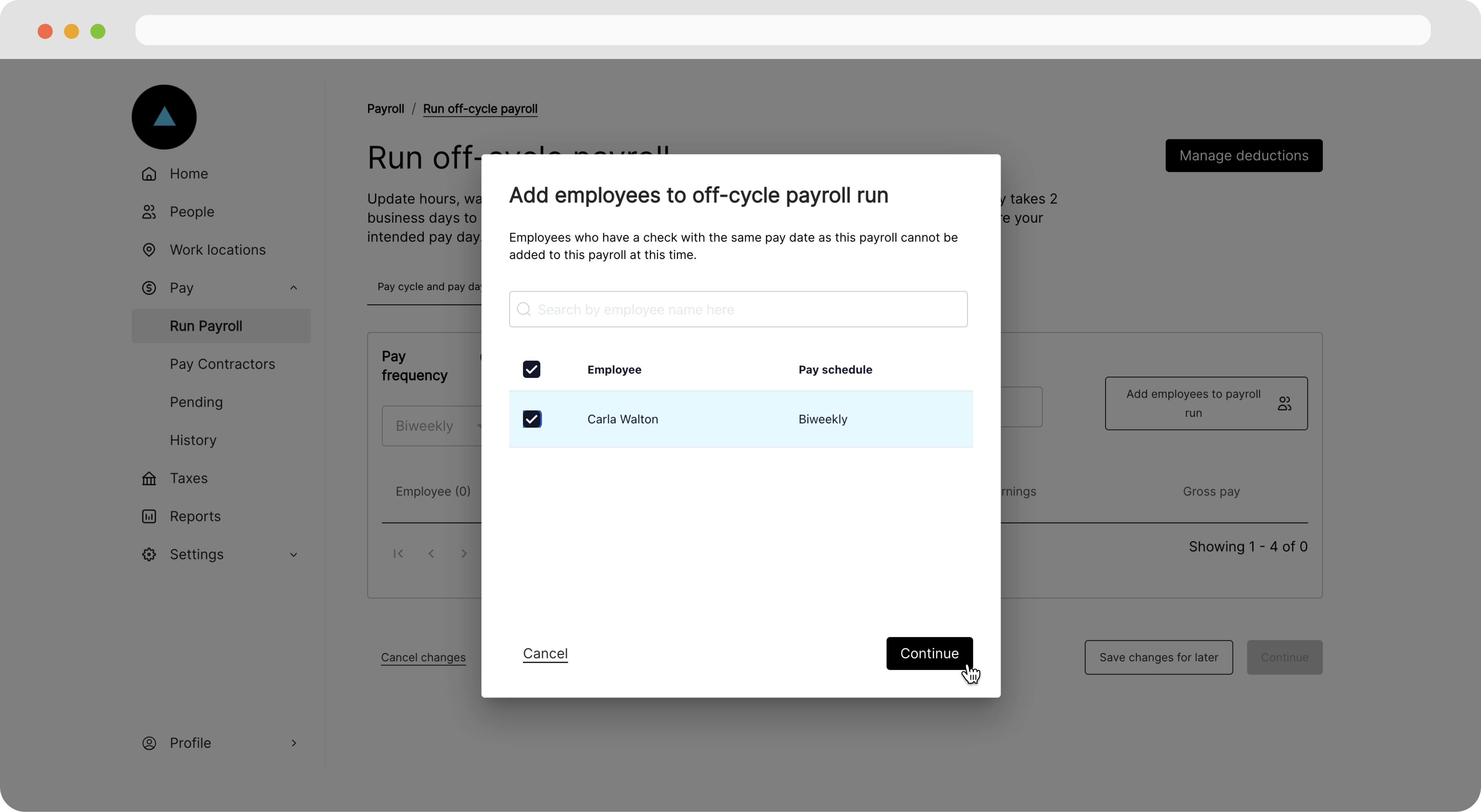
 In the modal that appears, we'll select our employee and hit **Continue**.
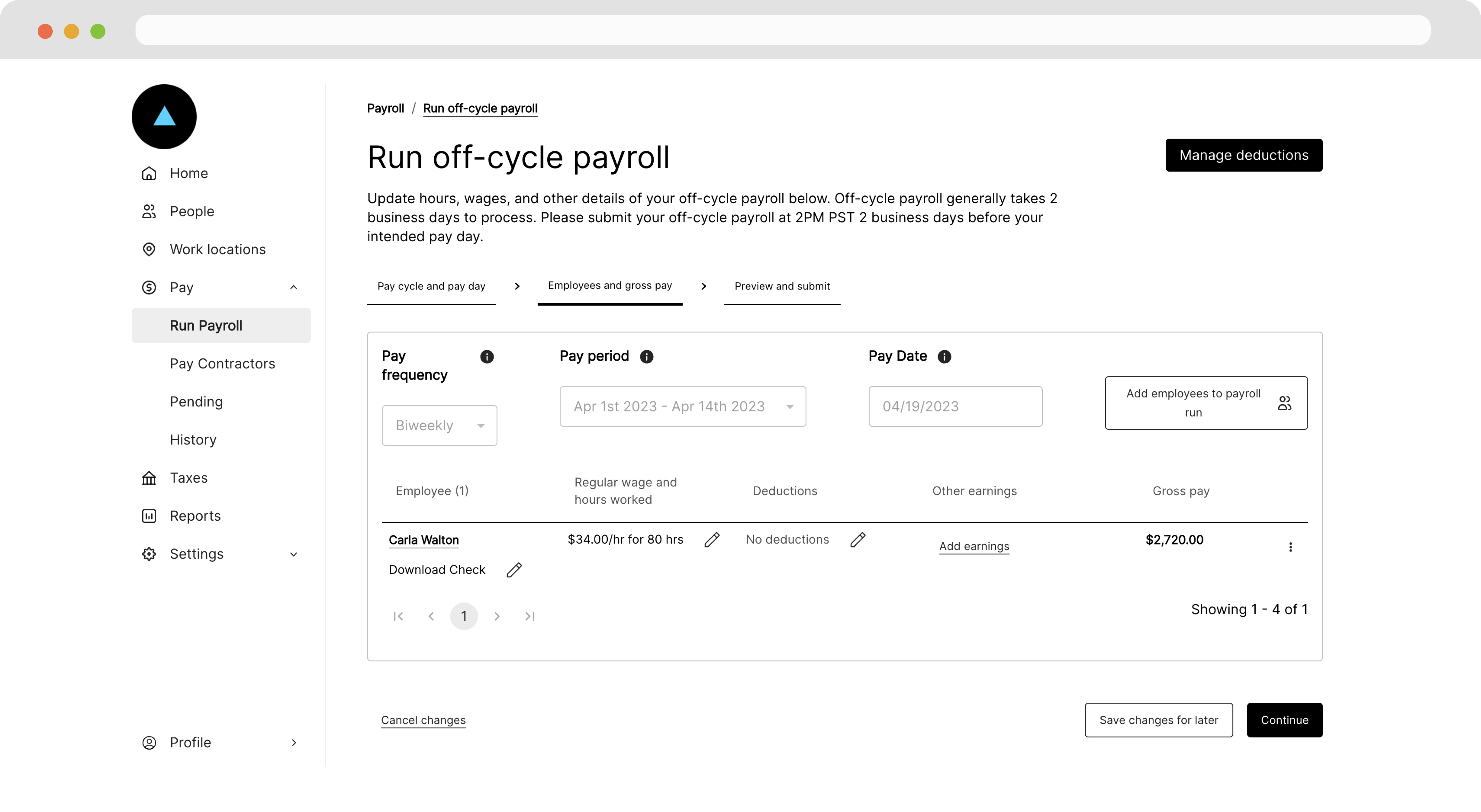
 On the following page, we'll see a view of our payroll run with defaults based on employee's default wage and pay schedule.
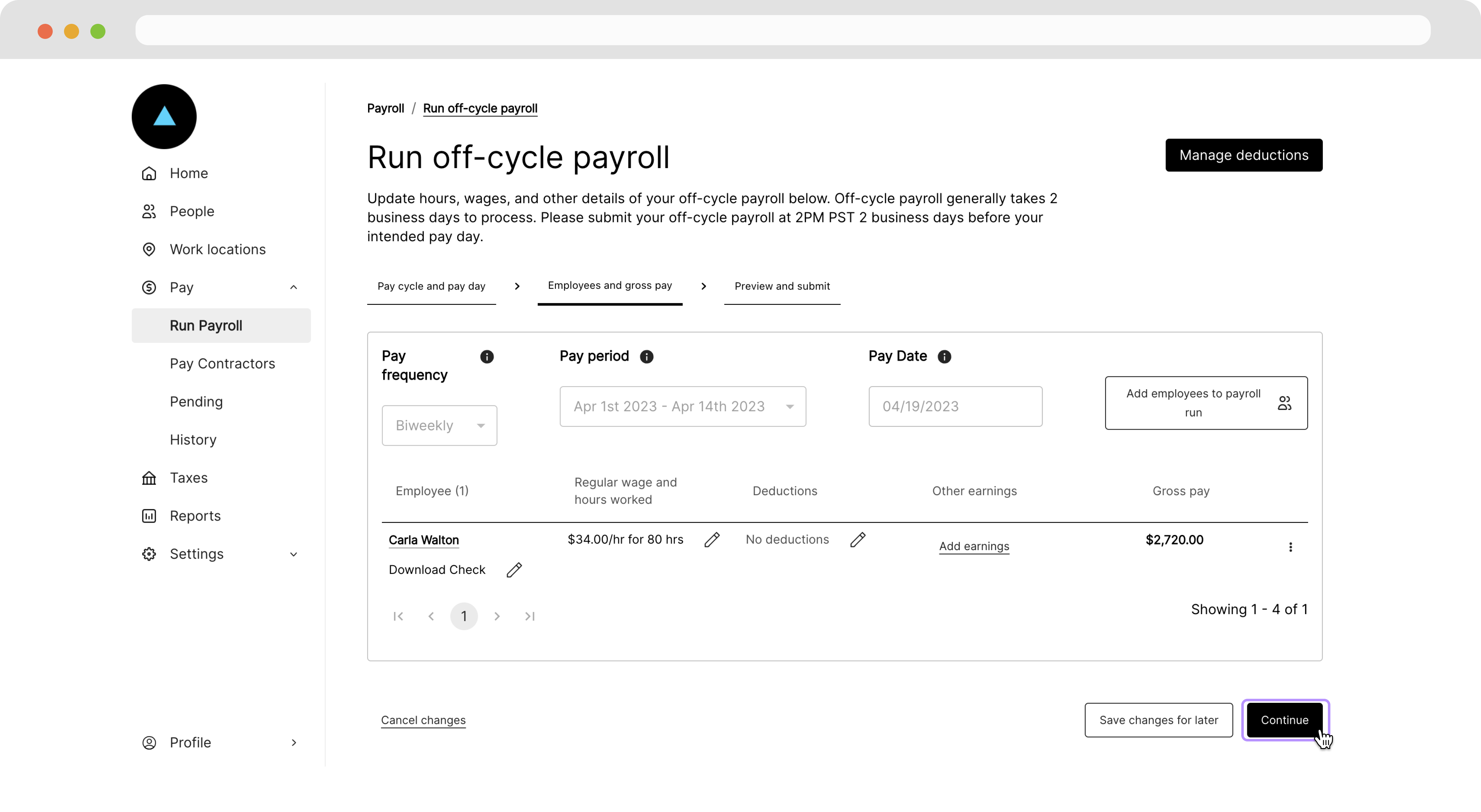
 From this page, click **Continue**.
 On the final page, click **Submit payroll**.
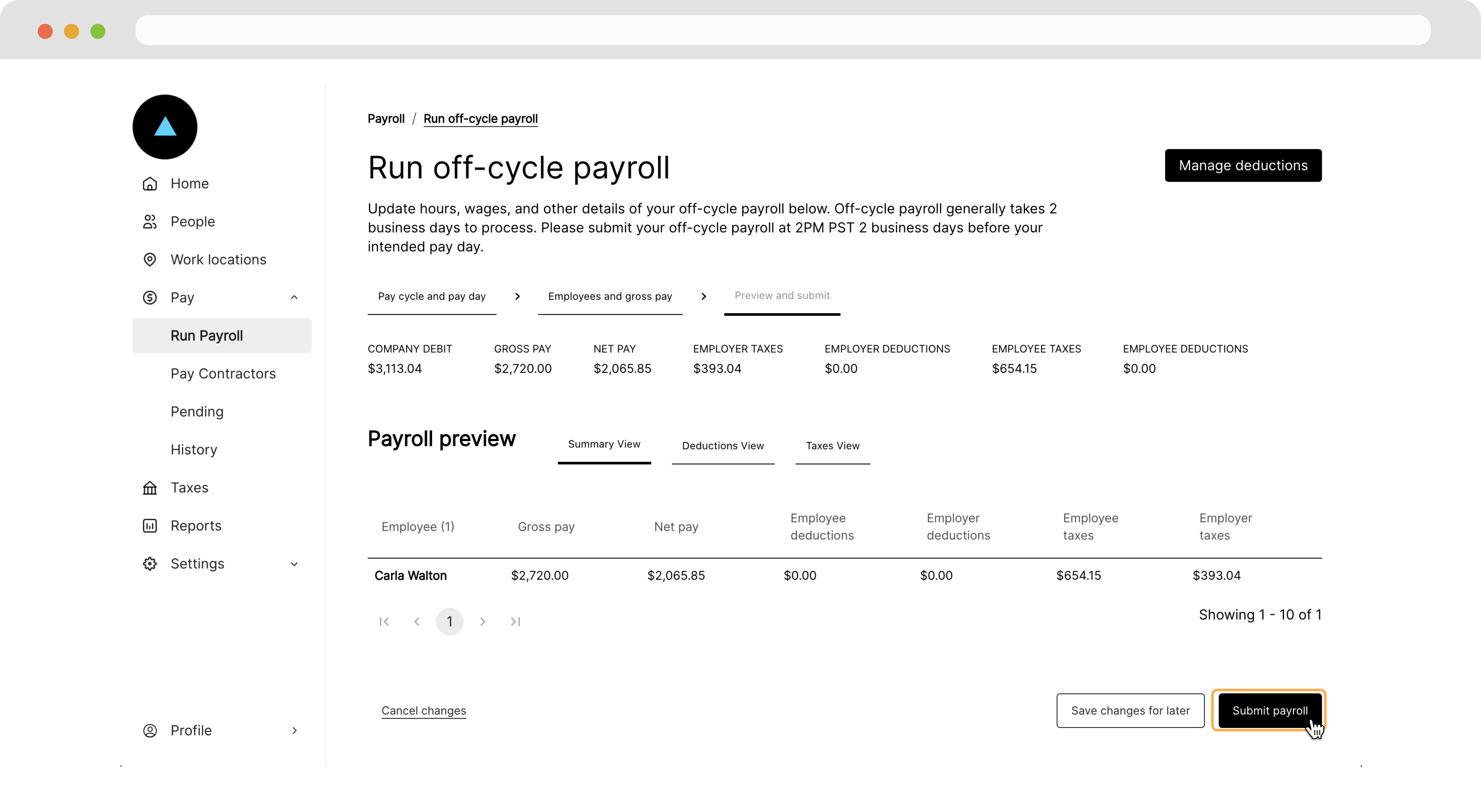 Once submitted, Zeal will finalize and process the payroll two business days before the pay date.
***
## Recap
* The first step for our payroll solution is to onboard one or more Companies (employers).
* Before onboarding any Employees, a Company must have at least one Work Location.
* To run payroll, first onboard an Employee(s).
* With a Company and Employee(s) onboarded, payroll can be run from the Employer Dashboard.
Once submitted, Zeal will finalize and process the payroll two business days before the pay date.
***
## Recap
* The first step for our payroll solution is to onboard one or more Companies (employers).
* Before onboarding any Employees, a Company must have at least one Work Location.
* To run payroll, first onboard an Employee(s).
* With a Company and Employee(s) onboarded, payroll can be run from the Employer Dashboard.