> ## Documentation Index
> Fetch the complete documentation index at: https://docs.zeal.com/llms.txt
> Use this file to discover all available pages before exploring further.
# Payroll Runs
> Through the white-label Company Dashboard we can set up payroll runs rather than working with individual Employee Checks, as in the API.
## In this guide
* How to set up a regular payroll run.
* How to set up an off-cycle payroll run.
* How to edit and submit a payroll run.
***
## Set up
The first step to run payroll through the dashboard is to set up either a regular or off-cycle payroll run. A regular payroll run populates with default values every cycle based on the initial configuration. An off-cycle run can be run at any time, but must be full configured each time.
### Regular payroll run set up
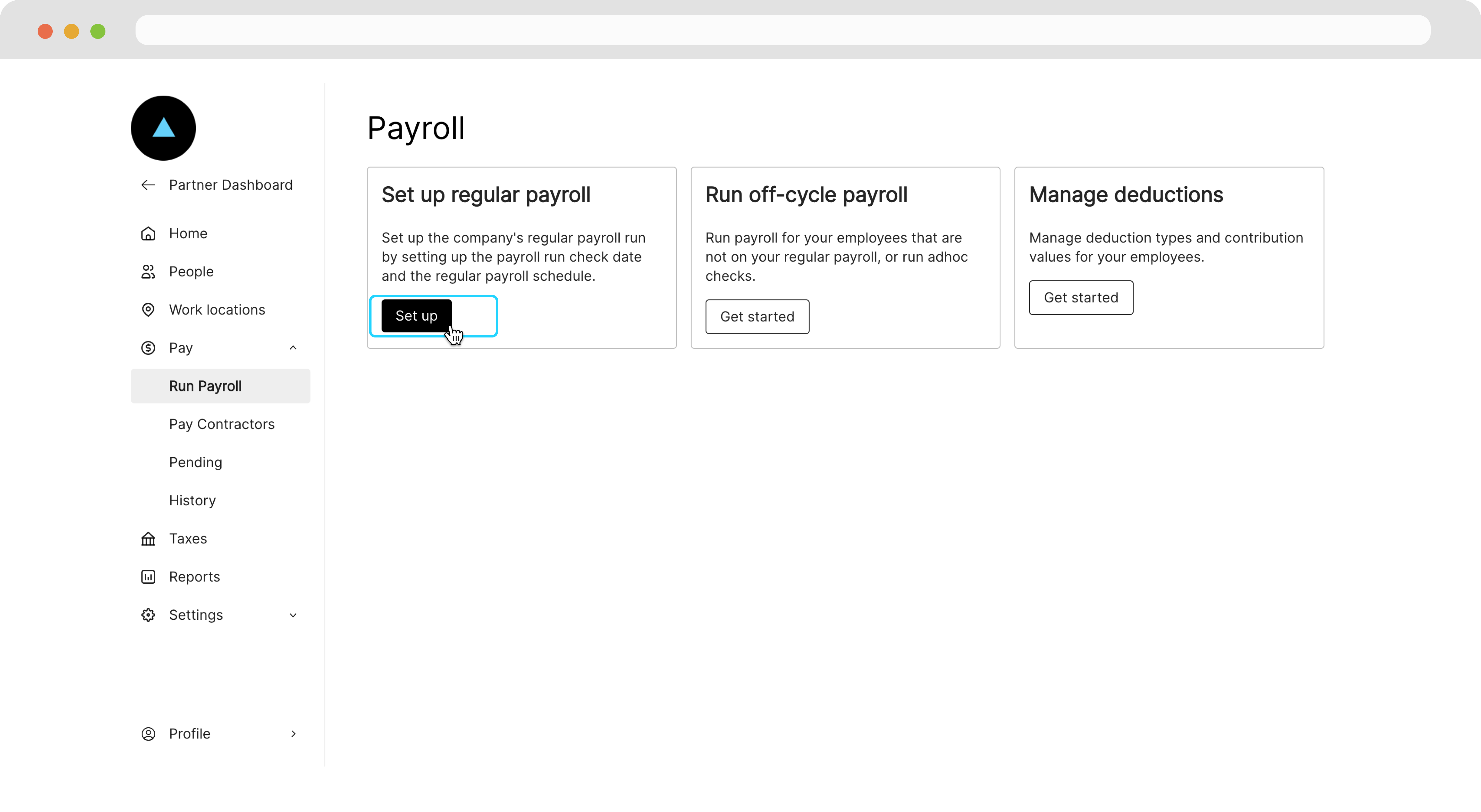
In the Company Dashboard, navigate to **Run Payroll** and click **Set Up**.
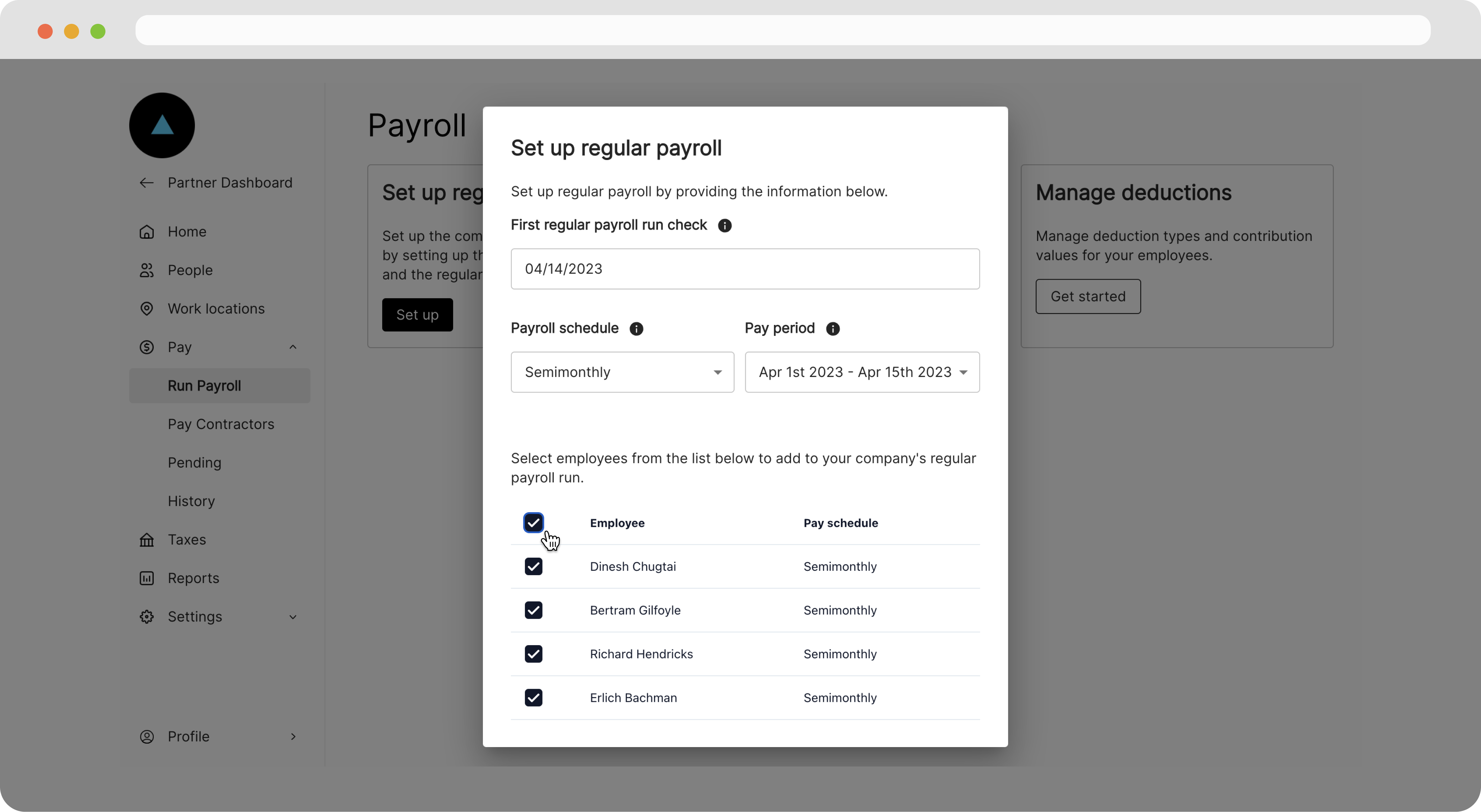
 On the modal that appears, configure the run settings and add employees to the run.
 ### Note
If an employee's pay frequency differs from that of the regular payroll run, the employee's pay frequency will be overridden to match that of the run.
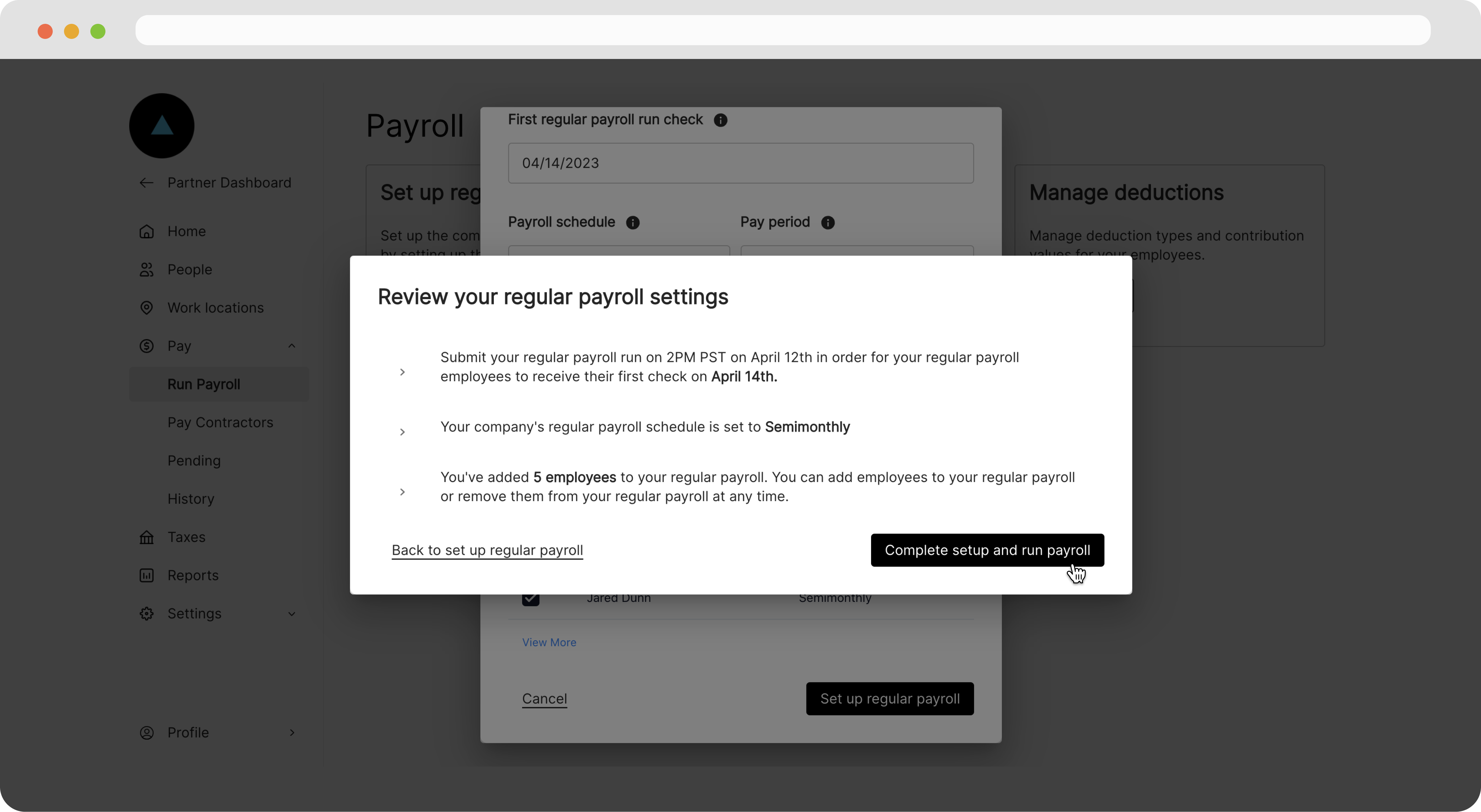
Click **Set Up Regular Payroll Run**, review the settings click **Complete setup and run payroll**.
### Note
If an employee's pay frequency differs from that of the regular payroll run, the employee's pay frequency will be overridden to match that of the run.
Click **Set Up Regular Payroll Run**, review the settings click **Complete setup and run payroll**.
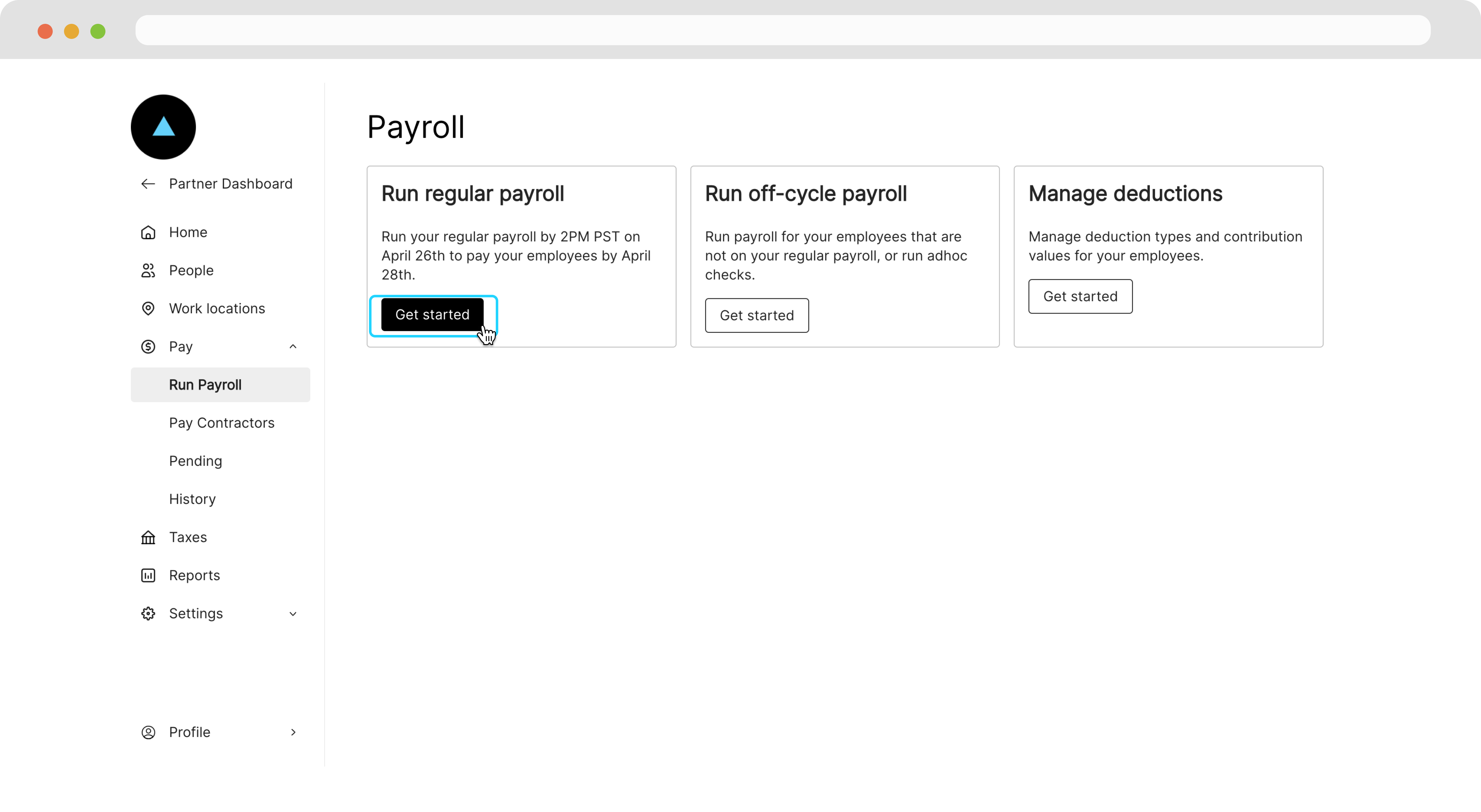
 Now that we have our regular payroll setup, we can initiate it ever pay cycle by navigating to the **Run Payroll** page and clicking "Get Started".
 On the following page, we'll see a view of our payroll run with defaults based on employee's default wage and pay frequency.
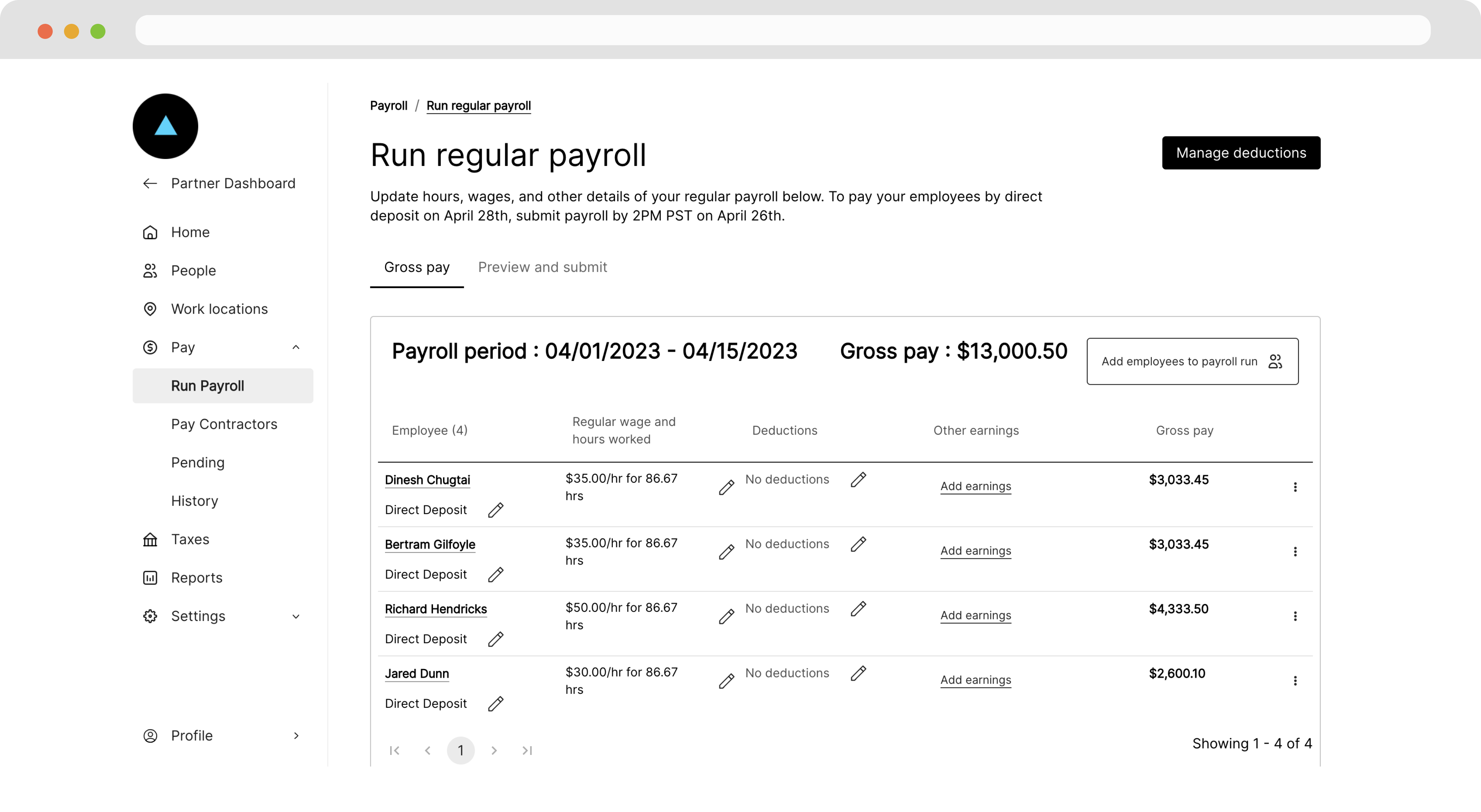 From this page, we can [edit the payroll](/docs/payroll-runs#edit-and-submit-a-run) run or click **Save changes for later**.
### Off-cycle payroll run set up
In the Company Dashboard, navigate to **Run Payroll** and click **Get Started** under the run off-cycle payroll section.
From this page, we can [edit the payroll](/docs/payroll-runs#edit-and-submit-a-run) run or click **Save changes for later**.
### Off-cycle payroll run set up
In the Company Dashboard, navigate to **Run Payroll** and click **Get Started** under the run off-cycle payroll section.
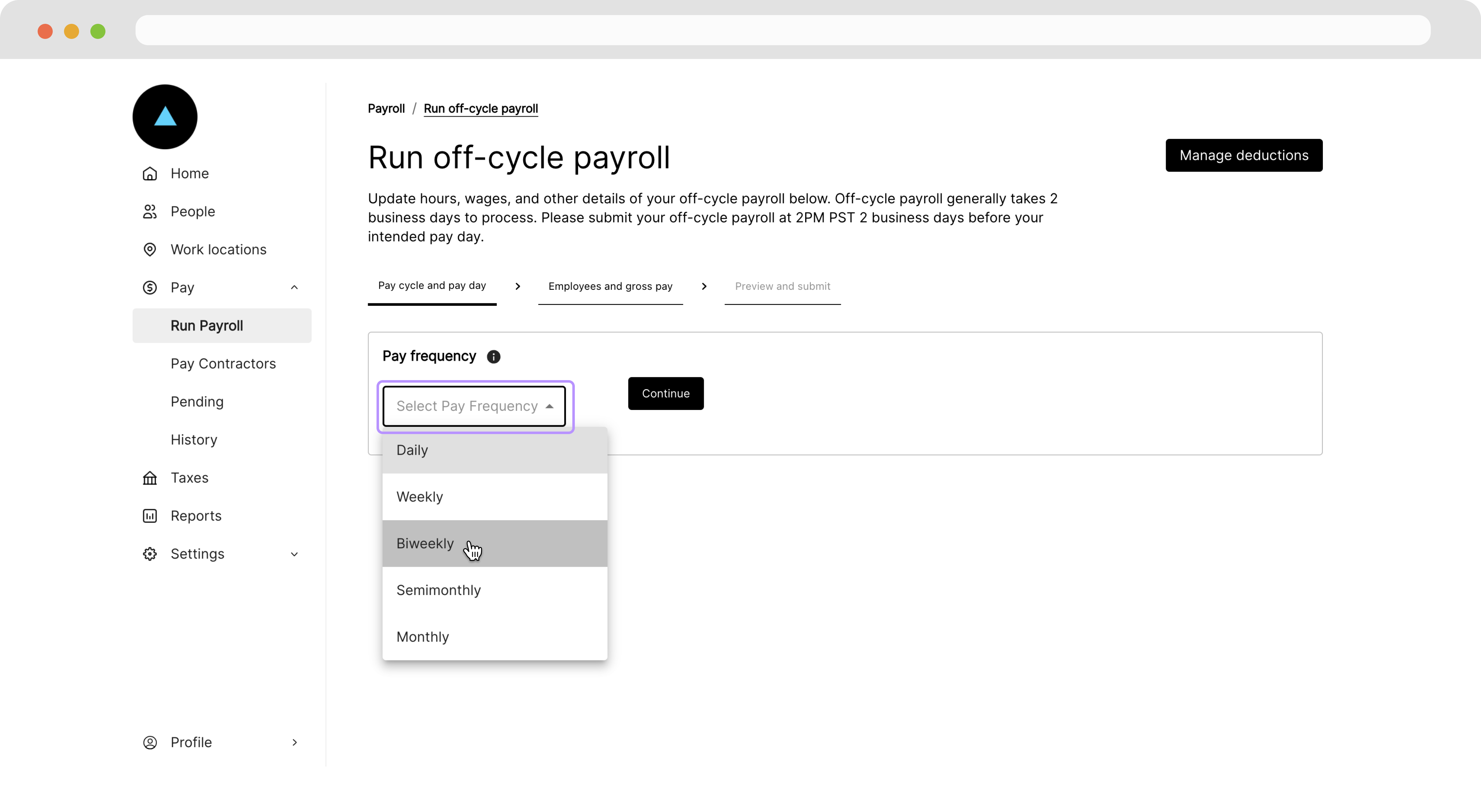
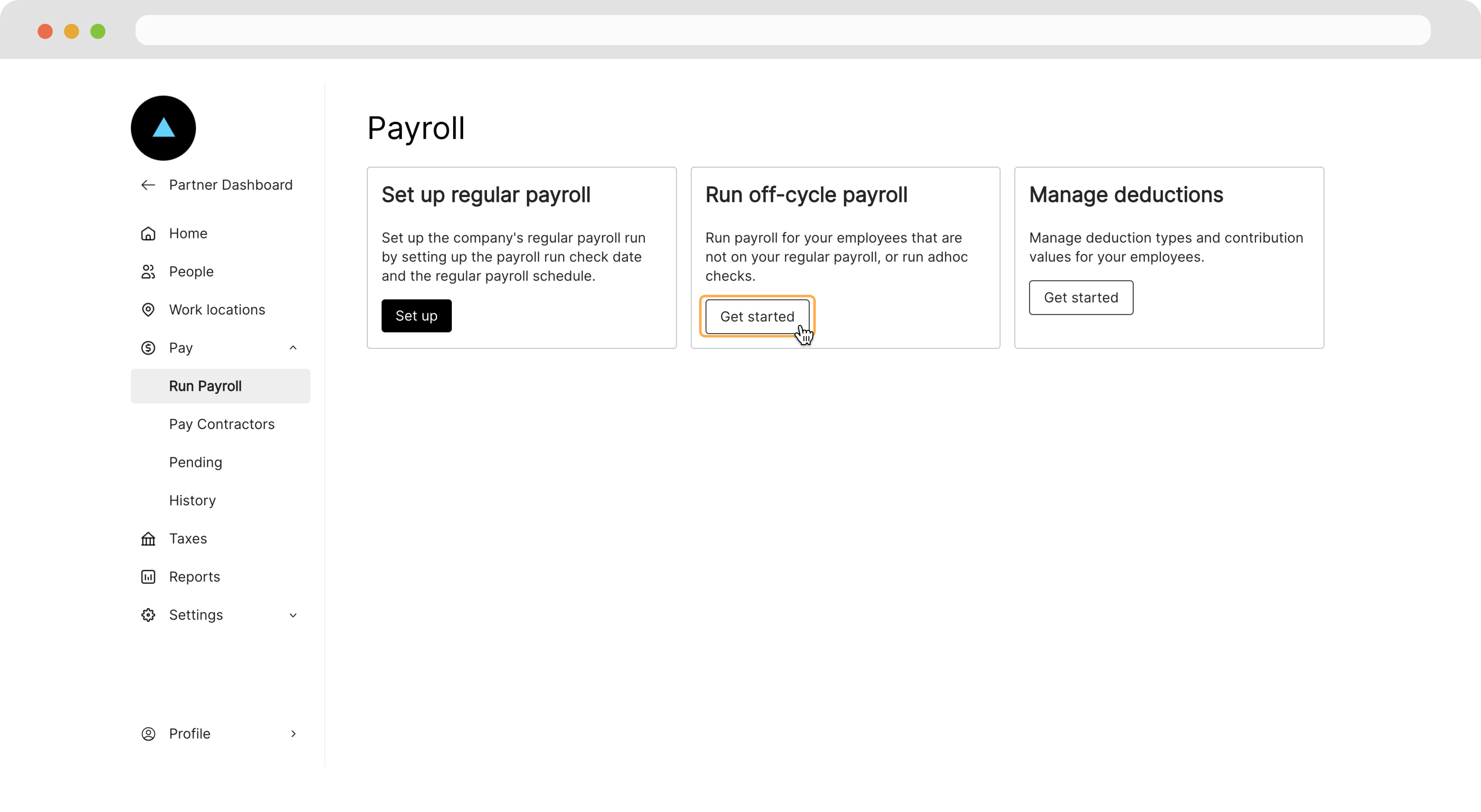 On the following page, we'll select the **Pay frequency**.
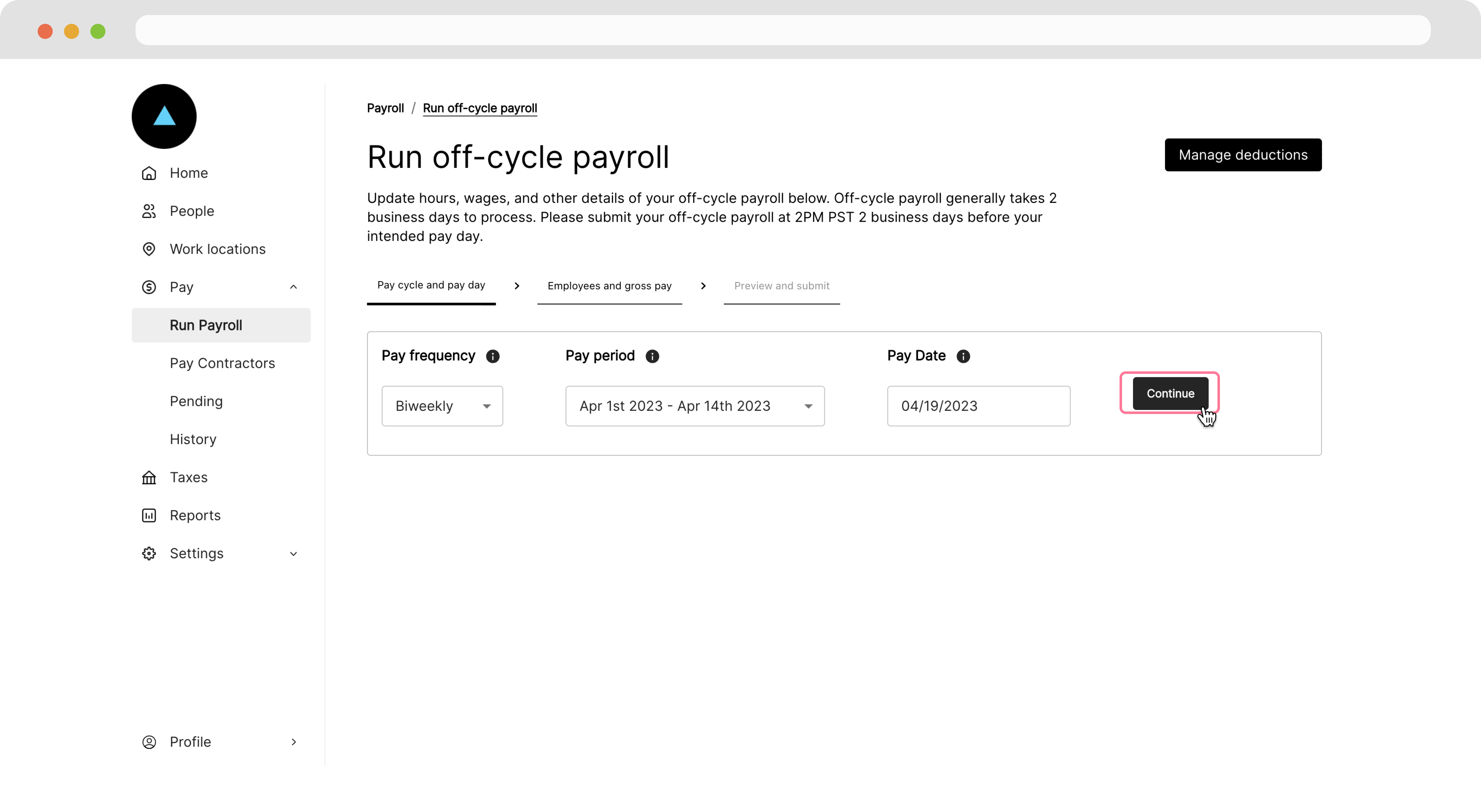
 Next, select the **Pay period** and **Pay date**, then hit **Continue**.
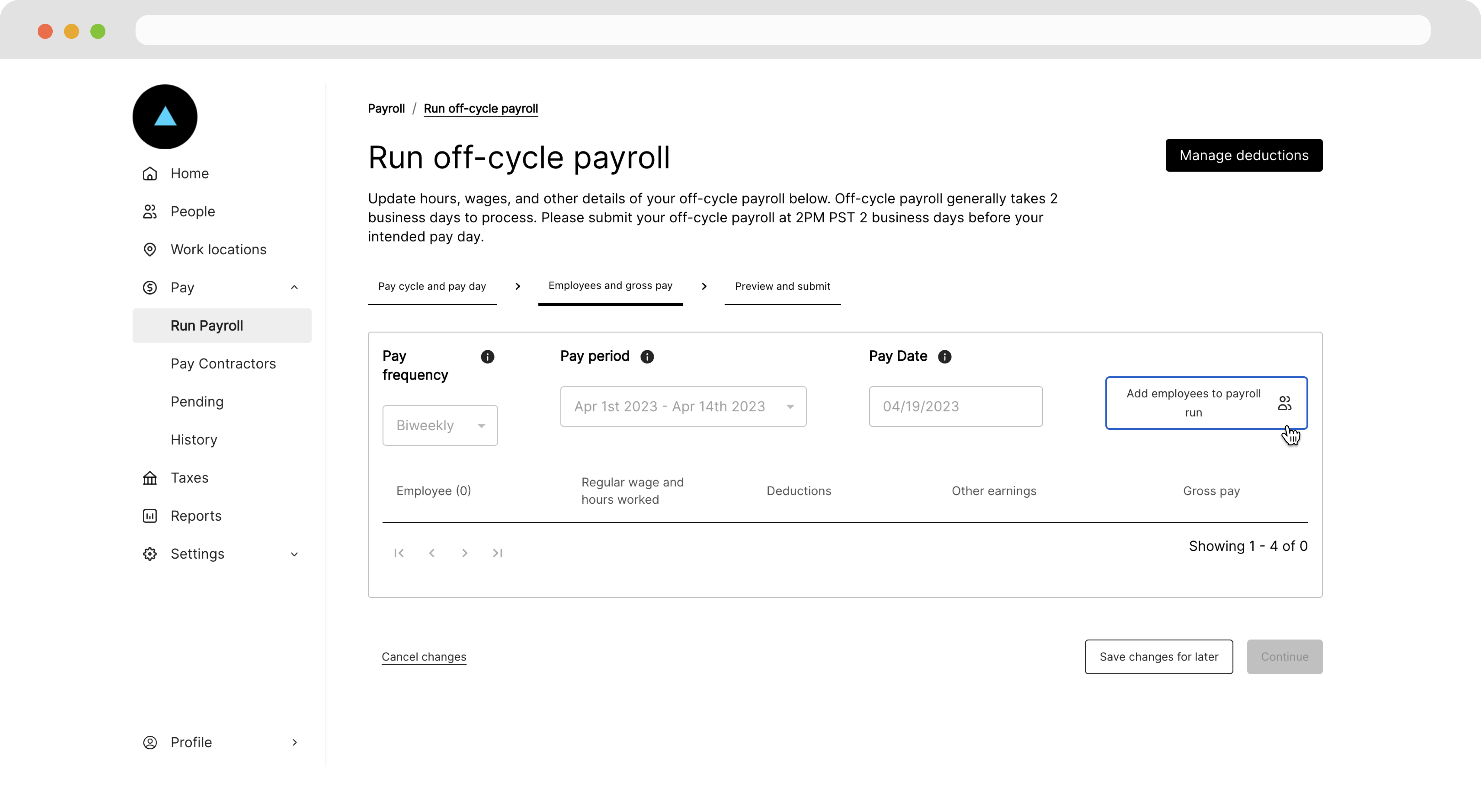
 On the following page, click **Add employees to payroll run**.
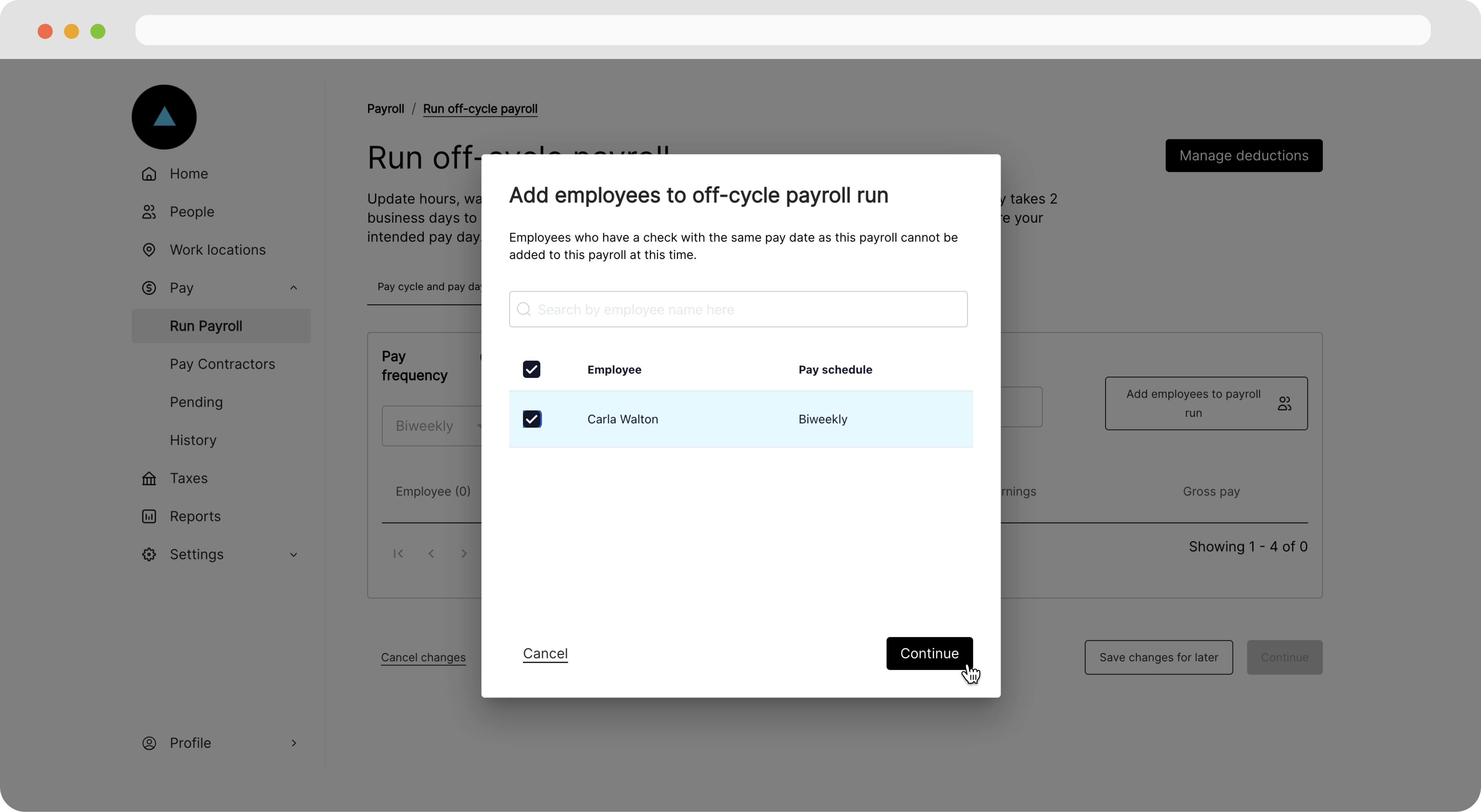
 In the modal that appears, select the employee or employees you'd wish to pay off-cycle.
 On the following page, we'll see a view of our payroll run with defaults based on employee's default wage and pay frequency.
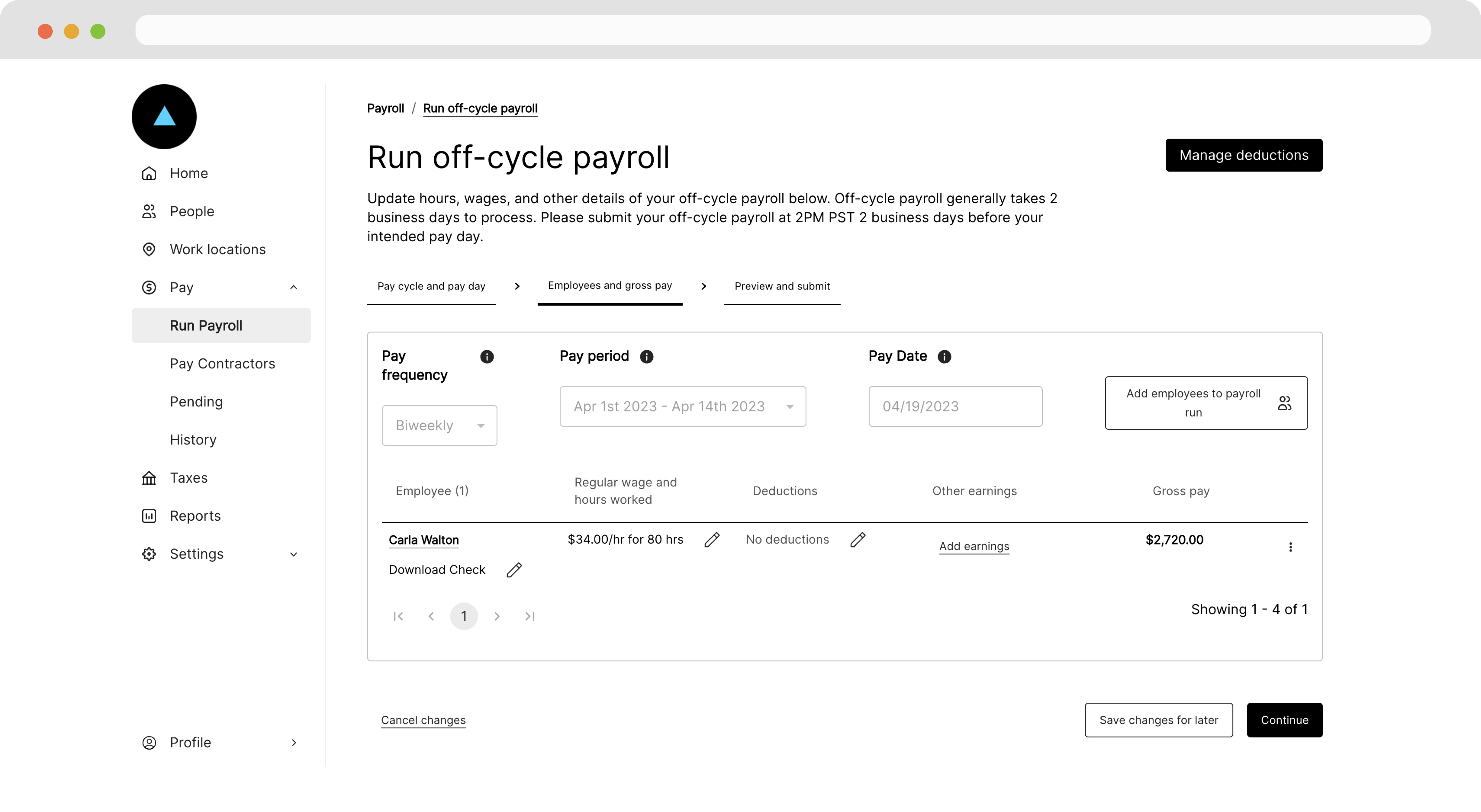 From this page, we can [edit the payroll](/docs/payroll-runs#edit-and-submit-a-run) run or click **Save changes for later**.
## Edit and submit a run
Once a run is set up, we can edit and submit it any time before the cut-off date (2 business days before the pay date).
### Edit a run
In the Company Dashboard, navigate to **Run Payroll** and click either the **Edit payroll** button below the desired section, or click the three dots next to a specific payroll run and click **Edit payroll**.
From this page, we can [edit the payroll](/docs/payroll-runs#edit-and-submit-a-run) run or click **Save changes for later**.
## Edit and submit a run
Once a run is set up, we can edit and submit it any time before the cut-off date (2 business days before the pay date).
### Edit a run
In the Company Dashboard, navigate to **Run Payroll** and click either the **Edit payroll** button below the desired section, or click the three dots next to a specific payroll run and click **Edit payroll**.
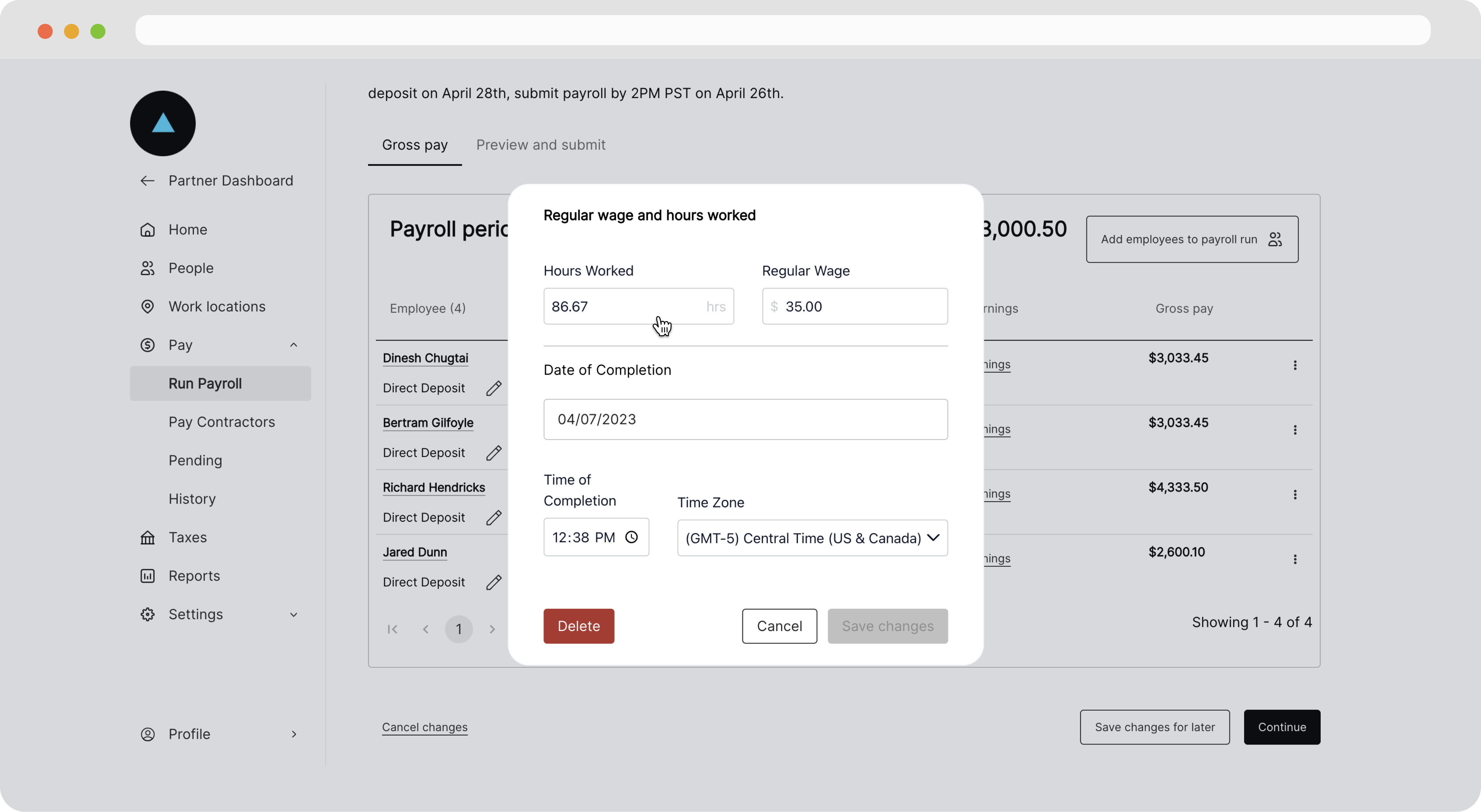
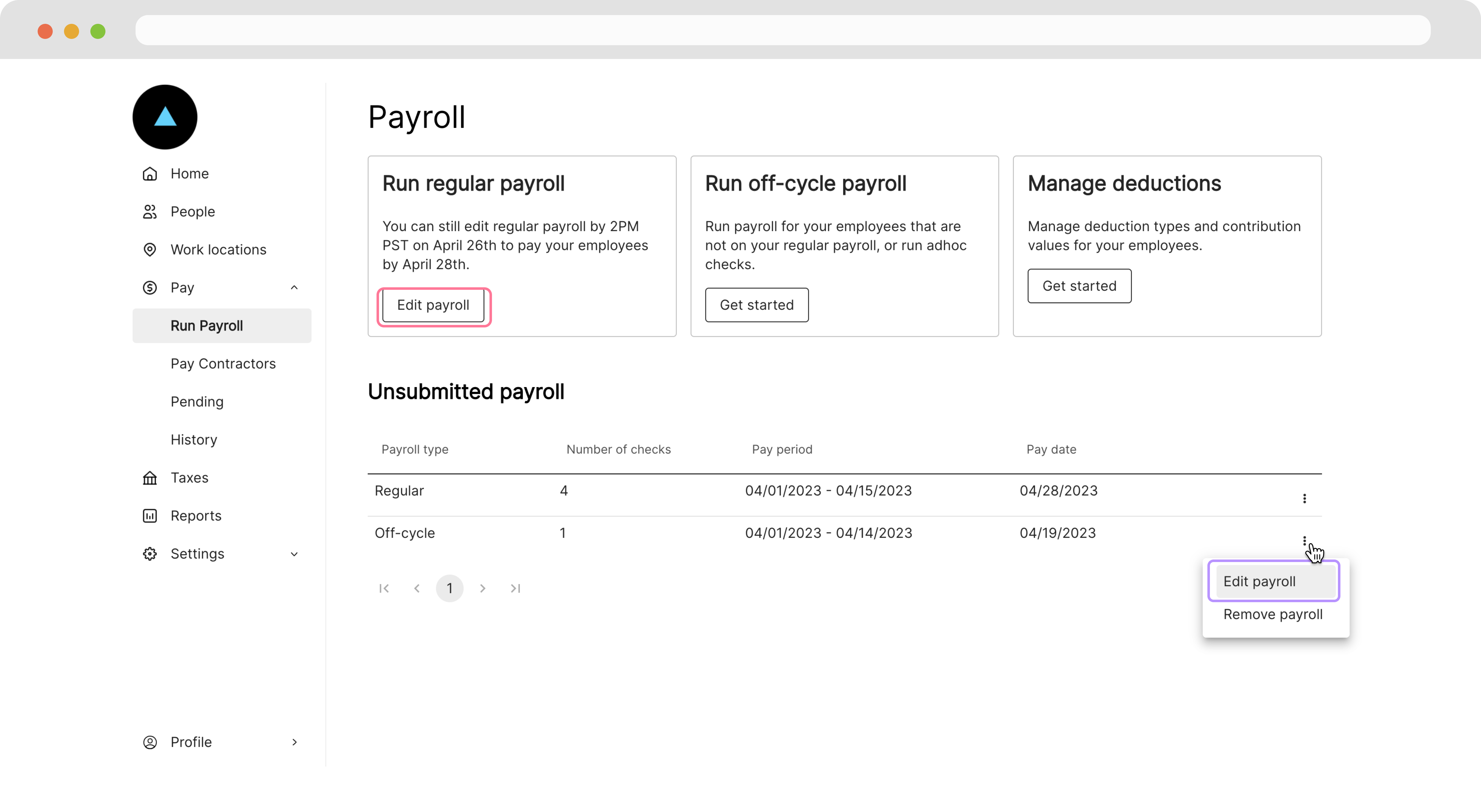 On the next page, we can review the payroll run and make edits by clicking a pencil icon.
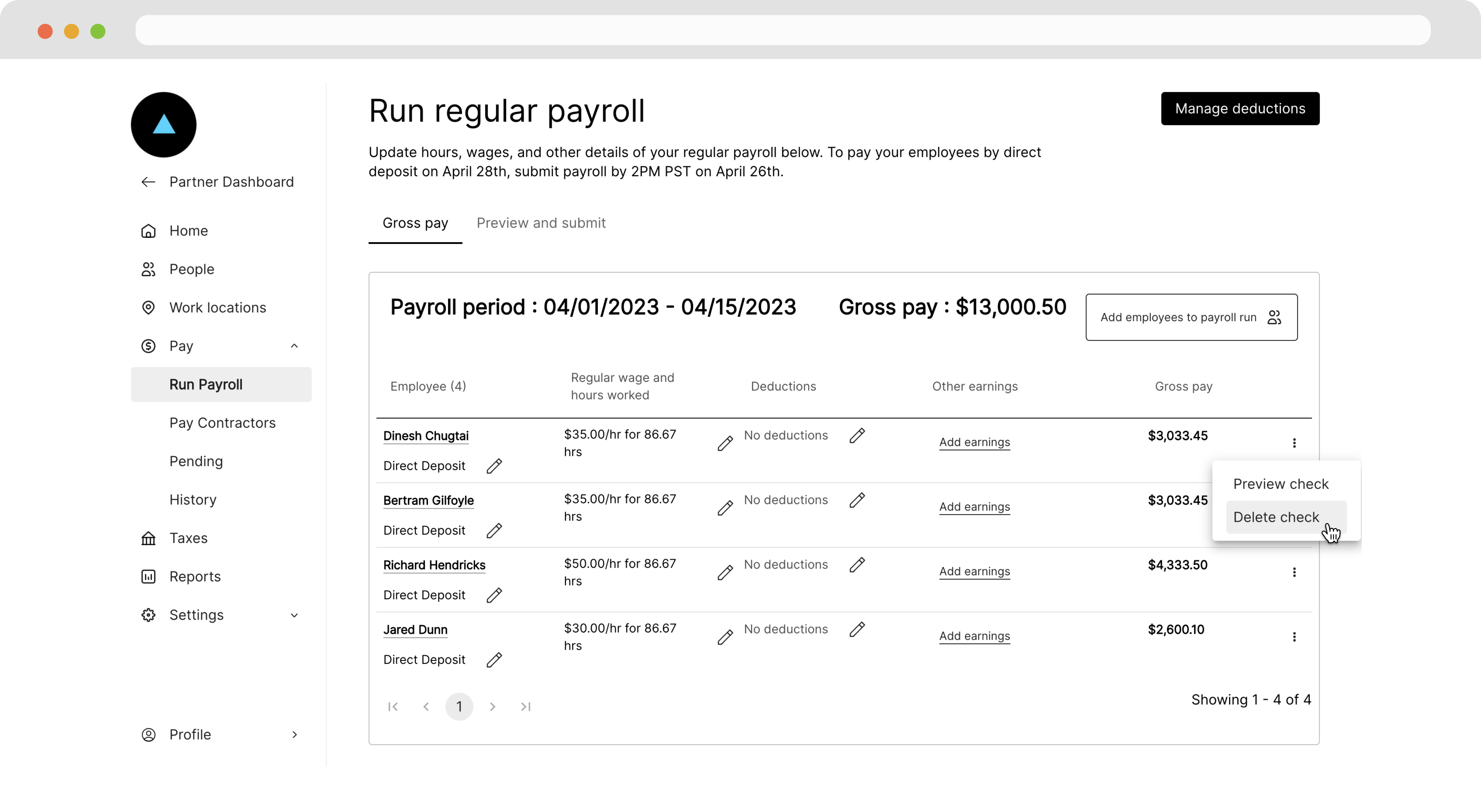
 We can also remove an employee from this pay cycle by clicking three dots at the end of the row and deleting the check.
 ### Submit a run
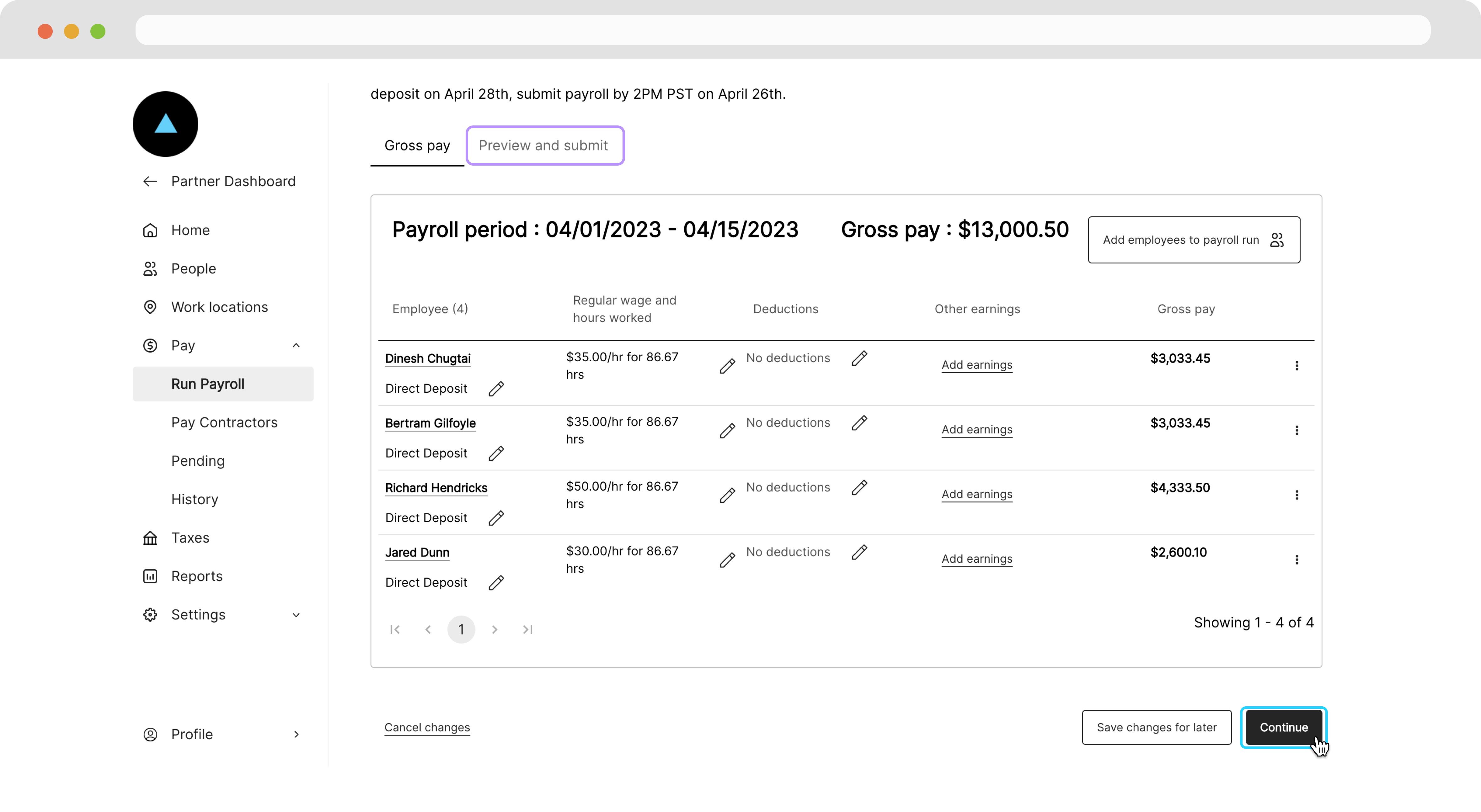
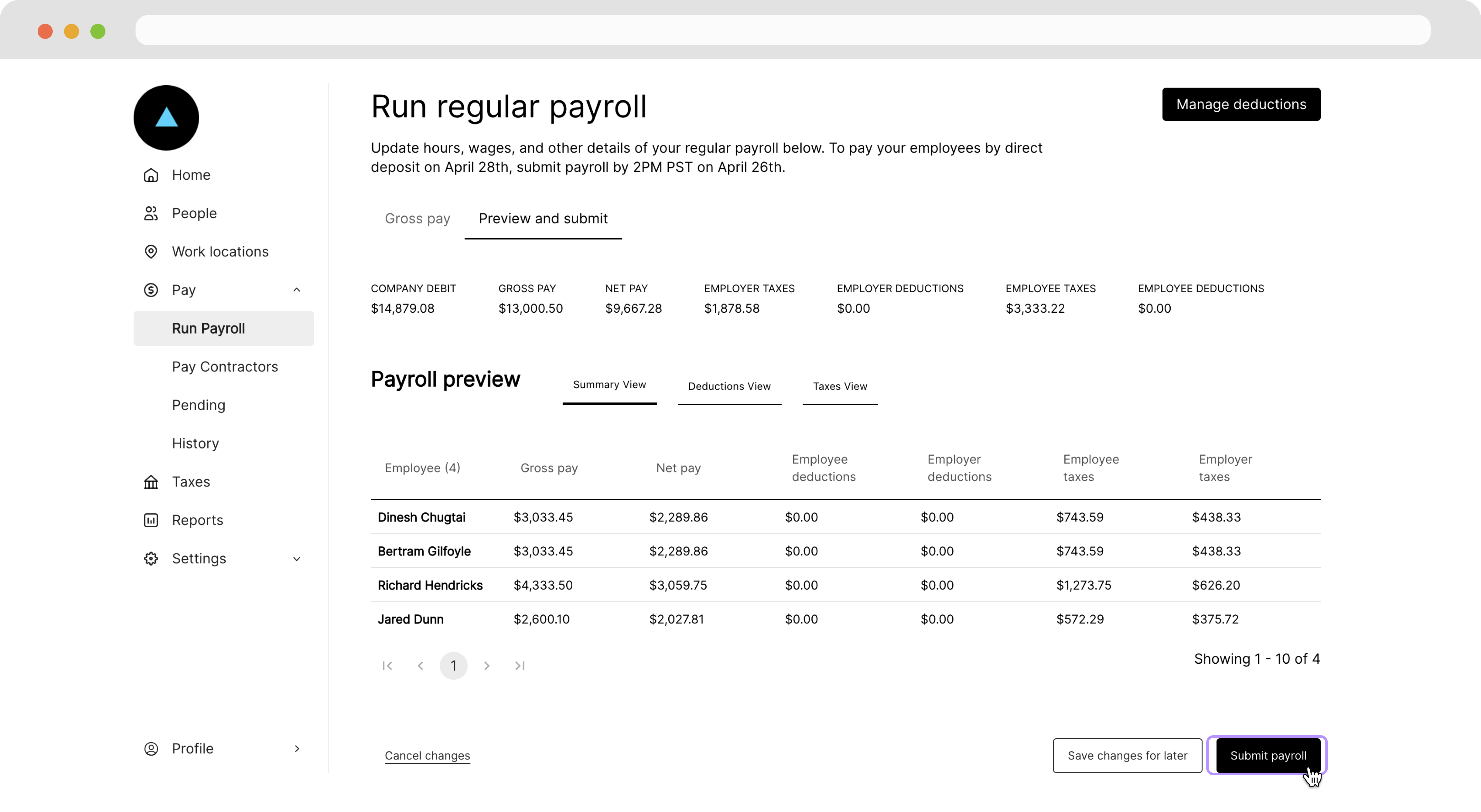
Once the payroll run is configured as we like, we can click the **Continue** button or the **Preview and submit** tab to get a breakdown of the payroll.
### Submit a run
Once the payroll run is configured as we like, we can click the **Continue** button or the **Preview and submit** tab to get a breakdown of the payroll.
 If everything looks good, we can click **Submit**. Payroll will then be automatically finalized and processed two business days before the pay date.
 ***
## Recap
* There are two kinds of payroll runs: *regular* and *off-cycle*.
* *Regular* payroll runs populate with configured defaults every pay cycle.
* *Off-cycle* payroll can be run at any time, but must be configured each time.
* Once a payroll run is set up, it can be edited from the **Run Payroll** tab.
* You can finalize a payroll run by **Submitting** it or **Save changes for later**.
***
## Recap
* There are two kinds of payroll runs: *regular* and *off-cycle*.
* *Regular* payroll runs populate with configured defaults every pay cycle.
* *Off-cycle* payroll can be run at any time, but must be configured each time.
* Once a payroll run is set up, it can be edited from the **Run Payroll** tab.
* You can finalize a payroll run by **Submitting** it or **Save changes for later**.