> ## Documentation Index
> Fetch the complete documentation index at: https://docs.zeal.com/llms.txt
> Use this file to discover all available pages before exploring further.
# Employee Checks
> With Zeal, paying employees is a simple matter of creating Employee Checks with the desired check_date (or payday).
## In this guide
* What makes up an Employee Check.
* How to get Reporting Periods.
* How to create an Employee Check.
* How Employee Checks are represented in the Company Dashboard and how to edit them.
***
## Components of an Employee Check
### Reporting Period
[Reporting Periods](/reference/employee-checks/reporting-periods/reporting-period-object) refer to the period of time for which the employee is being compensated. Reporting periods correlate with the pay schedule for the employee. For example, if the employee is on a semi-monthly pay schedule, a normal reporting period may span Jan. 1st - Jan. 15th. If the employee is on a daily pay schedule, the reporting period could be any day of the year. See [Pay Frequency, Reporting Periods and Check Dates](/reference/employee-checks/reporting-periods/pay-frequency-reporting-periods-and-check-dates) for more details.
### Check Date
The Check Date states what day the employee should be paid. This date is essential to how Zeal runs payroll. At 2 PM Pacific Time two days prior to any given Check Date (12:30 PM P.T. for `one-day` speed checks), Zeal will batch all Employee Checks with the same `check_date` together into one Employer Check (essentially a payroll run). Zeal will debit the company's bank account the gross total and use it to pay out the net earnings to all employees by the Check Date.
### Shifts
[Shifts](/reference/employee-checks/shifts/shift-object) define the compensation the employee has earned. Shifts will include one or many earning components such as hourly wages, overtime wages, PTO, commission, etc. (read more about Zeal's Earning Components [here](/docs/earning-components)) You can manage Shifts by creating the Employee Check upfront and then adding shifts to the existing check or by including all Shifts directly in the initial request to create the Employee Check.
### Deductions (Optional)
[Deductions](/reference/employee-checks/deductions/get-deduction-template-definitions) refer to specific withholdings from an employee's pay. Common deductions include 401K, HSA, and garnishments. Deductions are important for the calculation of taxes and the reporting on paystubs. Zeal will use the deduction in our gross-to-net calculation but will not debit the deduction from the company's bank account (with the exception of garnishments). The company is responsible for paying out the proper stakeholders for the deduction.
## API
### Get the Reporting Period
Call [Get Reporting Period by Date Range](/reference/employee-checks/reporting-periods/get-reporting-period-by-date-range) to get the proper reporting period for this check.
### Note
Remember to replace the placeholders such as `{{testApiKey}}` in the code samples below.
```bash bash theme={null}
curl --request GET \
--url 'https://api.zeal.com/reportingPeriod?companyID={{companyID}}&pay_schedule=semimonthly&searchStart=2022-01-01&searchEnd=2022-01-15' \
--header 'Accept: application/json' \
--header 'Authorization: Bearer {{testApiKey}}'
```
### Create an Employee Check
Call [Create Employee Check](/reference/employee-checks/employee-checks/create-employee-check).
```bash bash theme={null}
curl --request POST \
--url https://api.zeal.com/employeeCheck \
--header 'Accept: application/json' \
--header 'Authorization: Bearer {{testApiKey}}' \
--header 'Content-Type: application/json' \
--data '
{
"approval_required": false,
"disbursement": {
"method": "direct_deposit"
},
"shifts": [
{
"flat": {
"hours": 80,
"amount": 2500
},
"time": "2023-02-24T15:00"
}
],
"companyID": "{{companyID}}",
"employeeID": "{{employeeID}}",
"reportingPeriodID": "{{reportingPeriodID}}",
"check_date": "2022-01-14"
}
'
```
With the check in our system, it will automatically be batched and begin processing 2 days before the `check_date`.
***
## White-Label
Employee Check are represented slightly differently in the white-label than in the API. Employee Checks are grouped as payroll runs in the white-label. Thus, creating or editing and Employee Check will always be done as part of a payroll run. To create a payroll run, please see our [Payroll Runs](/docs/payroll-runs) guide. Below we'll cover how to edit an already existing Employee Check through the white-label.
### Access through the Company Dashboard
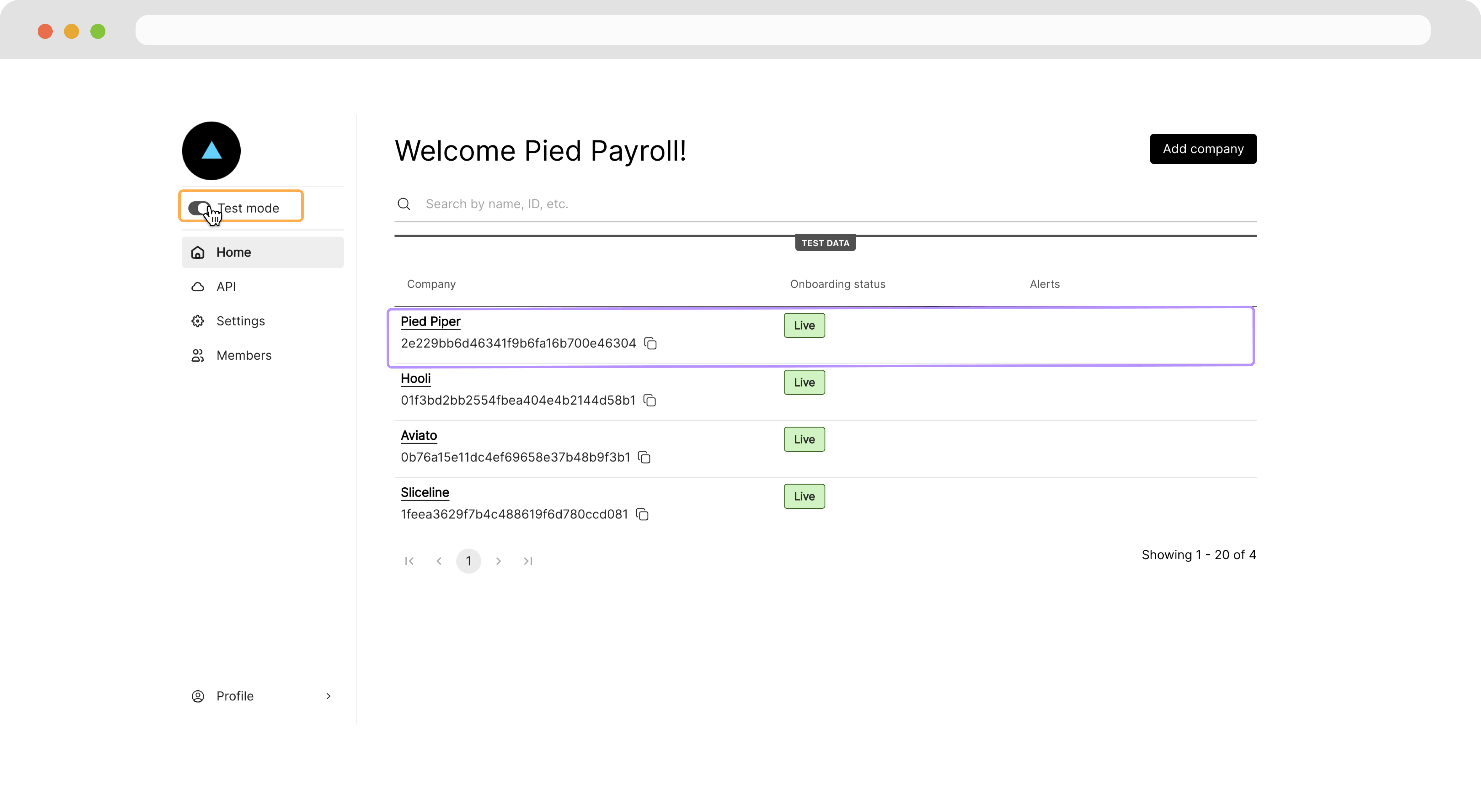
Navigate to your Partner Dashboard and ensure that *Test Mode* is enabled. Then, click on a Company to access the Company Dashboard as an Admin.
 ### Find an Employee Check
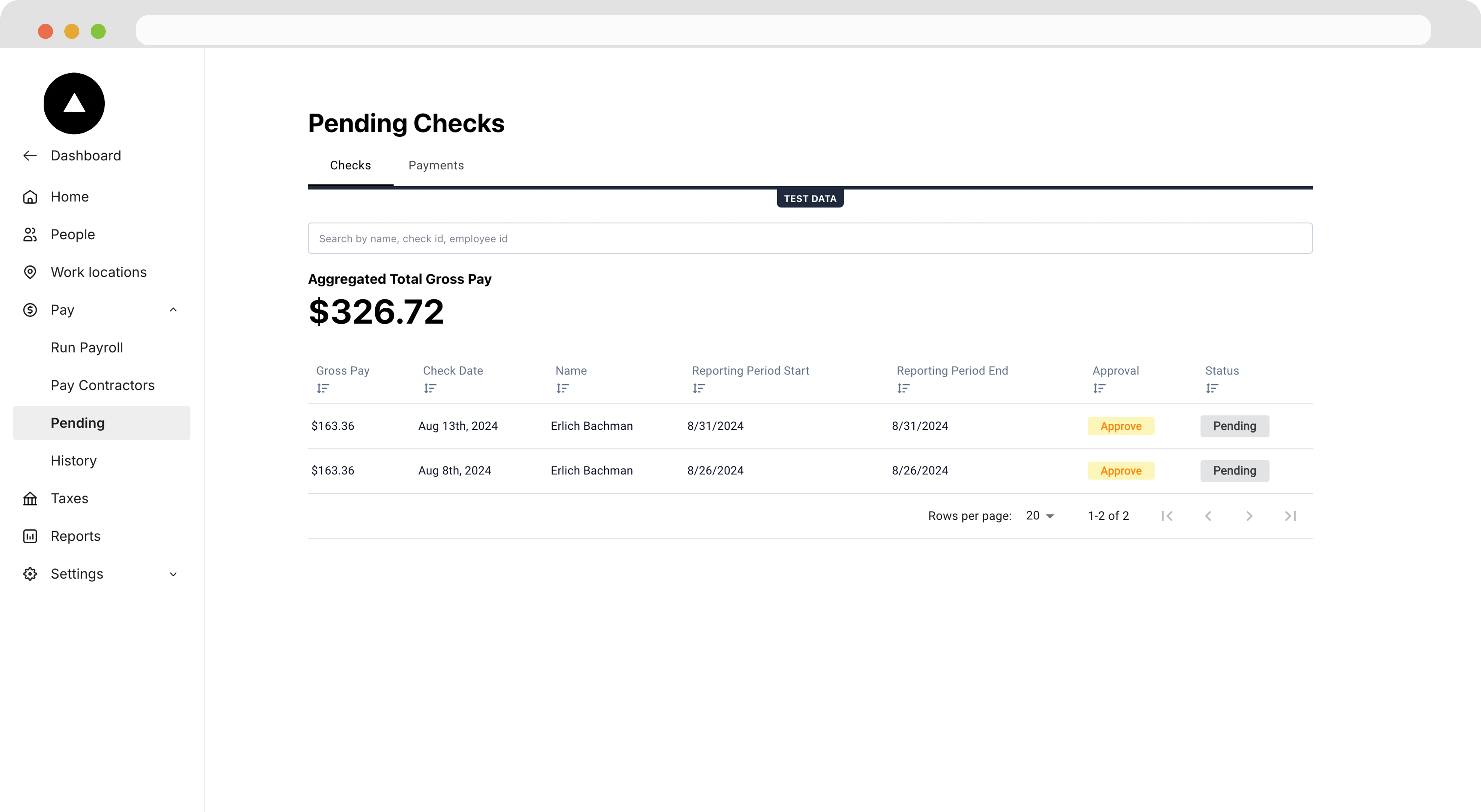
Navigate to **Pay > Pending** and click on the check you want to edit.
### Find an Employee Check
Navigate to **Pay > Pending** and click on the check you want to edit.
 ### Edit the check
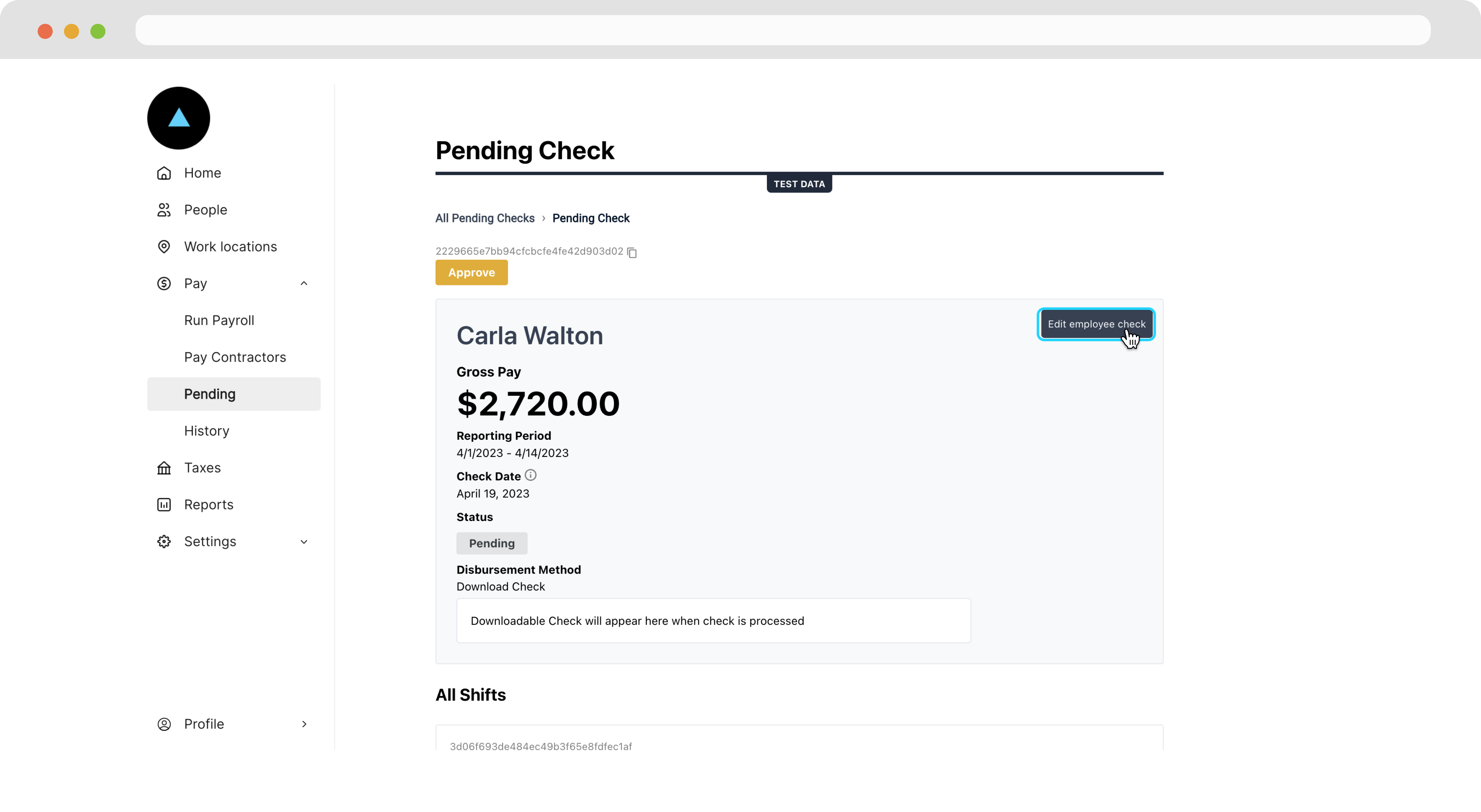
On the following page, click **Edit employee check**.
### Edit the check
On the following page, click **Edit employee check**.
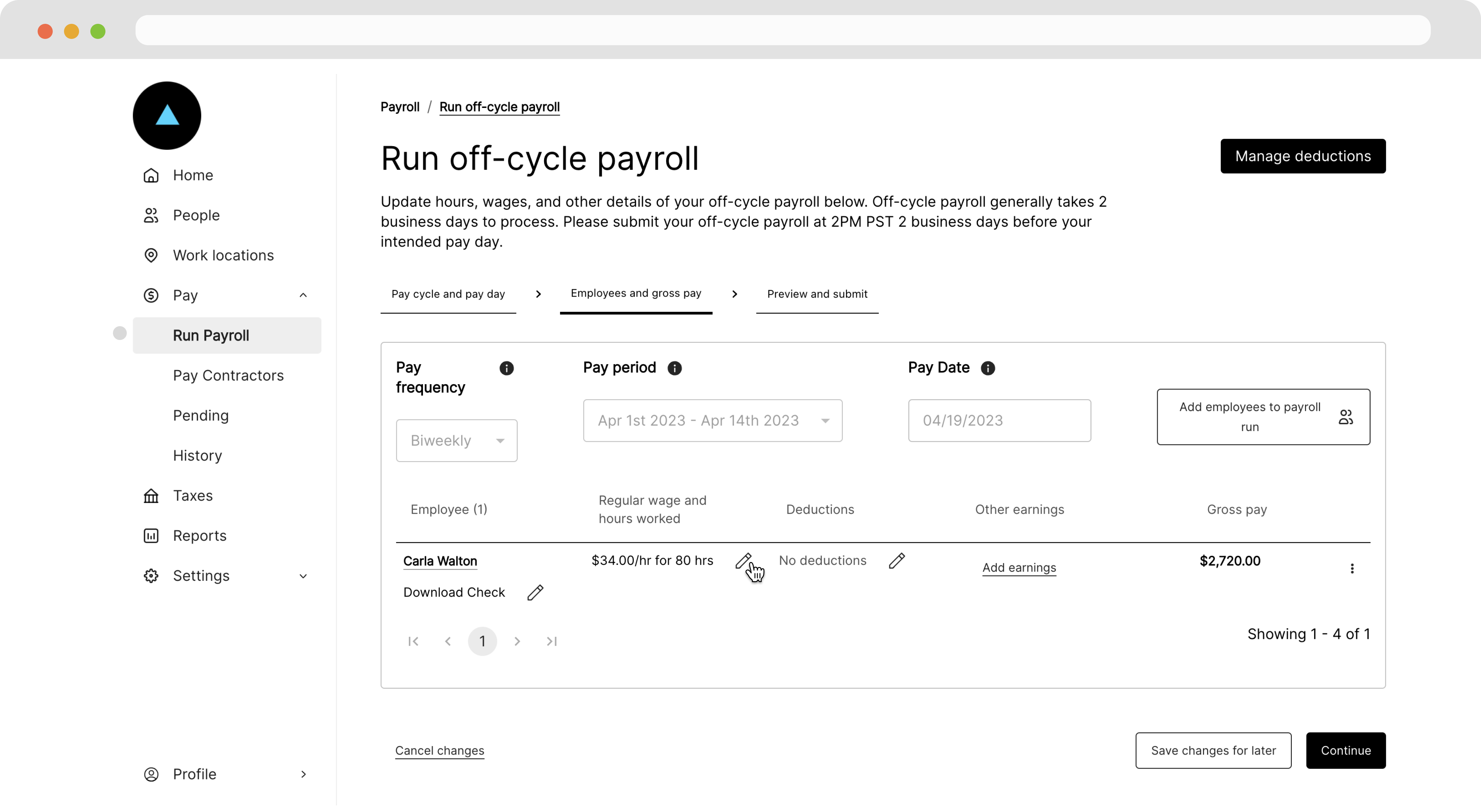
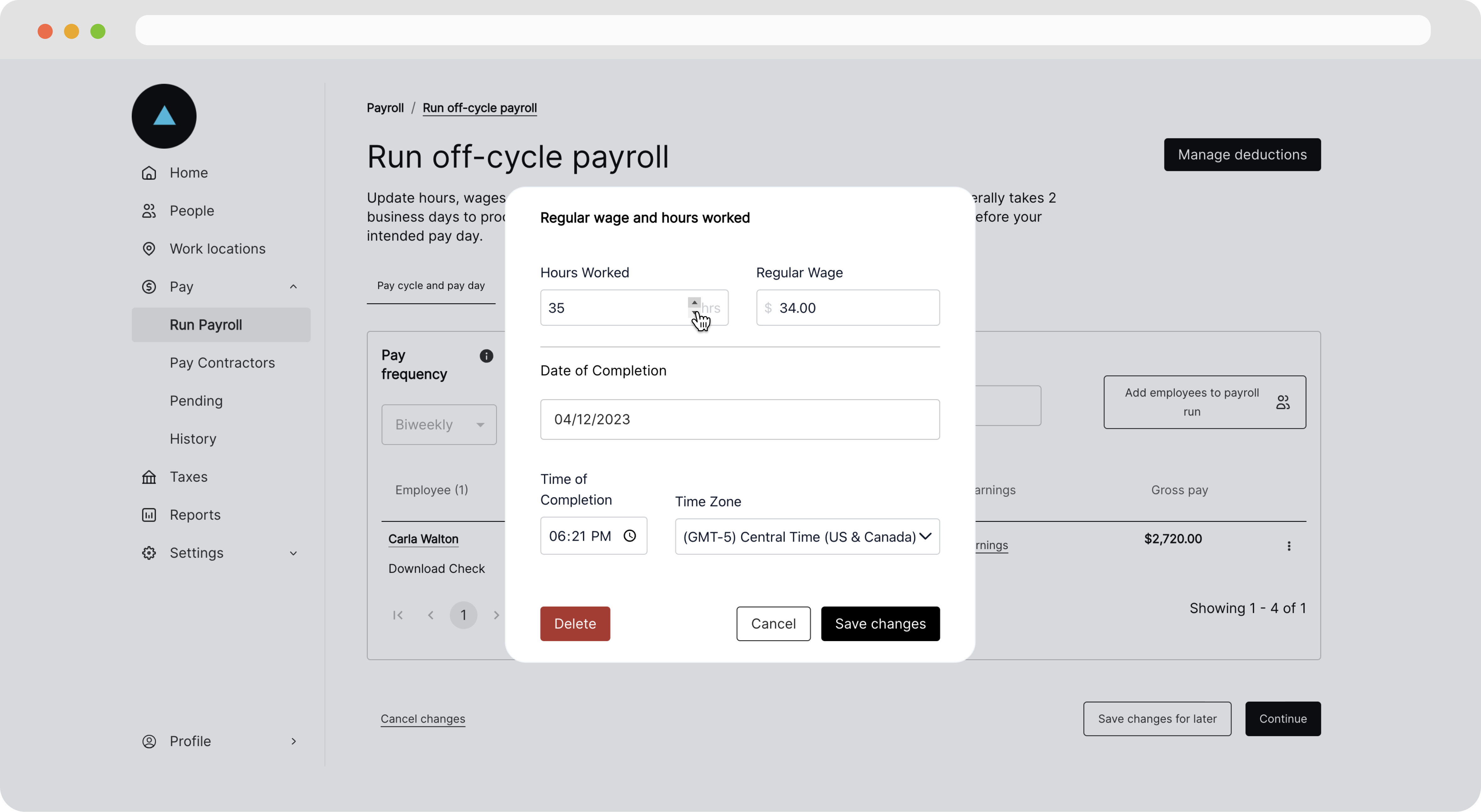
 This will bring us to the **Run payroll** tab where we'll see our check represented as a payroll run. By clicking the pencil icon, we can edit any part of the check, including other earnings and deductions.
 In the modal that appears, we can edit the details of the check.
 ### Save changes to the check
Once the check is edited as we like, we can click **Save changes for later** or **Continue** if we'd like to approve the payroll run for processing.
### Payroll runs
More information about payroll runs can be found in our [Payroll Runs](/docs/payroll-runs) guide.
***
## Recap
* Employee Checks have many components that inform Zeal of how to process the check.
* You can get a reporting period for a check using the [Get Reporting Period by Date Range](/reference/employee-checks/reporting-periods/get-reporting-period-by-date-range) endpoint.
* You can create a check with the [Create Employee Check](/reference/employee-checks/employee-checks/create-employee-check) endpoint.
* Employee Checks are grouped inside Payroll Runs in the Company Dashboard.
* Employee Checks are edited as part of a Payroll Run from the Company Dashboard.
### Save changes to the check
Once the check is edited as we like, we can click **Save changes for later** or **Continue** if we'd like to approve the payroll run for processing.
### Payroll runs
More information about payroll runs can be found in our [Payroll Runs](/docs/payroll-runs) guide.
***
## Recap
* Employee Checks have many components that inform Zeal of how to process the check.
* You can get a reporting period for a check using the [Get Reporting Period by Date Range](/reference/employee-checks/reporting-periods/get-reporting-period-by-date-range) endpoint.
* You can create a check with the [Create Employee Check](/reference/employee-checks/employee-checks/create-employee-check) endpoint.
* Employee Checks are grouped inside Payroll Runs in the Company Dashboard.
* Employee Checks are edited as part of a Payroll Run from the Company Dashboard.