> ## Documentation Index
> Fetch the complete documentation index at: https://docs.zeal.com/llms.txt
> Use this file to discover all available pages before exploring further.
# Custom Paperwork (Early Access)
> Learn how to create Custom Paperwork that can be used in worker onboarding.
## Intro
Custom Paperwork allows companies to create and manage various paperwork templates tailored to their specific needs. The Paperwork can then be used in the worker onboarding as needed. Zeal offers a powerful API to view these paperwork templates and create paperwork submissions.
## In this guide
* How to set up Custom Paperwork Templates in the UI
* Which endpoints are needed to manage Custom Paperwork templates
* Which endpoints are needed to create Paperwork submissions (coming soon)
* A step-by-step explanation on utilizing these endpoints
## Setting up Custom Paperwork Templates
### Company Dashboard
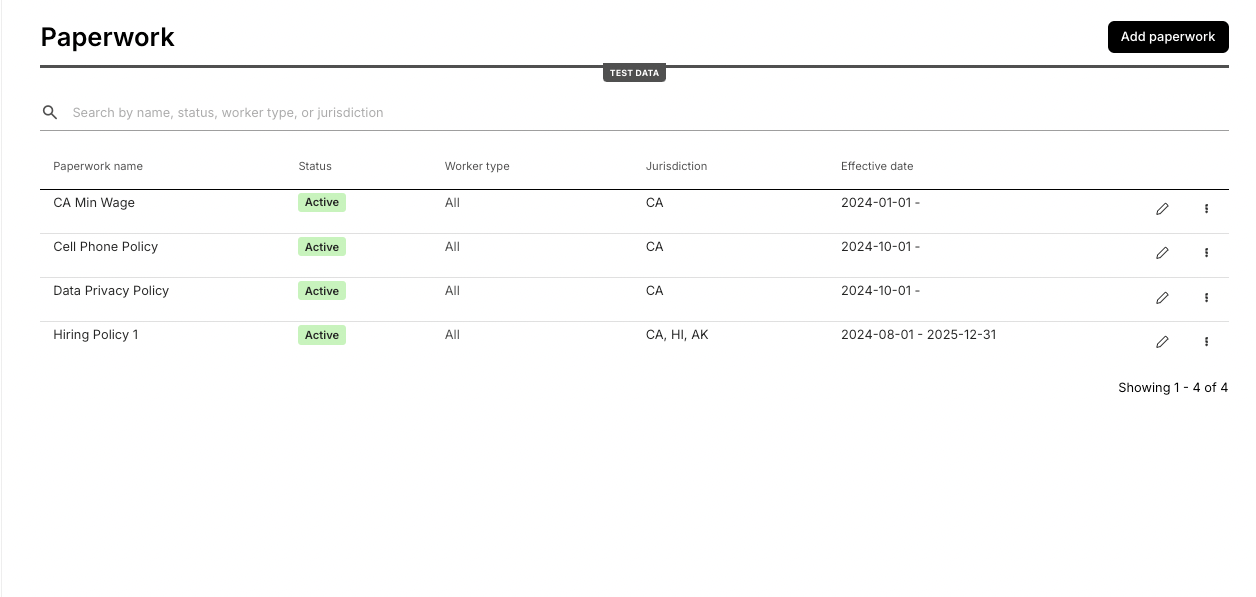
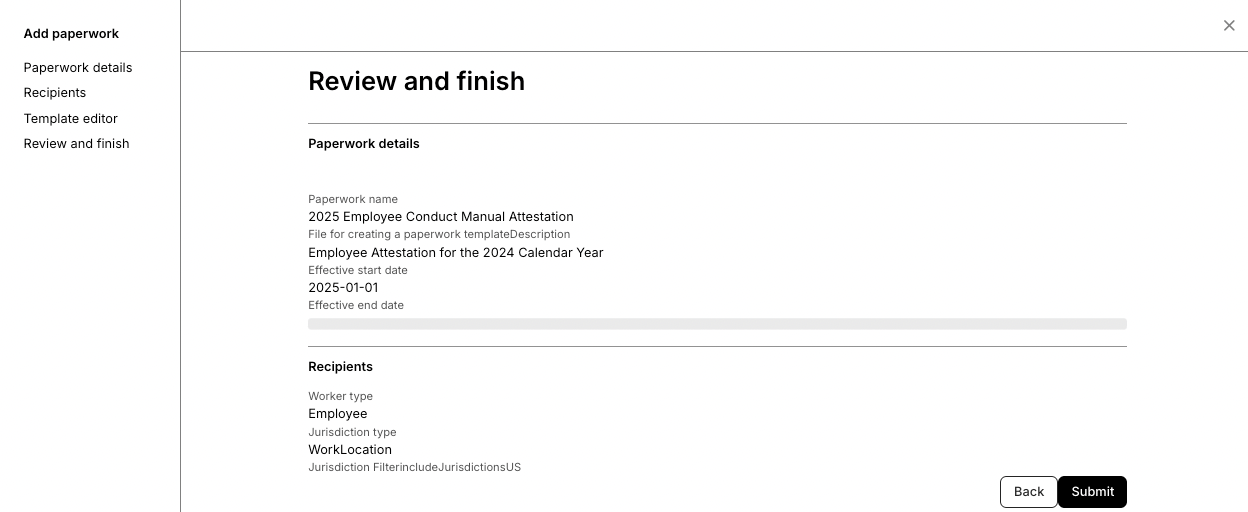
The first step for using Custom Paperwork is to create "Paperwork Templates". Templates can currently only be created in the "Paperwork" tab in the company dashboard via the Zeal application UI:
 When you add Paperwork, you will be directed to:
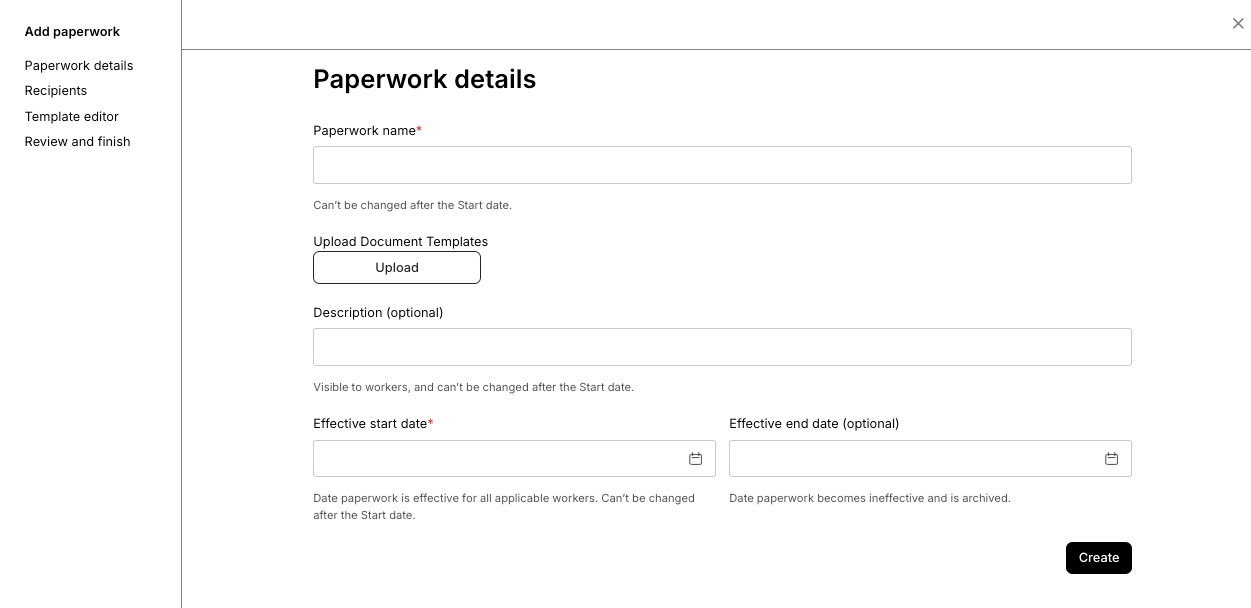
1. Upload the file and paperwork metadata in the **Paperwork Details** page
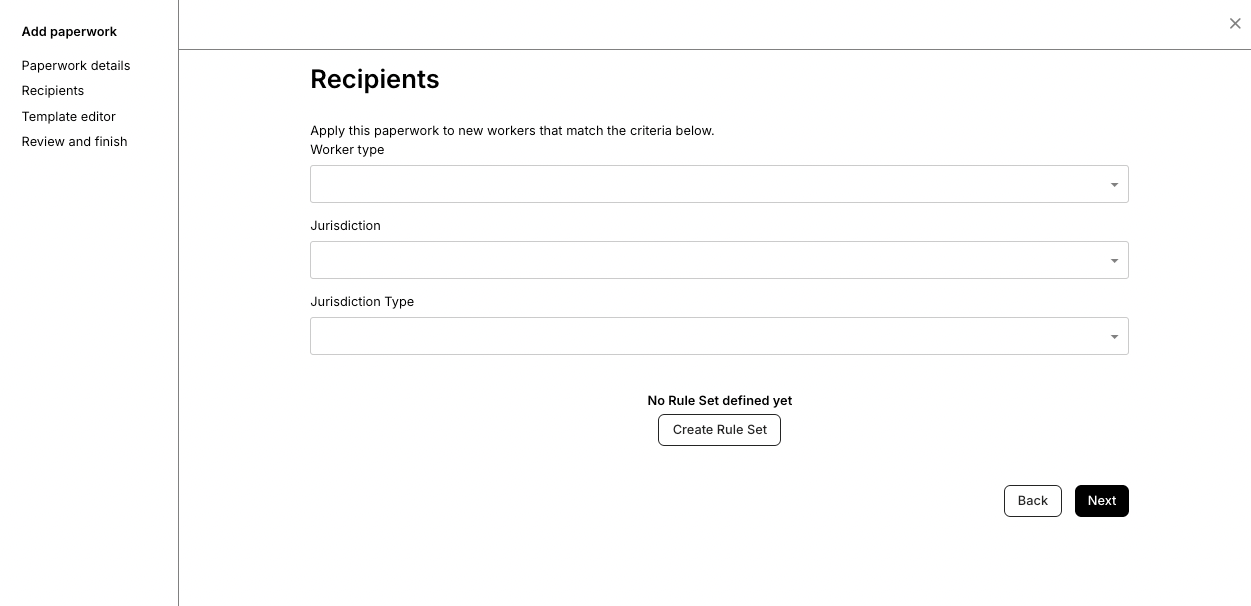
2. Set the intended **Recipients**. Only these workers will be prompted to complete this paperwork by default in onboarding
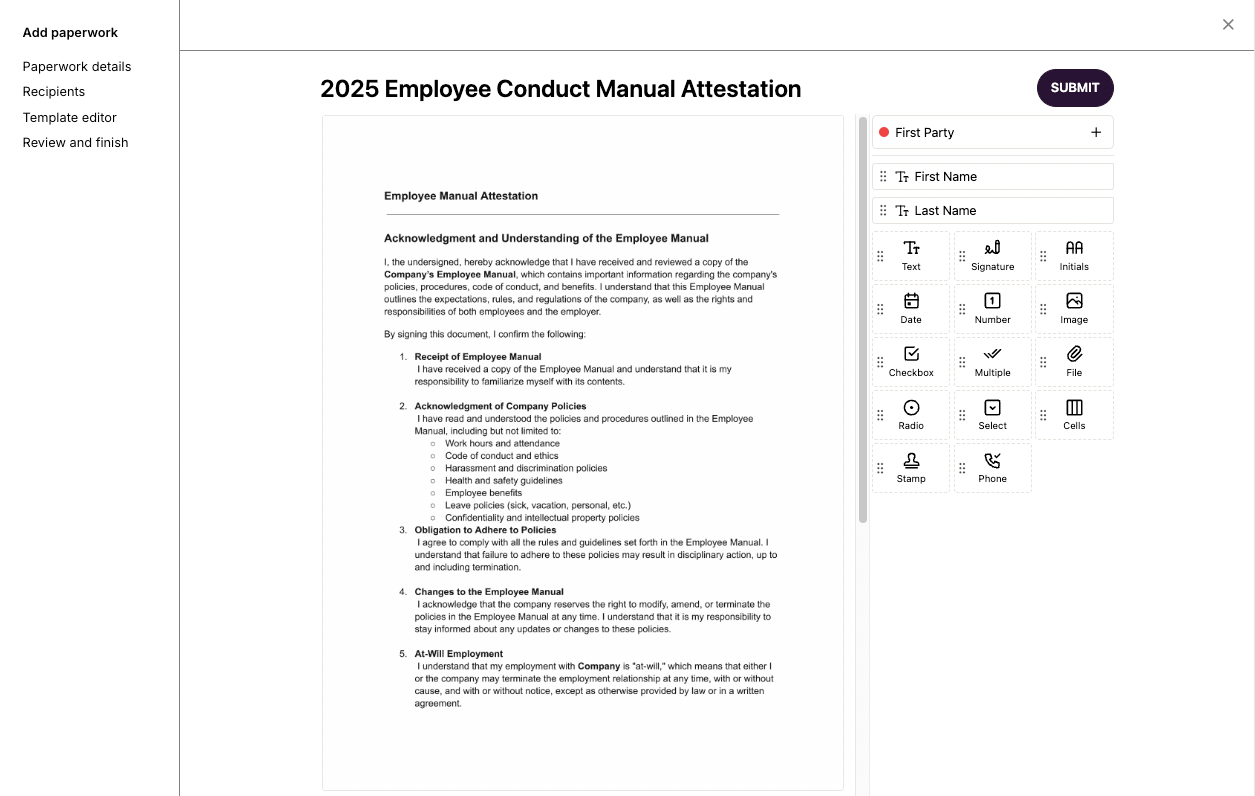
3. Upload a file in the **Template Editor**. You may remove/add fields, set required/optional fields, and add signature requirements
4. **Review and Finish**
When you add Paperwork, you will be directed to:
1. Upload the file and paperwork metadata in the **Paperwork Details** page
2. Set the intended **Recipients**. Only these workers will be prompted to complete this paperwork by default in onboarding
3. Upload a file in the **Template Editor**. You may remove/add fields, set required/optional fields, and add signature requirements
4. **Review and Finish**
 ### API
Once the template is created in the UI, the template can be fetched via the API.
The [Paperwork Template object](/reference/paperwork-api/paperwork-template-object) outlines the fields that represent a Paperwork Template. Templates can only be created through the UI and are managed at the company level. Templates rely on several required attributes:
| attribute | type | description |
| --------------------- | ------ | -------------------------------------------------------------------- |
| templateID | string | Unique identifier for the template |
| form\_name | string | Name of the paperwork form |
| paperwork\_type | string | Type of paperwork (e.g. CustomPaperwork) |
| worker\_type | string | Type of worker for the template (Employee, Contractor, All) |
| jurisdictions\_filter | object | Filter for jurisdictions to include or exclude |
| jurisdiction\_type | string | Type of jurisdiction for the template (Worklocation, Residency, All) |
| effective\_date | string | Date from which the template is effective |
| archive\_date | string | Date when the template will be archived |
| form\_fields | array | Array of form fields present on this template |
Below is a JSON example of a Paperwork Template object:
```bash bash theme={null}
{
"templateID": "123e4567-e89b-12d3-a456-426614174000",
"form_name": "Custom Agreement",
"paperwork_type": "CustomPaperwork",
"worker_type": "Employee",
"jurisdictions_filter": {
"type": "include",
"jurisdictions": ["CA", "NY"]
},
"jurisdiction_type": "Worklocation",
"effective_date": "2023-01-01",
"archive_date": "2023-12-31",
"form_fields": [
{
"field_name": "employee_name",
"label": "Employee Name",
"error_text": "This field is required.",
"type": "string",
"zeal_autofill": true,
"required": true,
"options": null,
"constraint": null,
"description": "Enter the employee's name.",
"x": 10,
"y": 20,
"width": 200,
"height": 50
}
]
}
```
#### Fetching Paperwork Templates
Paperwork templates can be fetched using the [Get Paperwork Templates](/reference/paperwork-api/get-paperwork-templates) endpoint or the [Get Paperwork Template](/reference/paperwork-api/get-paperwork-template-by-id) (GET `/paperwork/templates/{templateID}`) endpoint to fetch a specific template by passing the `templateID`.
## Submitting Paperwork
### Company Dashboard
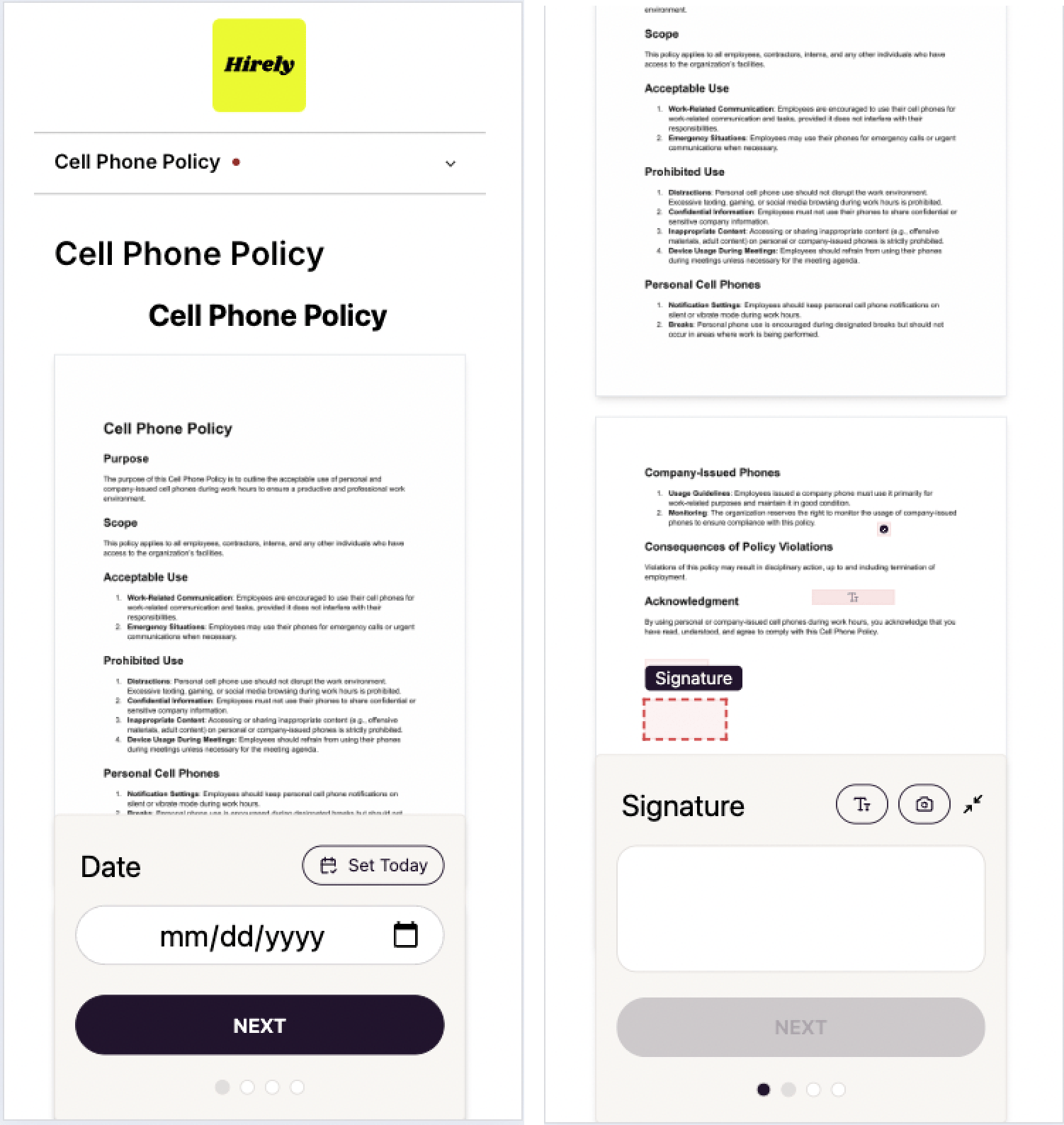
Workers that fall under a custom paperwork's rulesets will be prompted to complete and submit the paperwork in a new step in onboarding:
### API
Once the template is created in the UI, the template can be fetched via the API.
The [Paperwork Template object](/reference/paperwork-api/paperwork-template-object) outlines the fields that represent a Paperwork Template. Templates can only be created through the UI and are managed at the company level. Templates rely on several required attributes:
| attribute | type | description |
| --------------------- | ------ | -------------------------------------------------------------------- |
| templateID | string | Unique identifier for the template |
| form\_name | string | Name of the paperwork form |
| paperwork\_type | string | Type of paperwork (e.g. CustomPaperwork) |
| worker\_type | string | Type of worker for the template (Employee, Contractor, All) |
| jurisdictions\_filter | object | Filter for jurisdictions to include or exclude |
| jurisdiction\_type | string | Type of jurisdiction for the template (Worklocation, Residency, All) |
| effective\_date | string | Date from which the template is effective |
| archive\_date | string | Date when the template will be archived |
| form\_fields | array | Array of form fields present on this template |
Below is a JSON example of a Paperwork Template object:
```bash bash theme={null}
{
"templateID": "123e4567-e89b-12d3-a456-426614174000",
"form_name": "Custom Agreement",
"paperwork_type": "CustomPaperwork",
"worker_type": "Employee",
"jurisdictions_filter": {
"type": "include",
"jurisdictions": ["CA", "NY"]
},
"jurisdiction_type": "Worklocation",
"effective_date": "2023-01-01",
"archive_date": "2023-12-31",
"form_fields": [
{
"field_name": "employee_name",
"label": "Employee Name",
"error_text": "This field is required.",
"type": "string",
"zeal_autofill": true,
"required": true,
"options": null,
"constraint": null,
"description": "Enter the employee's name.",
"x": 10,
"y": 20,
"width": 200,
"height": 50
}
]
}
```
#### Fetching Paperwork Templates
Paperwork templates can be fetched using the [Get Paperwork Templates](/reference/paperwork-api/get-paperwork-templates) endpoint or the [Get Paperwork Template](/reference/paperwork-api/get-paperwork-template-by-id) (GET `/paperwork/templates/{templateID}`) endpoint to fetch a specific template by passing the `templateID`.
## Submitting Paperwork
### Company Dashboard
Workers that fall under a custom paperwork's rulesets will be prompted to complete and submit the paperwork in a new step in onboarding:
 ### API
Paperwork can also be submitted through the API. To submit a completed paperwork form, use the [Create Paperwork Submission](/reference/paperwork-api/create-paperwork-submission) (PUT `/paperwork/submissions`) endpoint. The endpoint accepts the following body parameters:
* `templateID`: Unique identifier for the paperwork template
* `worker_type`: Type of worker (Employee or Contractor)
* `companyID`: Unique identifier for the company
* `employeeID`: Unique identifier for the employee (nullable if the worker type is contractor)
* `contractorID`: Unique identifier for the contractor (nullable if the worker type is employee)
* `fields`: Additional fields for the paperwork submission. These fields are based on the `form_fields` array on the parent Paperwork Template.
Below is a JSON body example of a PUT `/paperwork/submissions` request:
```bash bash theme={null}
{
"templateID": "123e4567-e89b-12d3-a456-426614174000",
"worker_type": "employee",
"companyID": "603d0f8f1c4b2a4e28c8f0b4",
"employeeID": "603d0f8f1c4b2a4e28c8f0b4",
"fields": {
"field1": "value1",
"field2": "value2"
}
}
```
## Seeing Paperwork Submissions
### Company Dashboard
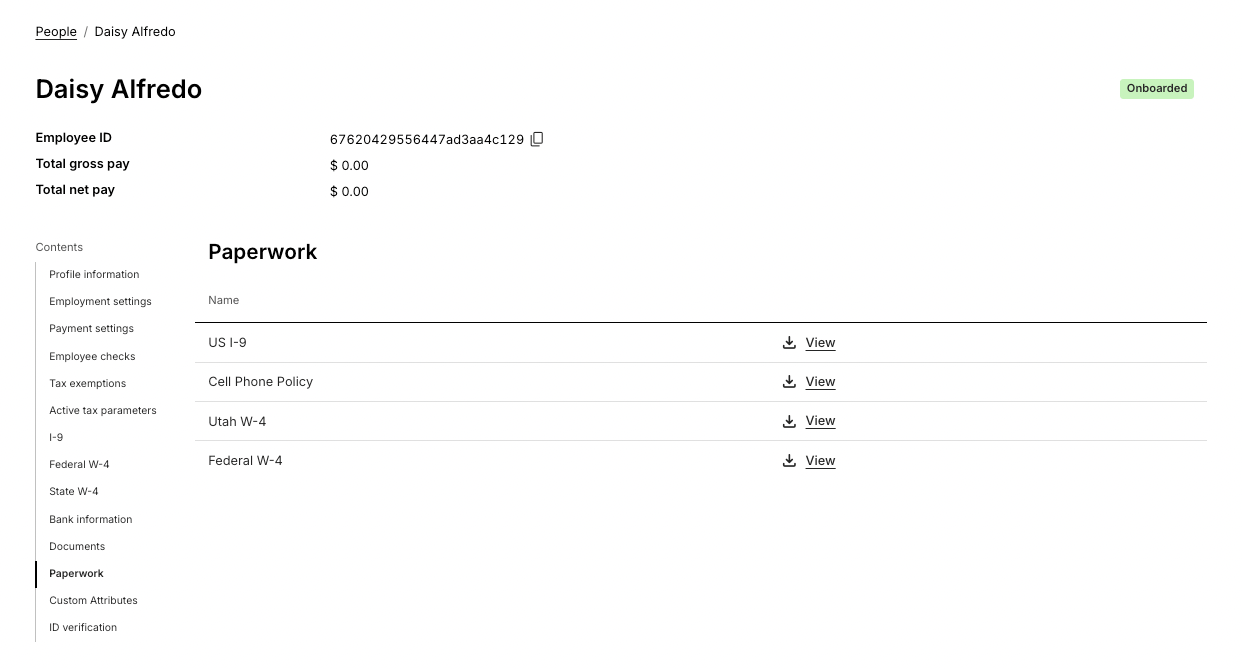
All submitted custom paperwork can be viewed along with other onboarding paperwork (such as Form W-4s) under the worker's profile page:
### API
Paperwork can also be submitted through the API. To submit a completed paperwork form, use the [Create Paperwork Submission](/reference/paperwork-api/create-paperwork-submission) (PUT `/paperwork/submissions`) endpoint. The endpoint accepts the following body parameters:
* `templateID`: Unique identifier for the paperwork template
* `worker_type`: Type of worker (Employee or Contractor)
* `companyID`: Unique identifier for the company
* `employeeID`: Unique identifier for the employee (nullable if the worker type is contractor)
* `contractorID`: Unique identifier for the contractor (nullable if the worker type is employee)
* `fields`: Additional fields for the paperwork submission. These fields are based on the `form_fields` array on the parent Paperwork Template.
Below is a JSON body example of a PUT `/paperwork/submissions` request:
```bash bash theme={null}
{
"templateID": "123e4567-e89b-12d3-a456-426614174000",
"worker_type": "employee",
"companyID": "603d0f8f1c4b2a4e28c8f0b4",
"employeeID": "603d0f8f1c4b2a4e28c8f0b4",
"fields": {
"field1": "value1",
"field2": "value2"
}
}
```
## Seeing Paperwork Submissions
### Company Dashboard
All submitted custom paperwork can be viewed along with other onboarding paperwork (such as Form W-4s) under the worker's profile page:
 ### API
To fetch completed paperwork submissions through the API, use the [Get Paperwork Submissions](/reference/paperwork-api/get-paperwork-submissions) (POST `/paperwork/submissions`) endpoint. The endpoint allows filtering by `companyID`, `jurisdiction_filter`, and `worker_filter`.
Below is a JSON response of a successful POST `/paperwork/submissions` request:
```bash bash theme={null}
{
"success": true,
"data": [
{
"templateID": "123e4567-e89b-12d3-a456-426614174000",
"submissionID": "a1b2c3d4-e5f6-4a5b-8c7d-9e0f1a2b3c4d",
"submission_date": "2023-06-01T12:00:00Z",
"worker_type": "employee",
"companyID": "603d0f8f1c4b2a4e28c8f0b4",
"employeeID": "603d0f8f1c4b2a4e28c8f0b4",
"fields": {
"field1": "value1",
"field2": "value2"
},
"paperwork_type": "CustomPaperwork",
"url": "https://example.com/submission/12345"
}
]
}
```
## Recap
* Custom Paperwork Templates can only be created in the Zeal UI.
* Custom Paperwork Templates can be viewed using the Zeal UI or Zeal's Paperwork API.
* Paperwork submissions can be completed by the worker in Zeal's onboarding flow, or can be submitted through the API.
* Completed paperwork forms can be viewed in the worker's profile page or fetched using the Submissions API endpoints, associating them with the specific worker and template.
### API
To fetch completed paperwork submissions through the API, use the [Get Paperwork Submissions](/reference/paperwork-api/get-paperwork-submissions) (POST `/paperwork/submissions`) endpoint. The endpoint allows filtering by `companyID`, `jurisdiction_filter`, and `worker_filter`.
Below is a JSON response of a successful POST `/paperwork/submissions` request:
```bash bash theme={null}
{
"success": true,
"data": [
{
"templateID": "123e4567-e89b-12d3-a456-426614174000",
"submissionID": "a1b2c3d4-e5f6-4a5b-8c7d-9e0f1a2b3c4d",
"submission_date": "2023-06-01T12:00:00Z",
"worker_type": "employee",
"companyID": "603d0f8f1c4b2a4e28c8f0b4",
"employeeID": "603d0f8f1c4b2a4e28c8f0b4",
"fields": {
"field1": "value1",
"field2": "value2"
},
"paperwork_type": "CustomPaperwork",
"url": "https://example.com/submission/12345"
}
]
}
```
## Recap
* Custom Paperwork Templates can only be created in the Zeal UI.
* Custom Paperwork Templates can be viewed using the Zeal UI or Zeal's Paperwork API.
* Paperwork submissions can be completed by the worker in Zeal's onboarding flow, or can be submitted through the API.
* Completed paperwork forms can be viewed in the worker's profile page or fetched using the Submissions API endpoints, associating them with the specific worker and template.