> ## Documentation Index
> Fetch the complete documentation index at: https://docs.zeal.com/llms.txt
> Use this file to discover all available pages before exploring further.
# Contractor Onboarding
> 1099 Contractors can be onboarded to the payroll solution via the API or white-label components. Since companies aren’t responsible for paying taxes on or withholding taxes from a contractor’s pay, much less information needs to be collected to onboard a contractor than a W-2 Employee.
## In this guide
* How to create a Contractor
* How to submit a W-9 form
* How to add a contractor Bank Account
* How to onboard a contractor using white-label components
***
## API
### Create a Contractor
Call [Create Contractor](/reference/contractors/create-contractor).
### Note
Remember to replace the placeholders such as `{{testApiKey}}` in the code samples below.
```bash bash theme={null}
curl --request POST \
--url https://api.zeal.com/contractors \
--header 'Accept: application/json' \
--header 'Authorization: Bearer {{testApiKey}}' \
--header 'Content-Type: application/json' \
--data '
{
"new_contractors": [
{
"email": "[email protected]",
"first_name": "Monica",
"middle_name": "string",
"last_name": "Hall",
"type": "individual",
"ssn": "123456789",
"ein": "string",
"business_name": "string",
"address": "1 Market St.",
"city": "San Francisco",
"state": "CA",
"zip": "94110",
"onboarded": false
}
],
"companyID": "{{companyID}}"
}
'
```
### W9: Fetching Paperwork Templates
The W9 form can be sent to Zeal using the Paperwork endpoints.
The [Paperwork Template object](/reference/paperwork-api/paperwork-template-object) outlines the fields that represent a Paperwork Template, which includes key information such as the name of the form, the applicable jurisdiction(s), and the fields on the form. For the purposes of this guide, we will be focusing on Paperwork Templates with `paperwork_type` as `W9`.
Paperwork Templates can be fetched using the [Get Paperwork Template](/reference/paperwork-api/get-paperwork-templates). Be sure to include the jurisdiction(s) and the effective date for the W9 form you want to retrieve.
```bash bash theme={null}
curl --request POST \
--url https://api.zeal.com/paperwork/templates \
--header 'accept: application/json' \
--header 'content-type: application/json' \
--data '
{
"companyID": "fc235fcccee46aa8a082f357715bcfa",
"paperwork_type": "W9",
"worker_type": "Contractor",
"jurisdictions": {
"type": "include",
"jurisdictions": [
"US"
]
},
"jurisdiction_type": "WorkLocation",
"effective_date": "2024-07-01"
}
'
```
This will return the templateID for the W9 that you will need when creating a Submission. Here is an example response:
```bash bash theme={null}
{
"templates": [
{
"templateID": "form-479ae926-3a6c-4b72-956a-4fe569064215",
"form_name": "Federal W-9",
"paperwork_type": "W9",
"worker_type": "Contractor",
"jurisdictions_filter": {
"type": "include",
"jurisdictions": [
"US"
]
},
"jurisdiction_type": "WorkLocation",
"effective_date": "2022-01-01",
"archive_date": "",
"form_fields": [
{
"field_name": "signature_text",
"label": "Signature Text",
"error_text": "A signature is required",
"type": "base64",
"zeal_autofill": false,
"required": false,
"fieldName": "signature_text",
"x": 148.802,
"y": 229.07,
"width": 150.00000000000003,
"height": 22
},
{
"field_name": "type",
"label": "Contractor object autofill field",
"required": false,
"type": "string",
"zeal_autofill": true,
"fieldName": "type",
"x": 61.075,
"y": 618.384,
"width": 18,
"height": 18
},
{
"field_name": "first_name",
"required": false,
"label": "Contractor object autofill field",
"type": "string",
"zeal_autofill": true
},
{
"field_name": "last_name",
"required": false,
"label": "Contractor object autofill field",
"type": "string",
"zeal_autofill": true
},
{
"field_name": "ssn",
"required": false,
"label": "Contractor object autofill field",
"type": "string",
"zeal_autofill": true
},
{
"field_name": "address",
"required": false,
"label": "Contractor object autofill field",
"type": "string",
"zeal_autofill": true,
"fieldName": "address",
"x": 185.615,
"y": 528.333,
"width": 150,
"height": 16.29600000000005
},
{
"field_name": "city",
"required": false,
"label": "Contractor object autofill field",
"type": "string",
"zeal_autofill": true
},
{
"field_name": "today_full",
"required": false,
"label": "Date autofill field",
"type": "string",
"zeal_autofill": true,
"fieldName": "today_full",
"x": 421.25,
"y": 229.11,
"width": 150,
"height": 22,
"_id": "66ad78fc79101a05d8c4e286"
},
{
"field_name": "start_date",
"required": false,
"label": "Contractor object autofill field",
"type": "string",
"zeal_autofill": true
},
{
"field_name": "business_ein",
"required": false,
"label": "Company object autofill field",
"type": "string",
"zeal_autofill": true
},
{
"field_name": "state",
"required": false,
"label": "Contractor object autofill field",
"type": "string",
"zeal_autofill": true
},
{
"field_name": "zip",
"required": false,
"label": "Contractor object autofill field",
"type": "string",
"zeal_autofill": true
},
{
"field_name": "middle_initial",
"required": false,
"label": "Contractor object autofill field",
"type": "string",
"zeal_autofill": true
},
{
"field_name": "business_name",
"required": false,
"label": "Company object autofill field",
"type": "string",
"zeal_autofill": true,
"fieldName": "business_name",
"x": 90.6556,
"y": 661.36,
"width": 149.99939999999998,
"height": 15.480999999999995
},
{
"field_name": "business_city",
"required": false,
"label": "Company object autofill field",
"type": "string",
"zeal_autofill": true
},
{
"field_name": "business_address",
"required": false,
"label": "Company object autofill field",
"type": "string",
"zeal_autofill": true
},
{
"field_name": "business_state",
"required": false,
"label": "Company object autofill field",
"type": "string",
"zeal_autofill": true
},
{
"field_name": "business_zip",
"required": false,
"label": "Company object autofill field",
"type": "string",
"zeal_autofill": true
},
{
"field_name": "address_line2",
"required": false,
"label": "Contractor object autofill field",
"type": "string",
"zeal_autofill": true
}
],
"status": "Active",
"urls": []
}
]
}
```
Note that the Paperwork Template also includes a URL containing the form in case you want to show a worker what they are filling out.
### W9: Submitting Paperwork
To submit a completed W9 form, use the [Create Paperwork Submission](/reference/paperwork-api/create-paperwork-submission) or PUT `/paperwork/submissions` endpoint. The endpoint accepts the following body parameters:
* `templateID`: Unique identifier for the Paperwork Template (from previous step)
* `worker_type`: Type of worker (contractor)
* `companyID`: Unique identifier for the company
* `employeeID`: Unique identifier for the employee (nullable if the worker type is contractor)
* `contractorID`: Unique identifier for the contractor (nullable if the worker type is employee)
* `fields`: The completed fields and values
Below is a JSON body example of a PUT `/paperwork/submissions` request:
```bash bash theme={null}
{
"templateID": "123e4567-e89b-12d3-a456-426614174000",
"worker_type": "contractor",
"companyID": "603d0f8f1c4b2a4e28c8f0b4",
"contractorID": "603d0f8f1c4b2a4e28c8f0b4",
"fields": {
"field1": "value1",
"field2": "value2"
}
}
```
This will save the completed W9 paperwork submission for this contractor.
### W9: Fetching Paperwork Submissions
You can always fetch the completed paperwork submission(s) using the [Get Paperwork Submissions](/reference/paperwork-api/get-paperwork-submissions) or POST `/paperwork/submissions` endpoint. The endpoint allows filtering by `paperwork_type`, `companyID`, `jurisdiction_filter`, and `worker_filter`.
Below is an example JSON response of a successful POST `/paperwork/submissions` request:
```bash bash theme={null}
{
"success": true,
"data": [
{
"templateID": "123e4567-e89b-12d3-a456-426614174000",
"submissionID": "a1b2c3d4-e5f6-4a5b-8c7d-9e0f1a2b3c4d",
"submission_date": "2023-06-01T12:00:00Z",
"worker_type": "contractor",
"companyID": "603d0f8f1c4b2a4e28c8f0b4",
"contractorID": "603d0f8f1c4b2a4e28c8f0b4",
"fields": {
"field1": "value1",
"field2": "value2"
},
"paperwork_type": "W9",
"url": "https://example.com/submission/12345"
}
]
}
```
### Add a Bank Account (optional)
### Note
This is an optional step. A Contractor onboarded without a bank account can still be paid with any disbursement method other than `direct_deposit`.
Call [Create Bank Account](/reference/bank-accounts/create-bank-account) to create the contractor bank account.
```bash bash theme={null}
curl --request POST \
--url https://api.zeal.com/bankaccount \
--header 'Accept: application/json' \
--header 'Authorization: Bearer {{testApiKey}}' \
--header 'Content-Type: application/json' \
--data '
{
"companyID": "{companyID}",
"id": "{{contractorID}}",
"institution_name": "Chase",
"account_number": "123456789",
"routing_number": "267084131",
"type": "checking"
}
'
```
### Set onboarded to true
Call [Set Onboarded Status to True](/reference/contractor-onboarding/set-onboarded-status-to-true).
```bash bash theme={null}
curl --request POST \
--url https://api.zeal.com/contractors/setOnboardedStatusToTrue \
--header 'Accept: application/json' \
--header 'Authorization: Bearer {{testApiKey}}' \
--header 'Content-Type: application/json' \
--data '
{
"contractorID": "{{contractorID}}",
"companyID": "{{companyID}}"
}
'
```
With the onboarded status updated, the contractor is considered onboarded and can start receiving payments.
***
## White-Label
### Access the Company Dashboard
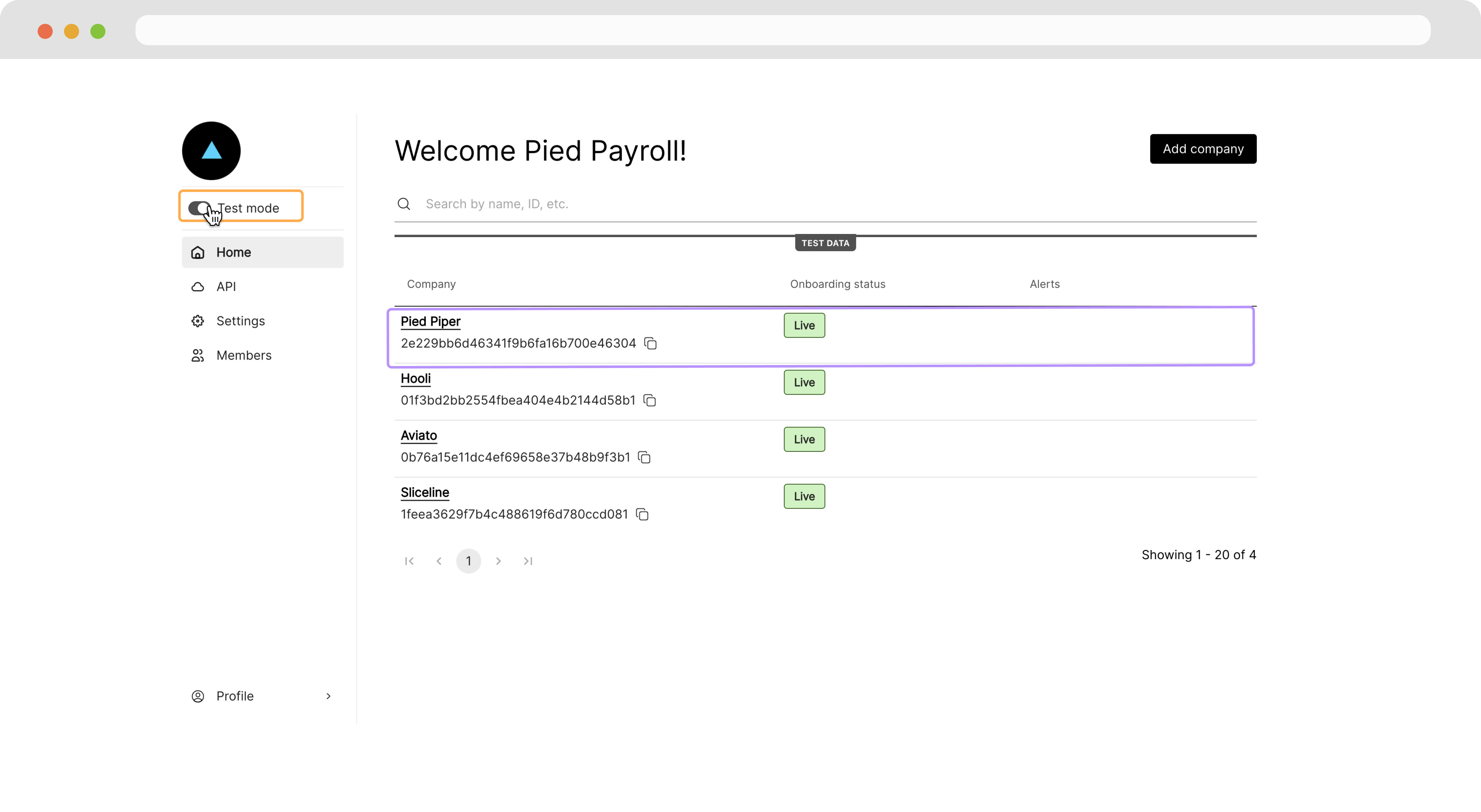
Navigate to your Partner Dashboard and ensure that *Test Mode* is enabled. Then, click on a Company to access the Company Dashboard as an Admin.
 ### Add a Contractor
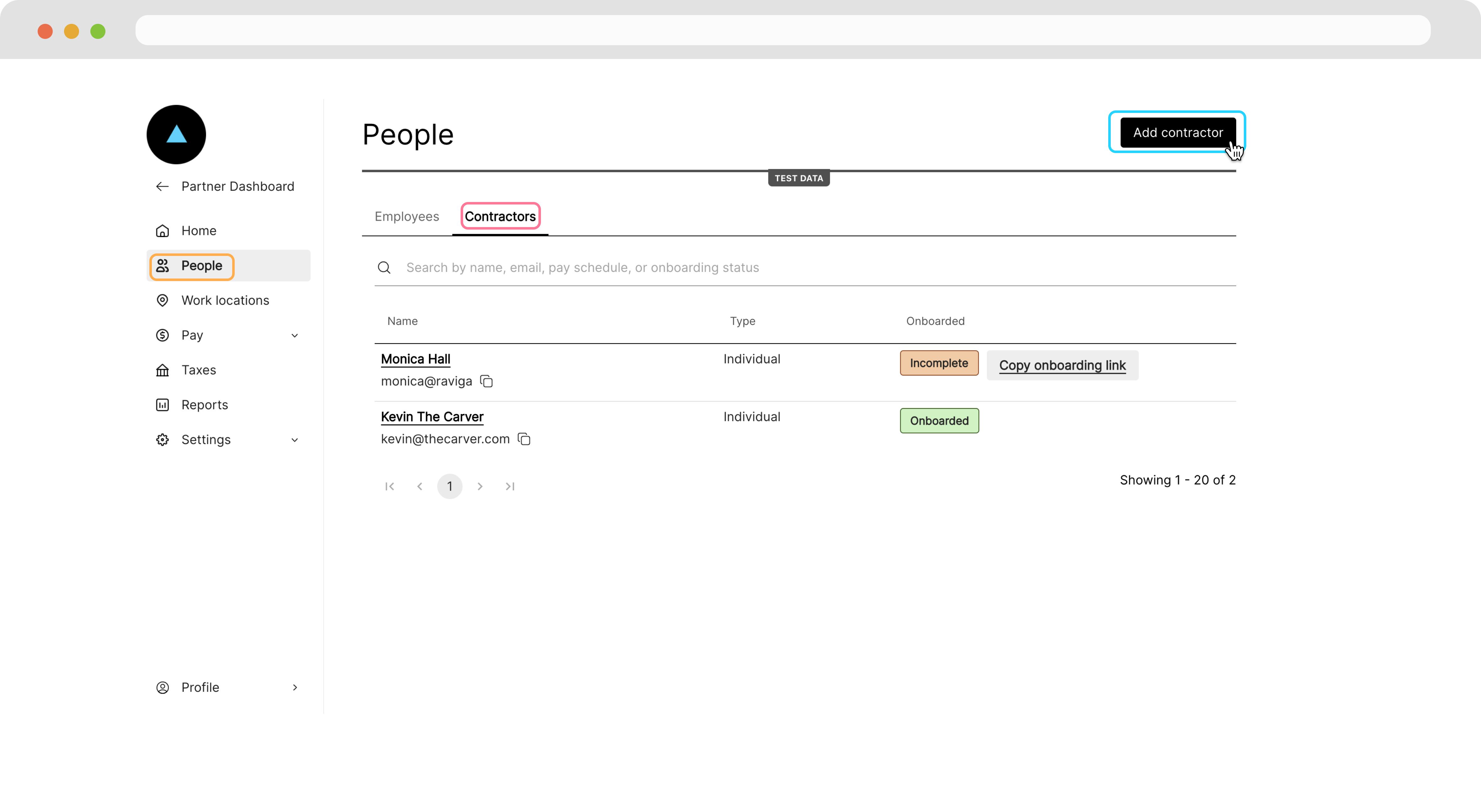
Navigate to the **People** page, click the *Contractors* tab, then click **Add contractor** .
### Add a Contractor
Navigate to the **People** page, click the *Contractors* tab, then click **Add contractor** .
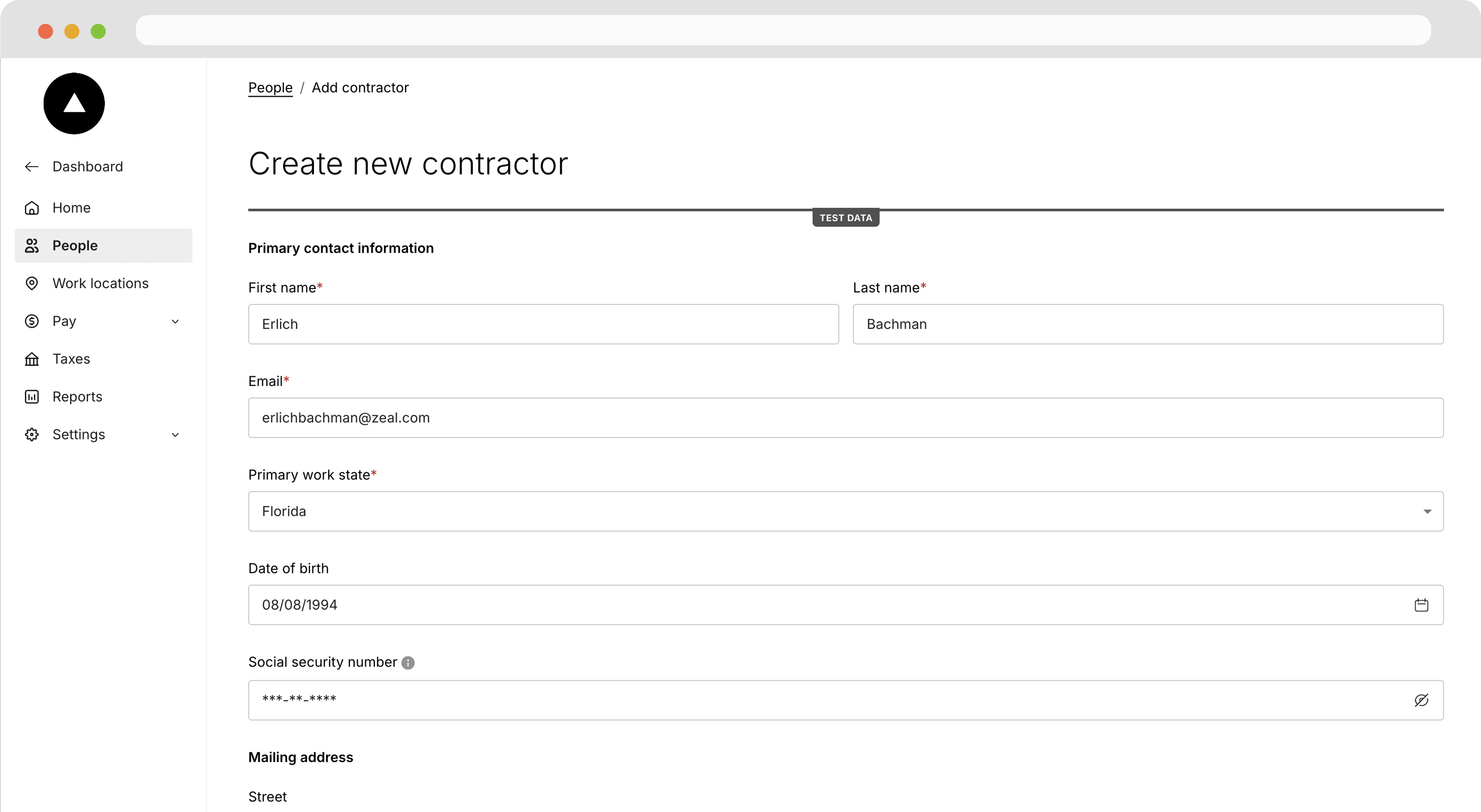
 Fill the contractor information and click **Add Contractor**.
 ### Send the onboarding link
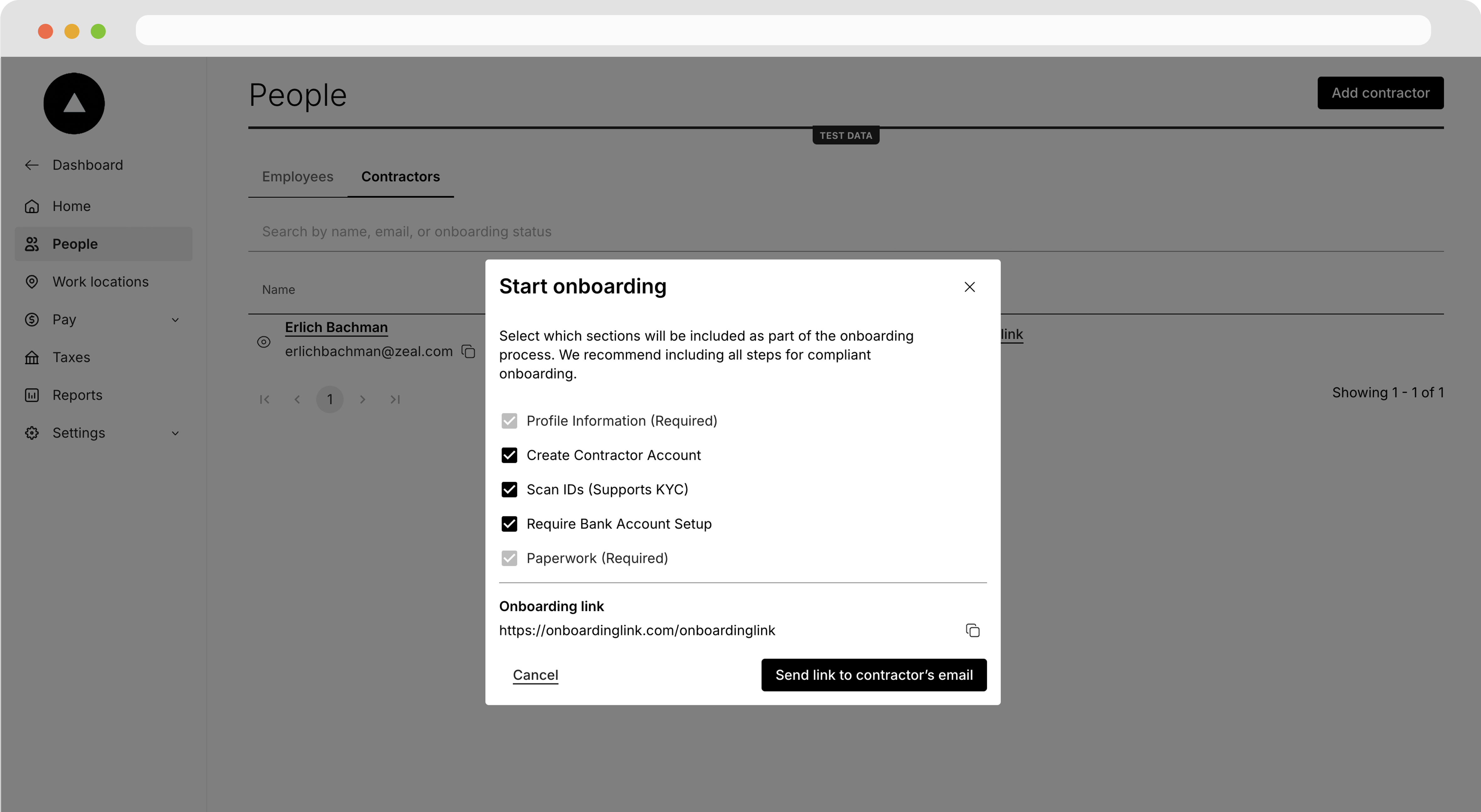
Back on the **People** page, find the Contractor and click **Copy onboarding link** then click **Send link to contractor's email**.
### Send the onboarding link
Back on the **People** page, find the Contractor and click **Copy onboarding link** then click **Send link to contractor's email**.
 ### Tip
The link can also be accessed programmatically by calling [Generate Contractor Onboarding Link](/reference/contractor-onboarding/generate-contractor-onboarding-link).
### Complete the onboarding flow
When the contractor navigates to the page, they see the white-label component on your domain with your logo.
### Tip
The link can also be accessed programmatically by calling [Generate Contractor Onboarding Link](/reference/contractor-onboarding/generate-contractor-onboarding-link).
### Complete the onboarding flow
When the contractor navigates to the page, they see the white-label component on your domain with your logo.
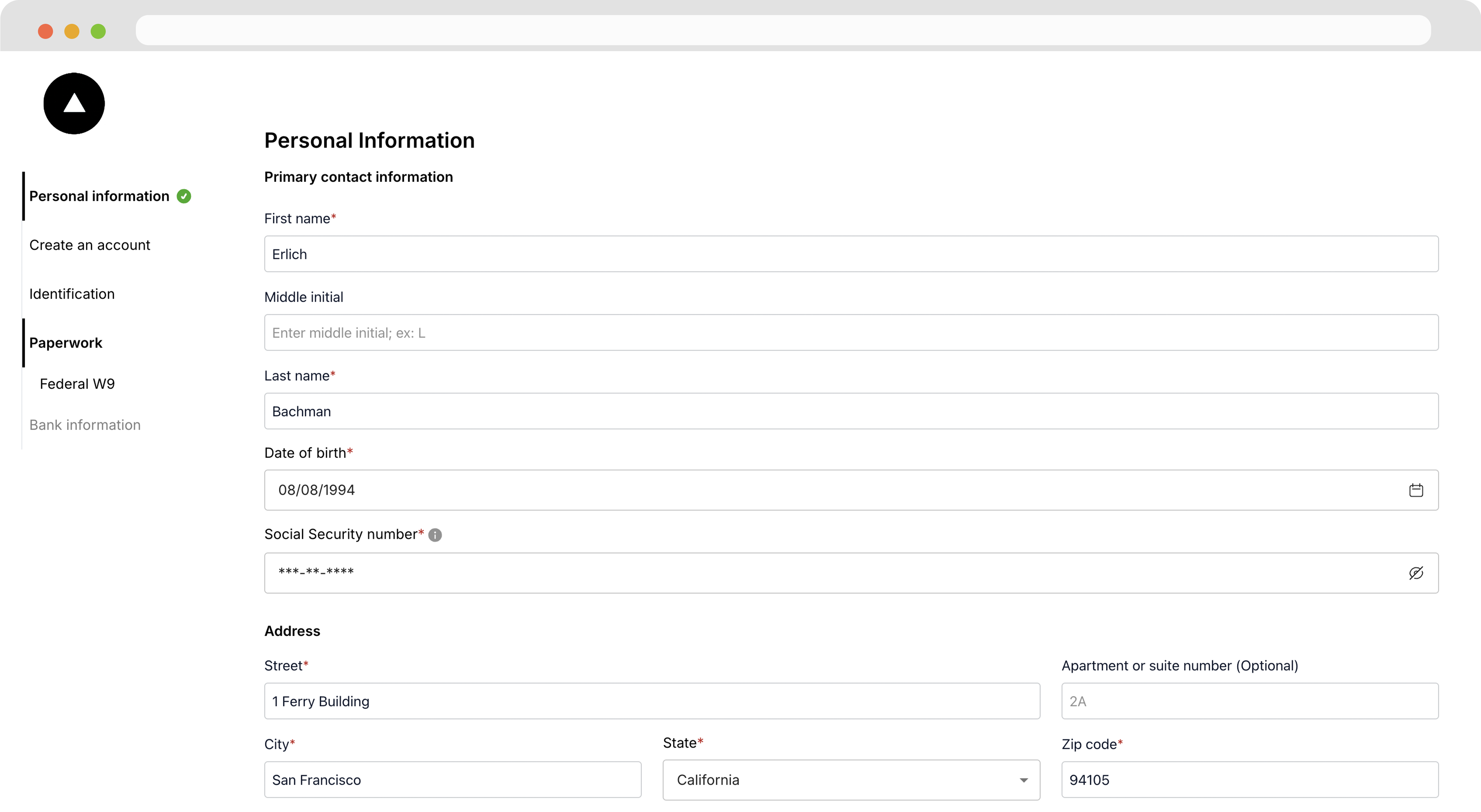 The contractor completes the onboarding flow. You can view the information in the Company Dashboard.
### Note
When the Contractor Onboarding flow is completed successfully through the white-label, data about the Contractor is sent to the webhook established for the [Contractor Event Webhook](/reference/webhooks/contractor-event-webhook).
***
## Recap
* To onboard a contractor, personal information and a W-9 form should be collected
* Bank account details don't need to be submitted, but the contractor can't be paid by direct deposit without them
* Companies can create Contractors from the Company Dashboard
* Contractor can complete onboarding through the Contractor Onboarding component
The contractor completes the onboarding flow. You can view the information in the Company Dashboard.
### Note
When the Contractor Onboarding flow is completed successfully through the white-label, data about the Contractor is sent to the webhook established for the [Contractor Event Webhook](/reference/webhooks/contractor-event-webhook).
***
## Recap
* To onboard a contractor, personal information and a W-9 form should be collected
* Bank account details don't need to be submitted, but the contractor can't be paid by direct deposit without them
* Companies can create Contractors from the Company Dashboard
* Contractor can complete onboarding through the Contractor Onboarding component