> ## Documentation Index
> Fetch the complete documentation index at: https://docs.zeal.com/llms.txt
> Use this file to discover all available pages before exploring further.
# Account Setup and API Keys
> Zeal offers a full integration team to help you get up and running with our product. Although our team leads this process, in this guide we give you an overview of the steps to set up your account.
If you haven’t already, [contact Zeal](https://www.zeal.com/request-a-demo?referrer=%2F) to create a Zeal Partner Account.
## In this guide
* How to access the Partner Dashboard and invite your team members.
* How to configure your white-label components.
* Where to manage your API keys.
* How to set up your webhooks.
***
## Partner Dashboard
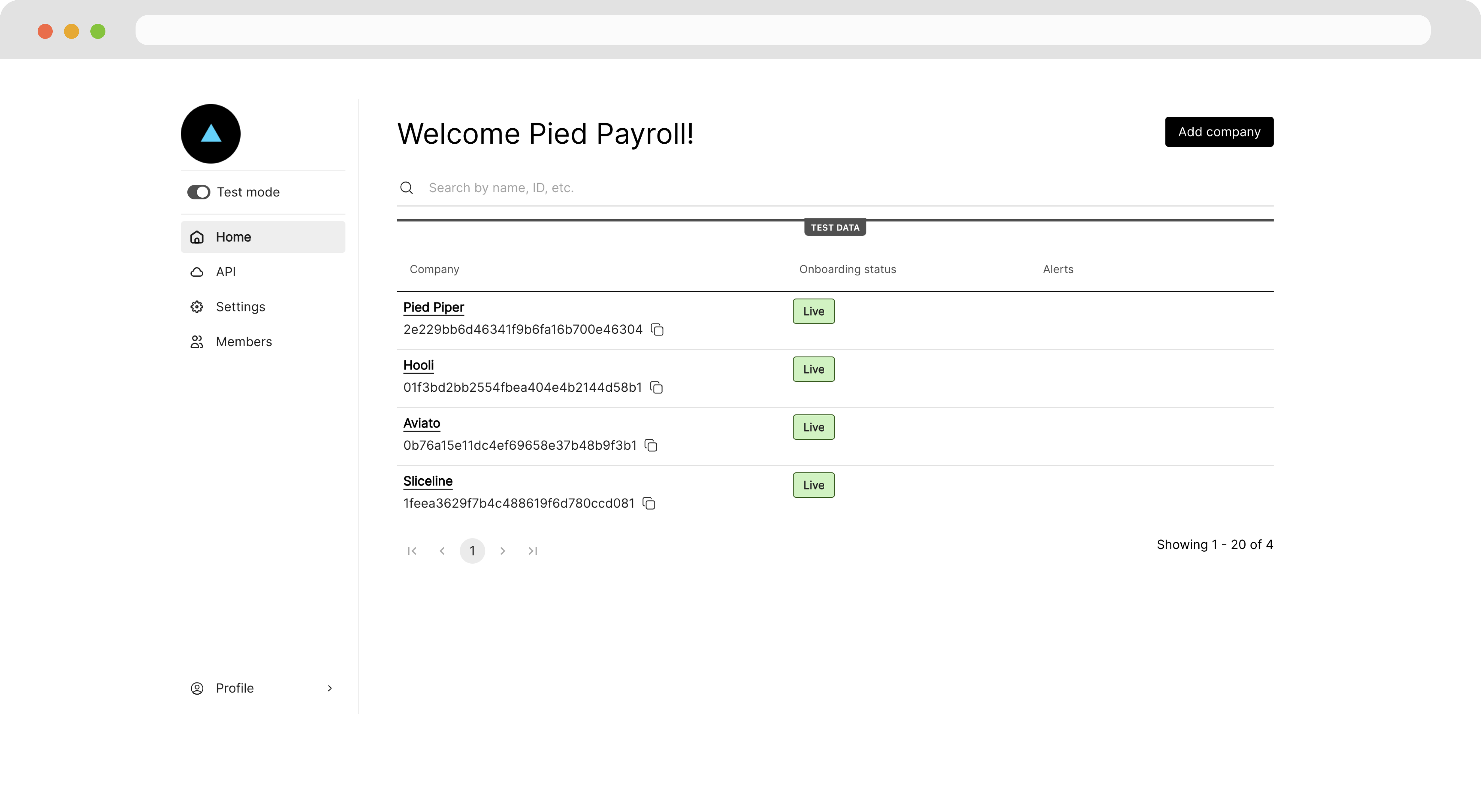
Once our team creates your account, you can access your Partner Dashboard at [app.zeal.com](https://app.zeal.com).
### Logging in for the first time
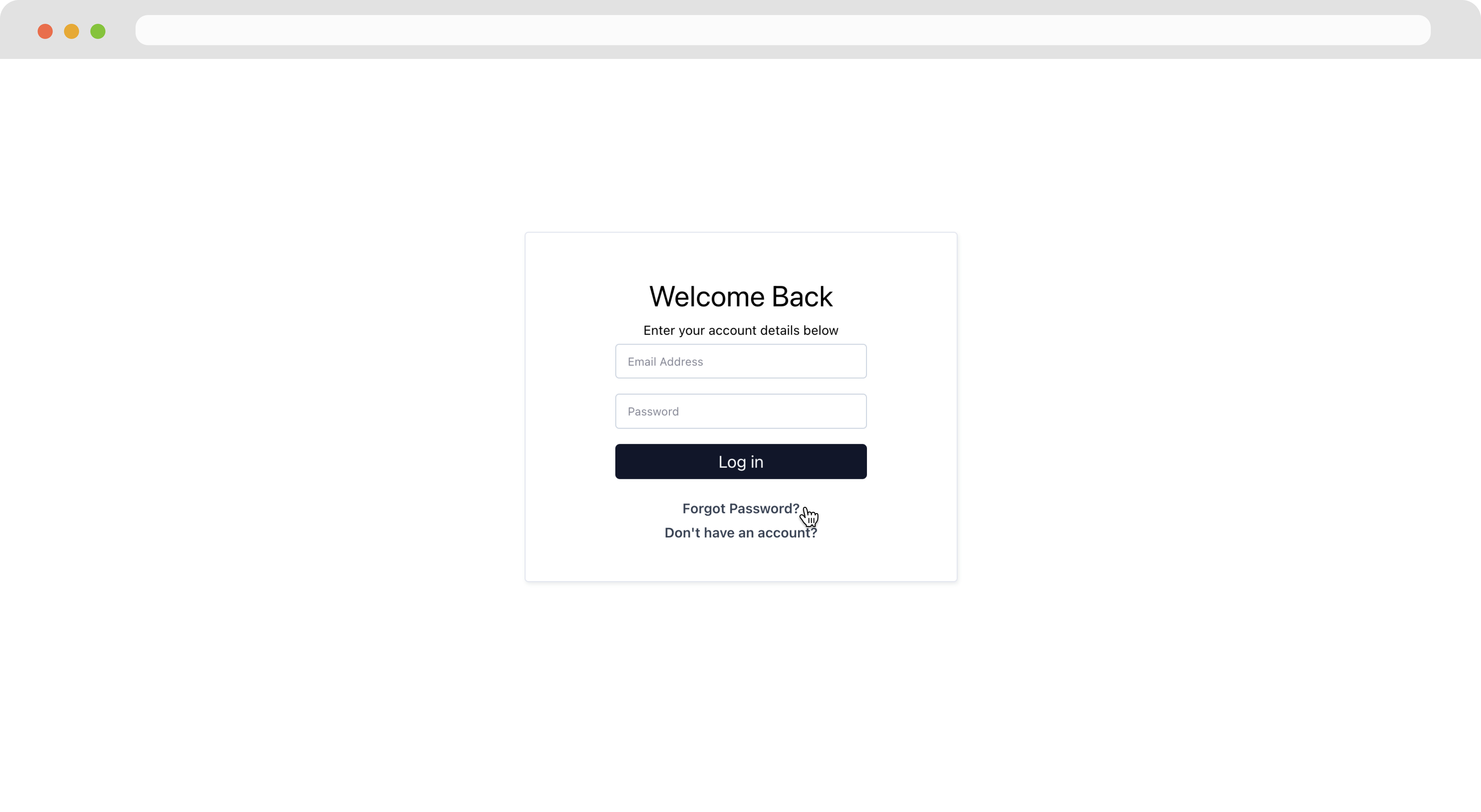
If it’s your first time logging in, click the **Forgot Password** link and follow the steps to create a new password.
 From your Partner Dashboard, you can manage all your settings as well as oversee your users (employers and workers on your payroll system).
 ### Quickstart
Of course, when you first begin, you have no users. You can reference our [Quickstart Guide](/docs/quickstart-guide) to get started.
### Inviting team members
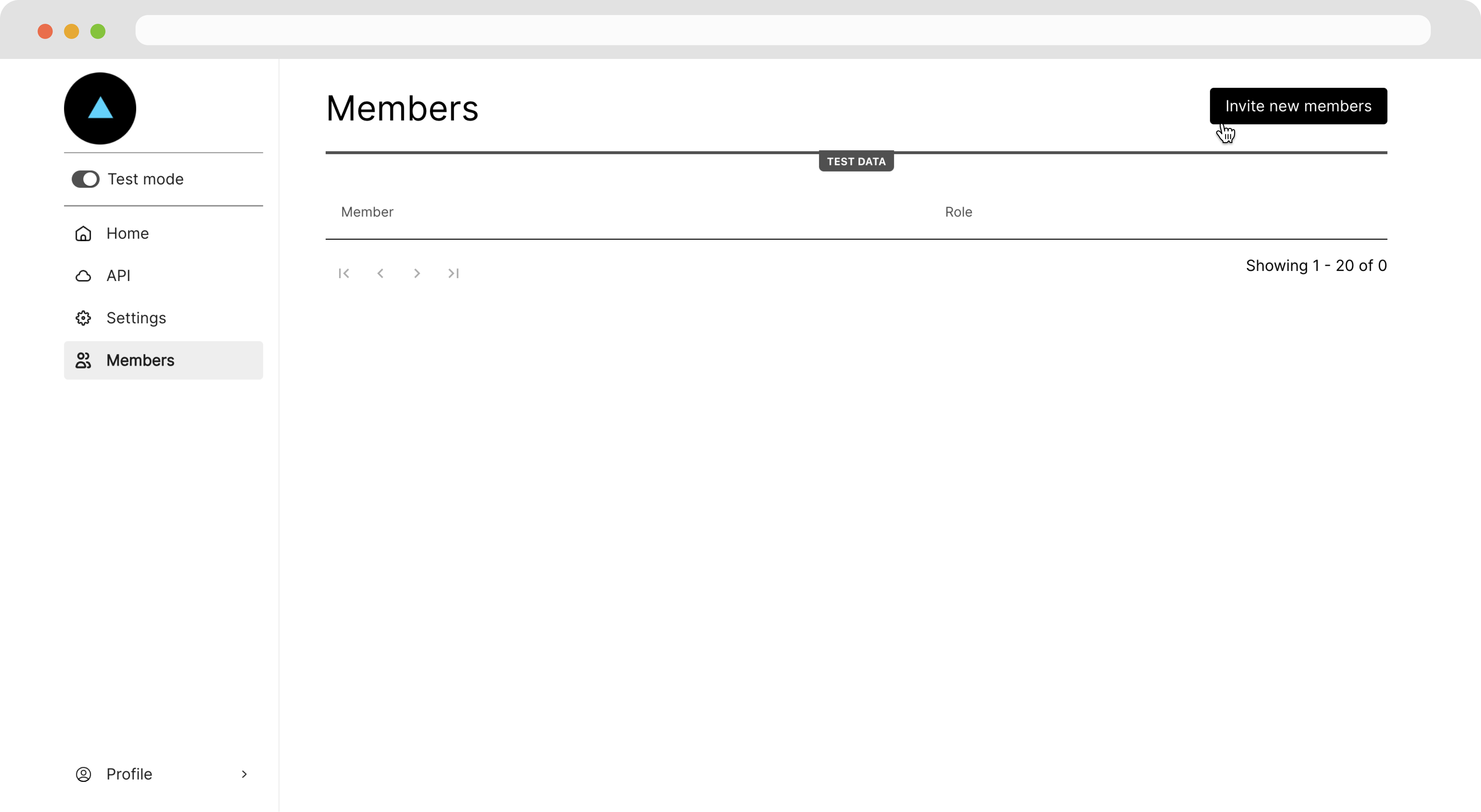
To add other team members, navigate to the **Members** page and click the **Invite new members** button.
### Quickstart
Of course, when you first begin, you have no users. You can reference our [Quickstart Guide](/docs/quickstart-guide) to get started.
### Inviting team members
To add other team members, navigate to the **Members** page and click the **Invite new members** button.
 ***
## White-label configuration
If you plan on using any of Zeal’s white-label components, you want to ensure that everything is branded as your own. To do this you:
1. Configure the domain for the components
2. Set your base URL
3. Brand the components with your logo and favicon
### Configuring your domain
Our integration team sets up your white-label components to point to your desired domain. That way, your URL displays on all the white-label components. Often, our partners choose a subdomain such as *payroll.\[your-domain].com*. Our integration team also assists with your DNS settings.
Typically, the instructions to set up a custom URL for white-label components are as follows:
1. Provide Zeal with your desired subdomain (e.g., payroll.yourcompany.com).
2. You'll receive two CNAME records from Zeal:
1. First CNAME: Set this record as provided by Zeal.
2. Second CNAME: Point your subdomain to app.zeal.com.
3. Add both CNAME records to your domain's DNS settings.
3. Wait for Zeal to complete the backend setup. Once Zeal confirms setup is complete, your white-labeled payroll app should be accessible at your chosen subdomain.
### Setting your base URL
Whenever a user completes an onboarding flow or logs out of a white-label component, you want them to return to a familiar place. For Zeal to know where to redirect your users, you configure a base URL.
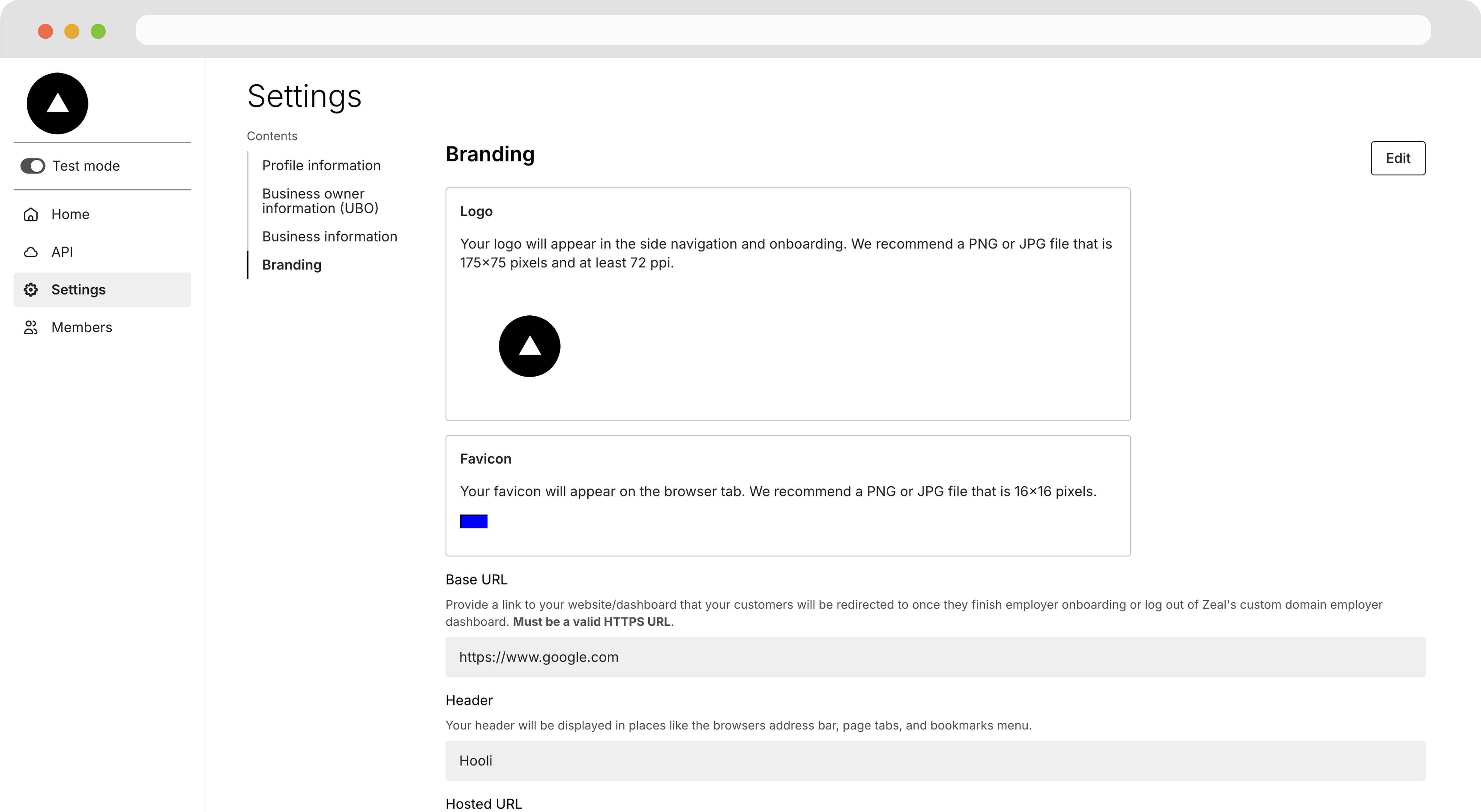
Under the **Settings** page, click the **Edit** button under the **Branding** tab.
***
## White-label configuration
If you plan on using any of Zeal’s white-label components, you want to ensure that everything is branded as your own. To do this you:
1. Configure the domain for the components
2. Set your base URL
3. Brand the components with your logo and favicon
### Configuring your domain
Our integration team sets up your white-label components to point to your desired domain. That way, your URL displays on all the white-label components. Often, our partners choose a subdomain such as *payroll.\[your-domain].com*. Our integration team also assists with your DNS settings.
Typically, the instructions to set up a custom URL for white-label components are as follows:
1. Provide Zeal with your desired subdomain (e.g., payroll.yourcompany.com).
2. You'll receive two CNAME records from Zeal:
1. First CNAME: Set this record as provided by Zeal.
2. Second CNAME: Point your subdomain to app.zeal.com.
3. Add both CNAME records to your domain's DNS settings.
3. Wait for Zeal to complete the backend setup. Once Zeal confirms setup is complete, your white-labeled payroll app should be accessible at your chosen subdomain.
### Setting your base URL
Whenever a user completes an onboarding flow or logs out of a white-label component, you want them to return to a familiar place. For Zeal to know where to redirect your users, you configure a base URL.
Under the **Settings** page, click the **Edit** button under the **Branding** tab.
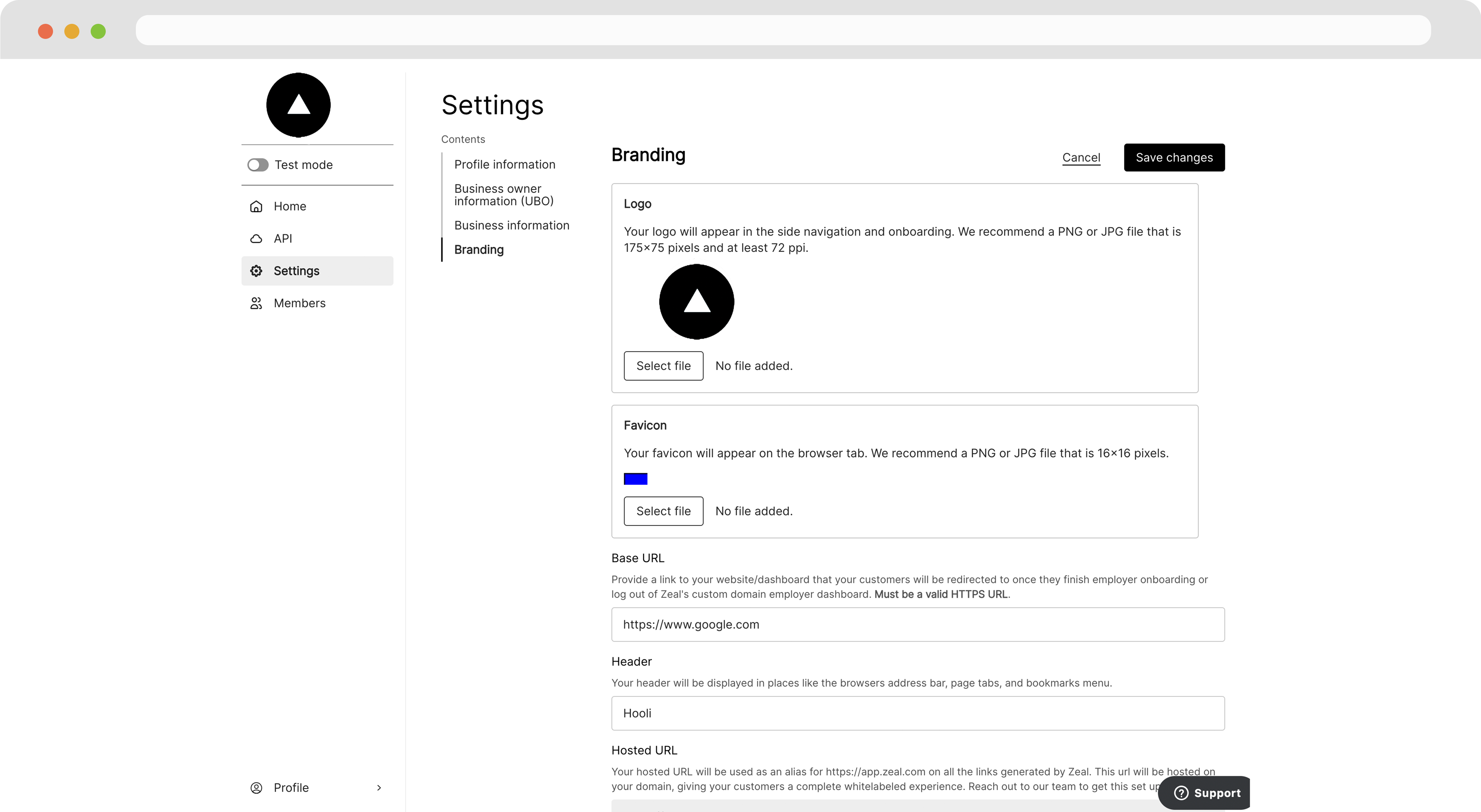 Then, scroll to the **Base URL** field, enter your desired URL, and click **Save changes**.
### Adding your branding
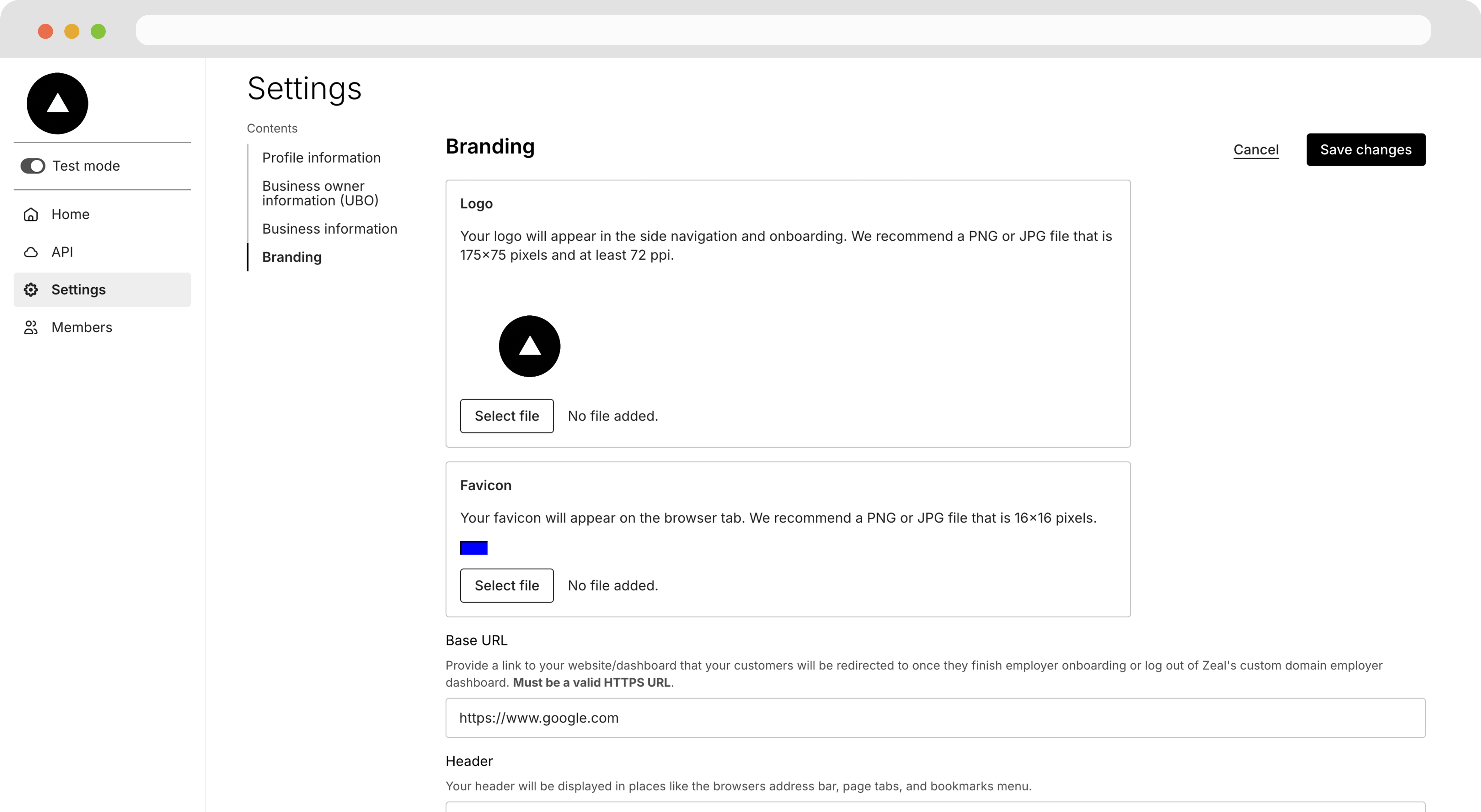
Finally, to brand the white-label components as your own, you can add your logo and favicon (the icon that appears in the browser tab above the URL).
Navigate to the **Settings** page, click on the **Branding** tab, then click the **Edit** button.
Then, scroll to the **Base URL** field, enter your desired URL, and click **Save changes**.
### Adding your branding
Finally, to brand the white-label components as your own, you can add your logo and favicon (the icon that appears in the browser tab above the URL).
Navigate to the **Settings** page, click on the **Branding** tab, then click the **Edit** button.
 Next, click **Select file** and upload images for the logo and favicon respectively. Then click **Save changes.**
 With all the configuration set, the white-label components now are on your domain and branded as your own. Whenever a user navigates away from the component, they are redirected to your site.
***
## API keys
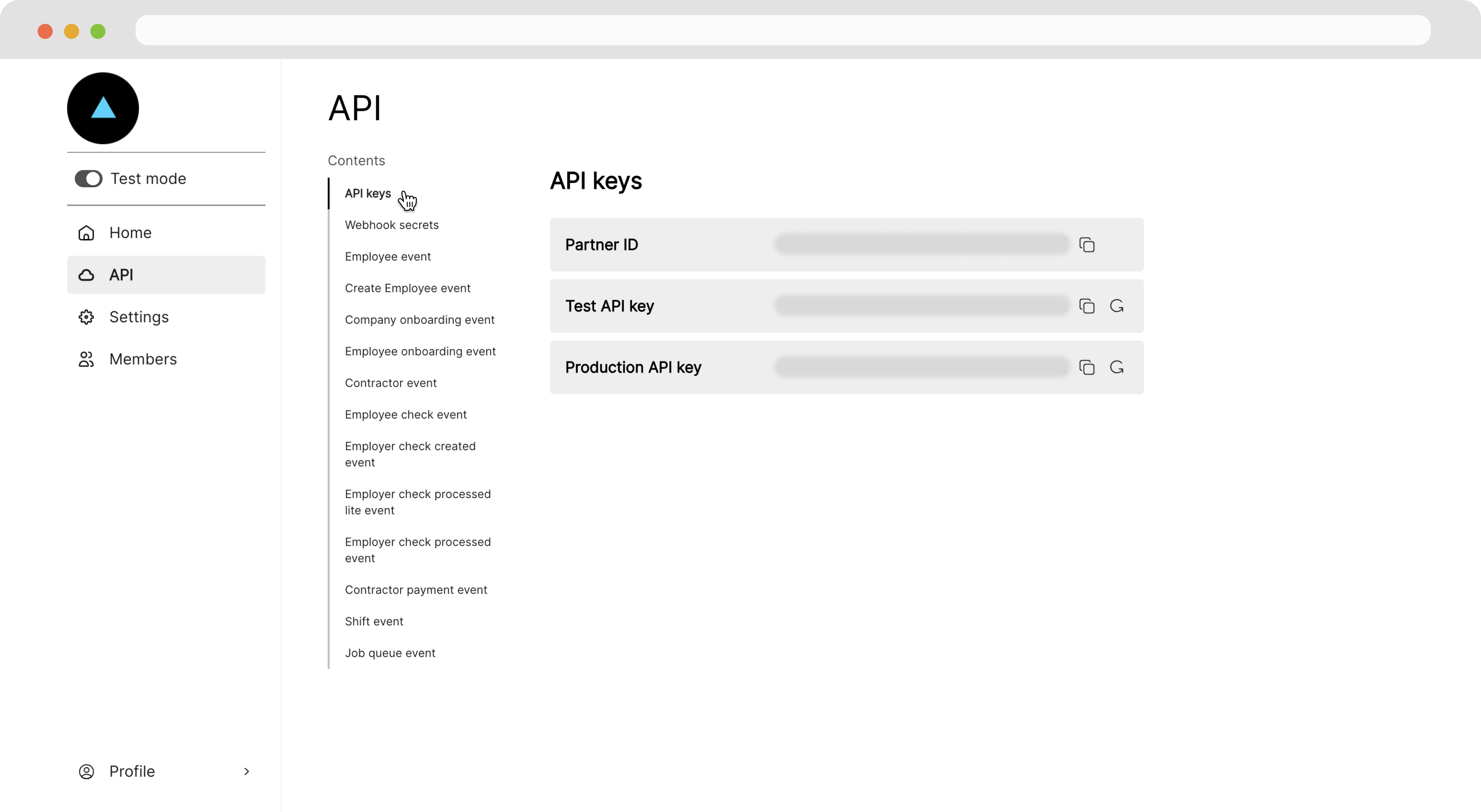
Zeal’s APIs all require an API key for standard bearer token authentication. Additionally, some endpoints may require a `partnerID` in your request. All of these credentials can be found under the **API** page of the Partner Dashboard.
With all the configuration set, the white-label components now are on your domain and branded as your own. Whenever a user navigates away from the component, they are redirected to your site.
***
## API keys
Zeal’s APIs all require an API key for standard bearer token authentication. Additionally, some endpoints may require a `partnerID` in your request. All of these credentials can be found under the **API** page of the Partner Dashboard.
 ### Production versus Test keys
It's important to note the *Production API key* affects *production* resources; payroll is run, money is disbursed, etc. *The Test API key* affects *test* resources; payroll is processed similarly, but without money being disbursed or other real side effects. You should use the Test API key for development and only use the Production API key when deploying your live payroll solution.
### Rolling a key
You should treat API keys as you would any other password; grant access only to those who need it and ensure keys don't enter any version control system.
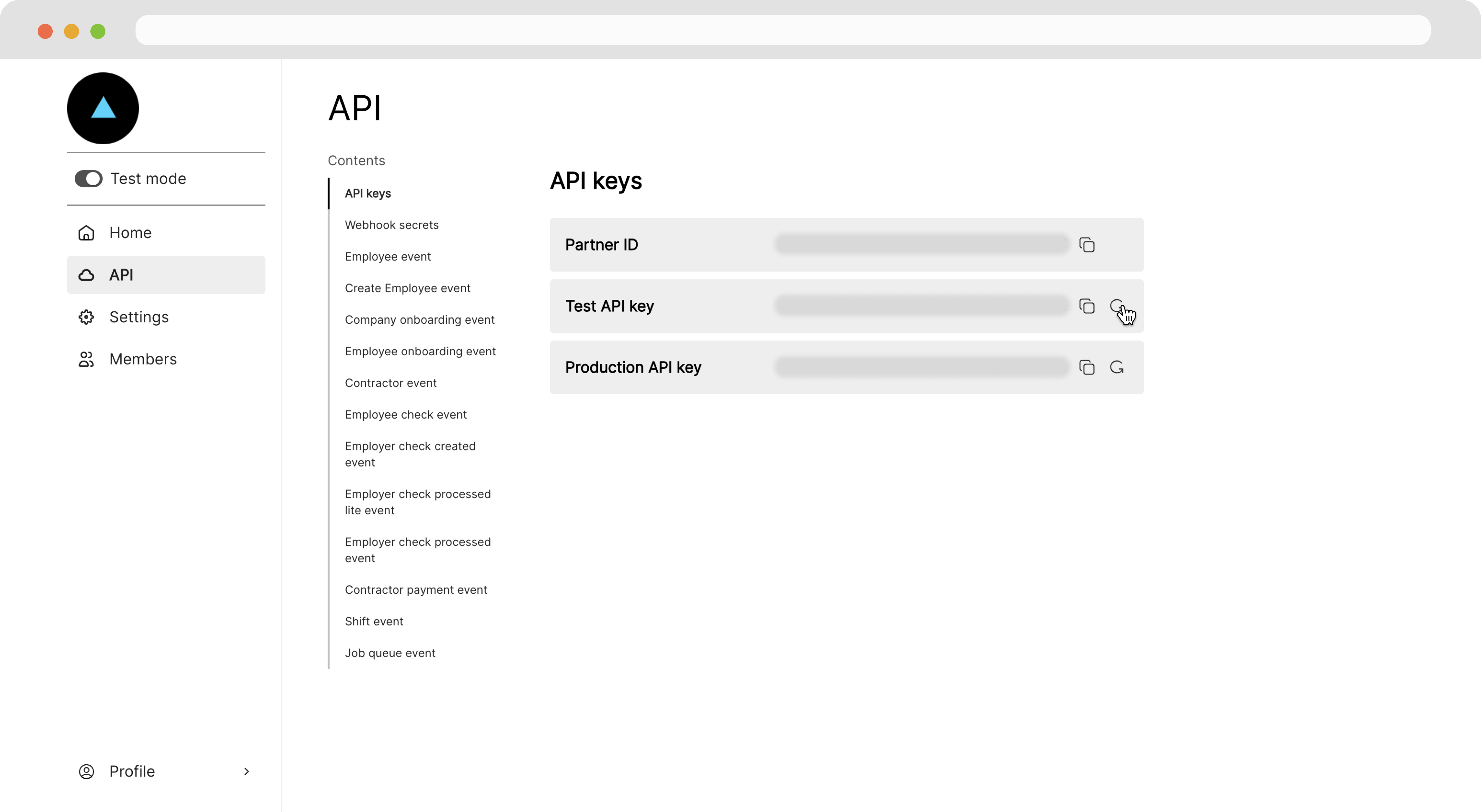
If a key is compromised, you can roll the key from the API page. Simply click the refresh icon next to the key and follow the prompts.
### Production versus Test keys
It's important to note the *Production API key* affects *production* resources; payroll is run, money is disbursed, etc. *The Test API key* affects *test* resources; payroll is processed similarly, but without money being disbursed or other real side effects. You should use the Test API key for development and only use the Production API key when deploying your live payroll solution.
### Rolling a key
You should treat API keys as you would any other password; grant access only to those who need it and ensure keys don't enter any version control system.
If a key is compromised, you can roll the key from the API page. Simply click the refresh icon next to the key and follow the prompts.
 ***
## Webhooks
Webhooks allow you to programmatically *hook* into events. An event could be a user changing data through a white-label component or an *asynchronous* process (something that happens outside of direct interaction with our APIs, such as the processing of Employer Checks). Zeal sends data about events to their corresponding webhook URL configured in your settings.
### Setting a webhook URL
Under the **API** page, are tabs for each webhook event Zeal supports. To set a webhook URL for an event, click on its corresponding tab, paste your URL in the input field, and click **Update**.
***
## Webhooks
Webhooks allow you to programmatically *hook* into events. An event could be a user changing data through a white-label component or an *asynchronous* process (something that happens outside of direct interaction with our APIs, such as the processing of Employer Checks). Zeal sends data about events to their corresponding webhook URL configured in your settings.
### Setting a webhook URL
Under the **API** page, are tabs for each webhook event Zeal supports. To set a webhook URL for an event, click on its corresponding tab, paste your URL in the input field, and click **Update**.
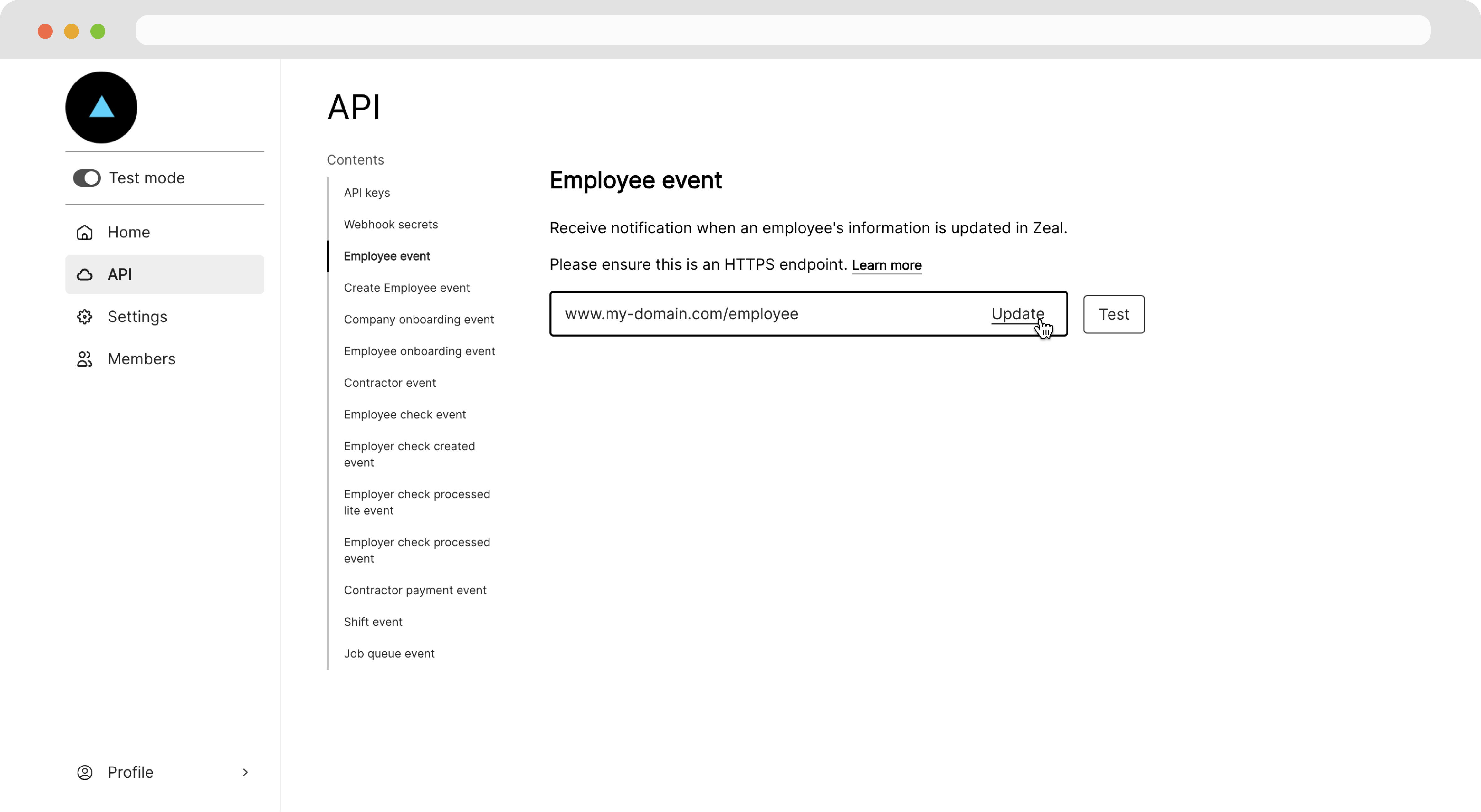 You can test that the webhook is configured correctly by clicking the **Test** button. This sends a default payload to the webhook URL.
### Adding security
Zeal always includes a webhook secret in the header of each payload sent to your system. You can find this secret under the **Webhook secrets** tab on the **API page**.
You can test that the webhook is configured correctly by clicking the **Test** button. This sends a default payload to the webhook URL.
### Adding security
Zeal always includes a webhook secret in the header of each payload sent to your system. You can find this secret under the **Webhook secrets** tab on the **API page**.
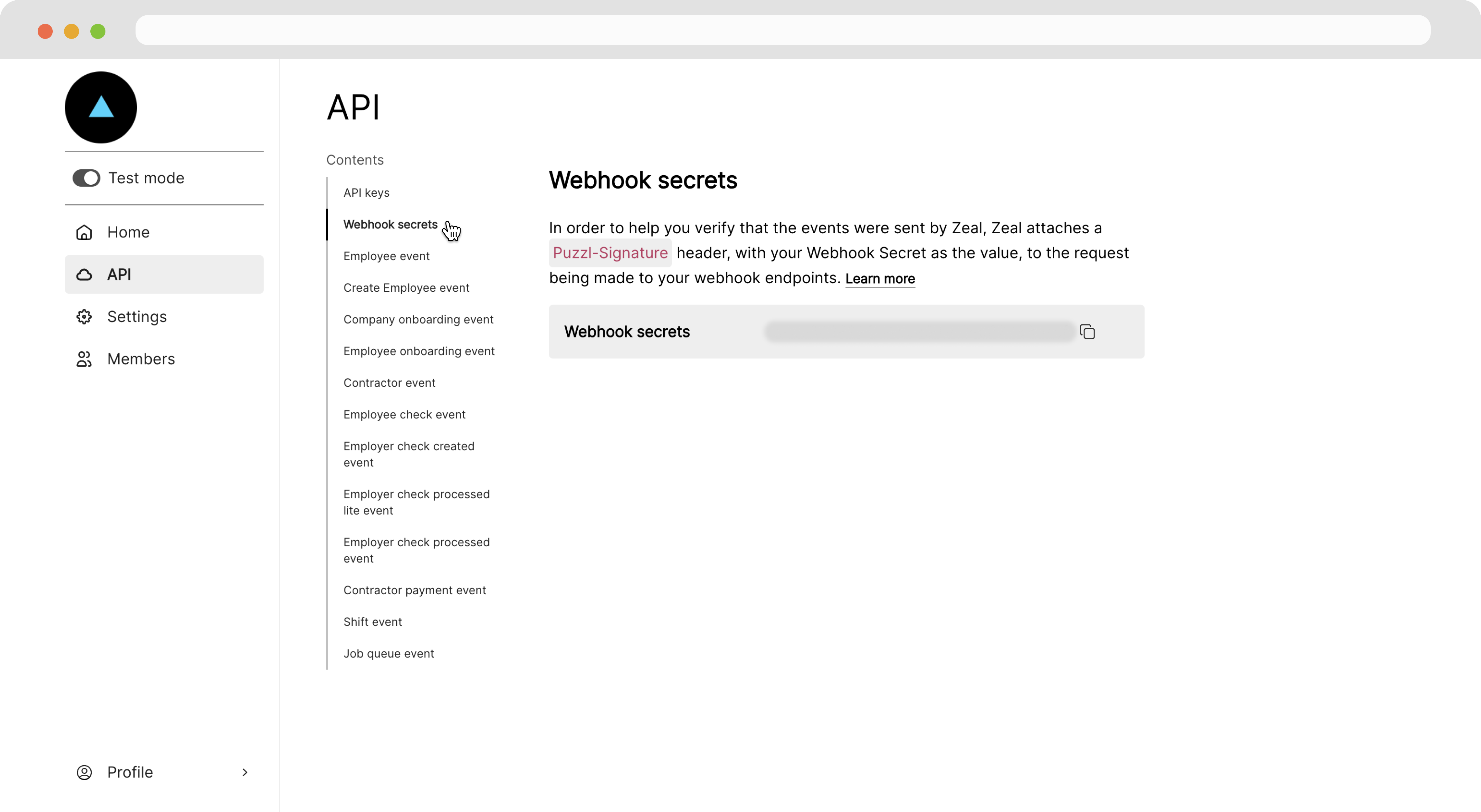 To add a layer of security, you should configure your endpoints (webhook URLs) to only accept requests which include a `Puzzl-Signature` header with this secret.
***
## Recap
* You can manage all your settings and oversee your users from the Partner Dashboard.
* On the **Members** page you can invite your team members to the dashboard.
* To brand your white-label components: configure your domain, add your base URL, and upload your logo and favicon.
* Production and Test API keys are accessed or rolled from the API page.
* Webhooks are also configured from the API page.
To add a layer of security, you should configure your endpoints (webhook URLs) to only accept requests which include a `Puzzl-Signature` header with this secret.
***
## Recap
* You can manage all your settings and oversee your users from the Partner Dashboard.
* On the **Members** page you can invite your team members to the dashboard.
* To brand your white-label components: configure your domain, add your base URL, and upload your logo and favicon.
* Production and Test API keys are accessed or rolled from the API page.
* Webhooks are also configured from the API page.